Call Us Toll Free - US & Canada : +1-(888) 602-0119

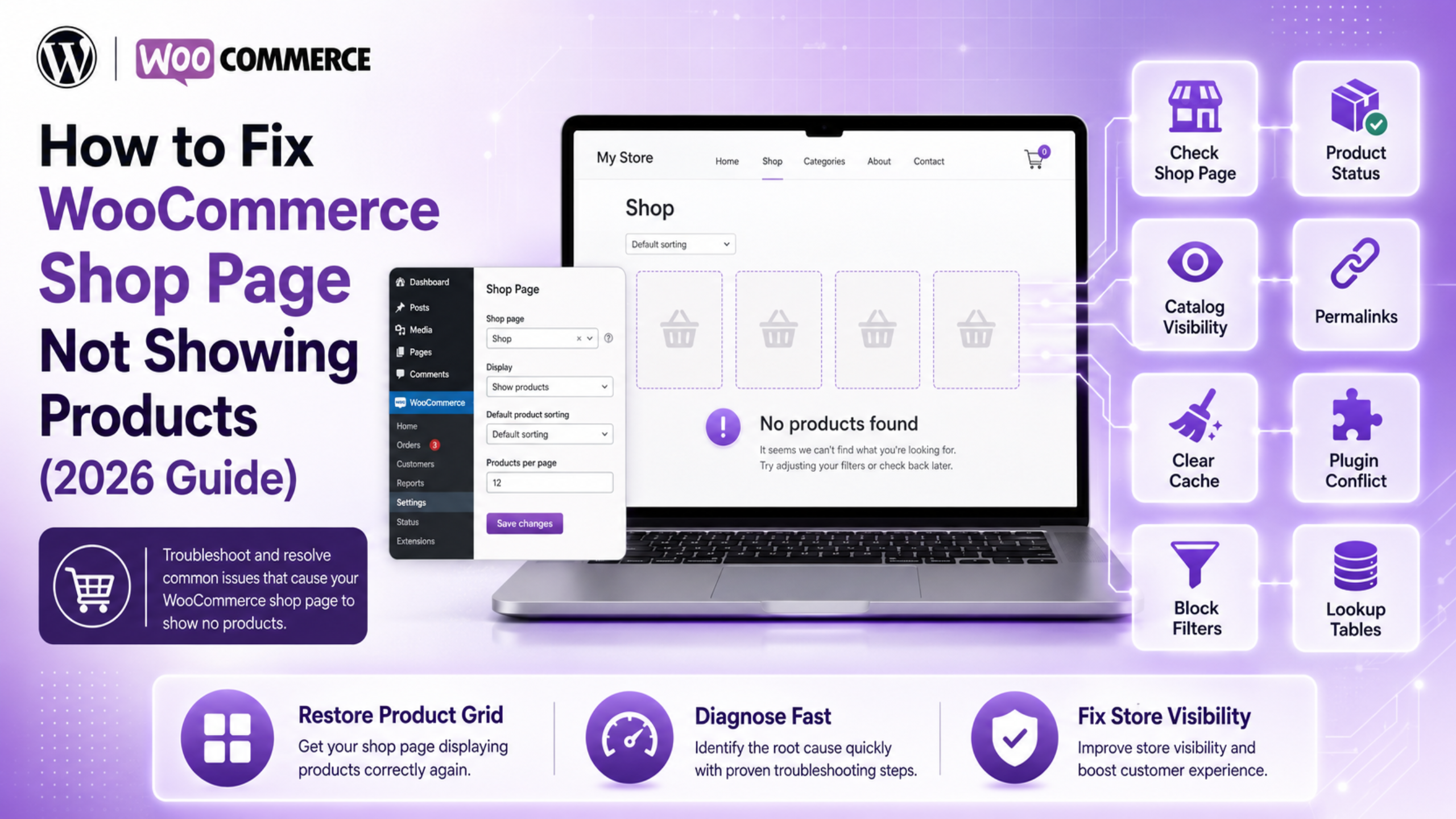
How to Fix WooCommerce Shop Page Not Showing Products (2026 Guide)

A blank shop page is a scary sight. Your products sit safely in the admin area. Yet the shop page shows nothing at all. Every minute it stays empty, you lose sales. The good news is simple. This problem almost always has one small cause. Most store owners fix it in under ten minutes.

This guide covers every common reason for a WooCommerce shop page not showing products. We start with the fast checks. Then we move to the deeper ones. Work through the steps in order. Reload your shop page after each step. That way you learn exactly what fixed it.

Why Your WooCommerce Shop Page Is Not Showing Products

A WooCommerce shop page not showing products is a symptom, not a fault on its own. WooCommerce builds that page from a database query. If anything blocks that query, the page loads but stays bare. The layout still appears. The product grid does not. Some stores show the message no products were found matching your selection where the grid should be. Others load a completely empty space.

There are seven usual causes. The shop page setting points at the wrong page. Your products are drafts instead of published items. Catalog visibility is set to hidden. Permalinks are stale after a move or an update. A cache is serving an old copy of the page. A plugin or theme is filtering the query. Or the product lookup tables have fallen out of sync, which more often distorts sorting and filtering than empties the page completely.

Notice what is missing from that list. Losing your products is very rare. The data is almost always safe in the database. Something is simply stopping it from reaching the screen. You are hunting a blocked query, not lost data.

One more tip before you start. Open your shop page in a private browser window. Logged-in admins often see a different version of a page. A private window shows you what real shoppers see.

Step 1: Check the Shop Page Setting in WooCommerce

In our support work this is the first thing worth checking. WooCommerce needs to know which page is your shop. If that link is empty or wrong, the page renders as a plain, blank page.

Go to WooCommerce → Settings → Products → General. Look at the field marked Shop page. It should name your real shop page. If the box is blank, pick the right page from the dropdown. Then click Save changes at the bottom.

What to do if the shop page is missing

Sometimes the page itself was deleted. Check Pages → Trash first. If it sits there, restore it. If it is gone for good, create a new page called Shop. Leave the content area empty. WooCommerce fills the page for you. Then point the setting at that new page and save.

Now reload your shop page. If products appear, you are done. If the page still looks bare, move to the next step. Do not undo this change. A correct shop page setting matters for the rest of the fixes too.

Step 2: Fix Product Status and Catalog Visibility

Two settings explain most cases of WooCommerce products not showing on the front end. WooCommerce hides products that are not published, and products marked as hidden. Both are easy to miss because they look fine in the admin list.

Open Products → All Products. Look at the counts along the top of the screen. You will see links such as All, Published, Draft and Trash. If the Published count is zero, that is your answer. Your items are drafts or pending review. Tick the boxes next to them. Choose Edit from the Bulk actions menu and click Apply. Set the status to Published and update.

Check catalog visibility on each product

Catalog visibility is a separate setting. A product can be published and still stay hidden. Open any product for editing. In the Publish box on the right, find Catalog visibility. Click Edit next to it. Choose Shop and search results. Click OK, then Update the product.

You can fix many products at once. Select them on the All Products screen. Use Bulk actions, then Edit. A Catalog visibility dropdown appears in the panel. Set it to Catalog & search and click Update. If you have deliberately hidden items in the past, our guide on how to hide products in WooCommerce explains each visibility option in detail.

Step 3: Reset Permalinks and Clear Every Cache

WordPress stores its URL rules in the database. Those rules can break after a site move, a plugin update or a core update. When they break, the shop page loads the wrong template. The result is a page with no products.

The fix takes ten seconds and is completely safe. Go to Settings → Permalinks. Do not change anything. Just click Save Changes. That single click rebuilds all the rewrite rules. Now reload the shop page.

Clear your caches in the right order

Caching is the second half of this step. A cache can keep serving the broken version of your page long after you fix it. Clear them in this order for the best result.

Start with your caching plugin and purge everything. Next, clear your host’s server cache from your hosting panel. Then purge your CDN if you use one. Finally, clear your own browser cache, or just open a private window. Test the shop page after each purge.

Step 4: Find the Plugin or Theme Conflict

If the page is still empty, something is filtering the product query. A WooCommerce plugin conflict is the likely culprit, and your theme is the next suspect. Conflict testing sounds risky, but it is safe when you do it properly.

Never test on a live store during busy hours. Use a staging copy if you have one. If you must test live, pick your quietest hour and work fast.

How to run the conflict test

Deactivate every plugin except WooCommerce. Reload the shop page. If products appear, a plugin is the cause. Now switch them back on one at a time. Check the shop page after each one. The plugin that breaks the page is your answer.

If the page is still empty with only WooCommerce active, the theme is next. Switch to a default WordPress theme for a moment. Reload the shop page again. If products appear, your theme is filtering them out. Switch back to your own theme right after the test. Then contact the theme author with what you found.

Keep a note as you go. Write down each plugin name and what the shop page looked like after it.

Common conflict sources to check first

Some plugin types cause this far more often than others. Product filter and search tools rewrite the main query. Membership and role-based pricing tools can hide products from certain visitors. Multi-currency and regional tools sometimes hide items with no price in the active currency. Import tools can leave products in a half-finished state. Start your testing with these groups and you will usually find the cause quickly.

Recently updated plugins deserve a look too. Check your update history and note anything changed in the last week. That is often where the fault began. If one plugin turns out to be the cause, roll it back to the older version first. Then report the bug so the author can fix it properly.

Step 5: Fix Block Theme and Product Collection Issues

Block themes changed how the shop page works. With a block theme, the shop page is a template, not a classic page. WooCommerce fills it using the Product Collection block. That block has its own filters, and those filters can empty your grid.

Go to Appearance → Editor → Templates. Open the template named Product Catalog. Click on the product grid to select the block. Now open the settings panel on the right.

Check the block filters

Look at the Filters section. Common traps include a stock status filter set to In stock, a category filter pointing at an empty category, and an attribute filter with no matches. Remove any filter you do not need. Save the template and reload the shop page.

Watch the “Products per page” value too. A very high number can time out on a large catalog. Set it to 12 or 16 and test again. If the message reads “There are no products to display”, the block is working but the filters return nothing. That message is a clue, not a failure. It tells you the fault is in the filters, not in your data.

Step 6: Repair the WooCommerce Product Lookup Tables

WooCommerce keeps copies of key product data in lookup tables. These tables make the shop page load fast. They also break silently. A failed import or an interrupted update can leave them out of sync. When that happens, WooCommerce queries the tables, finds nothing, and shows an empty grid.

Go to WooCommerce → Status → Tools. Find the row called Product lookup tables. Click Regenerate. The button changes to show progress. Do not refresh the page while it runs. Large catalogs can take several minutes.

While you are on this screen, look for Reset product count cache as well. It rebuilds the counts shown against each category and attribute. Run it if your categories list numbers that do not match what the shop page displays.

If the regeneration gets stuck

The job runs through the scheduler in the background. If the scheduler is stalled, the job stalls too. Go to WooCommerce → Status → Scheduled Actions and check the Pending tab. A long queue of old pending actions means your cron is not firing. Ask your host to check the server cron, or trigger it manually.

While you are on the Status screen, open the System status tab. Look for red warnings about database tables. A missing table here explains a lot of odd behaviour across the store, including problems like product pages that will not open.

How to Keep Your Shop Page Working

Fixing the page is only half the job. Keeping it working is the part that saves you time later. A few habits make a real difference.

Update on staging first, never straight on the live store. Test the shop page right after every WooCommerce or theme update. Keep a short list of the plugins that touch products, so conflict testing starts in the right place. Set up simple uptime monitoring on the shop URL itself, not just the home page. A blank page still returns a healthy status code, so monitor the page content, not only the response.

It also helps to know the shortcode fallback. If your template is broken, you can drop the products shortcode onto any page. That gives you a working product grid while you repair the real one. Our guide to WooCommerce shortcodes lists the ones worth keeping to hand. Finally, take a backup before any conflict test.

Get Expert Help With Your WooCommerce Store

A WooCommerce shop page not showing products almost always comes down to one of the six steps above. Work through them in order and you will find the cause. If your WooCommerce shop page is still not working after all six steps, the fault usually sits deeper. A large catalog, heavy customisation or a stack of old plugins can hide the real fault. Broken product queries often sit alongside other store problems, such as issues in the checkout process, and those need a careful look.

If your shop page is still empty, do not keep guessing while sales slip away. Our WooCommerce experts fix these faults every day. We find the cause, repair it safely, and harden your store so it does not happen again. Talk to the WP Customify team today and get your products back in front of buyers.

Top 10 WooCommerce Coupon Plugins to boost sales in 2022

Nowadays, people are always on the lookout for exclusive deals, vouchers, and discounts. So, you can say that coupons are the driving force to earn exclusive deals and customer loyalty. As per the sources, 90% of shoppers utilized coupons in 2020.

Note:- You are missing great opportunities if you fail to include them on your e-Commerce website.

Key takeaways:

  • Coupons are the best way to drive clients and expand the customer base.
  • Coupons can assist you to introduce new products
  • Encourage new customers.
  • It attracts existing clients to purchase from your store.

WooCommerce is an incredible eCommerce solution. It can be utilized for any online platform. Business owners initiate this solution because of its open-source nature.

The eCommerce plugins work flawlessly with WordPress. It has raised its fame because of its adaptability and adjustability. The statistics of WooCommerce make it a superior comprehension in the digital world.

According to SoftwareFindr, six percent of online sites and twenty-six percent of online use WooCommerce to develop a strong eCommerce business.

Using WooCommerce and WordPress coupon plugins is the game changer if you are running an online business. It is a powerful yet simple way to boost engagement and solidify loyal clients.

What must you contemplate for WooCommerce coupon plugins?

There is a huge range of WooCommerce and WordPress coupon plugins. You can use a handful of factors like discounts types, budget, and WooCommerce-specific features. Perhaps you must look for a straightforward and basic solution for displaying and developing coupons on your website.

Tips to provide coupons to attain maximum potential clients for your WooCommerce website

Now, you have learned about the solid foundation regarding WordPress coupons plugins. Let us check some prominent ways that guarantee a great discount option that works with the customers:-

  • Easy to find products:

Have an awesome coupon for the product? Do your clients face difficulty tracking down your product? If yes, then you are nothing but a failure. You need to develop an easy deal so that your clients can directly get to you and finalize their purchases

  • Import coupons for your clients

It is not good if your visitors hunt on your website for codes. You need to place the coupons, discounts, or sales at the center of the website. This will capture the interest of the client.

  • Keep relevancy

You must present the coupons that are relevant to the products that your clients have purchased. This is applicable for those products that are available in the shopping carts currently.

  • Customization of the coupons

The coupons that you provide your user are the development of your brand. If you use strong copy, it can make your potential users endure like they are getting rare deals.

  • Do not overdo it

If you overload your website with vouchers and deals, it will make things less exclusive. Try to experiment with attractive and varied messages & coupons. It will make things fresh.

  • Make a deal

Nowadays, many visitors do not have any trouble sharing their email addresses. It is not simple to provide your clients with special discounts to secure sales. You need to have a proper strategy and finesse to retain, engage, and acquire potential clients.

Top 10 WooCommerce Coupon Plugins

1. WooCommerce Discount Rules by Flycart

flycart

This WooCommerce Coupon Plugin goes past the basic coupon-based discounts. It provides you with huge loads of features.

It assists you to build dynamic discounts and pricing in the WooCommerce store.

Now, these conditions are based on the following:-

  • Roles of the users
  • Categories
  • Quantity
  • The email id of the customers
  • History of the purchases
  • Shipping address
  • User roles
  • Products
  • Variants
  • Attributes
  • Order total

So you can build for mass tiered pricing deals, cart discounts, or total-based discounts.

You can set discount rules to automatically apply or after utilizing a coupon code. A similar coupon code can likewise be utilized to activate different discount rules.

The fundamental benefit of this coupon plugin is that it permits you to make discount rules in three basic steps.

The odds of clients forsaking your store cart will be negligible. It is in light of the fact that the plugin assists in displaying the discounts right on the cart or product page.

You can purchase this WordPress coupon plugin for $49 per year.

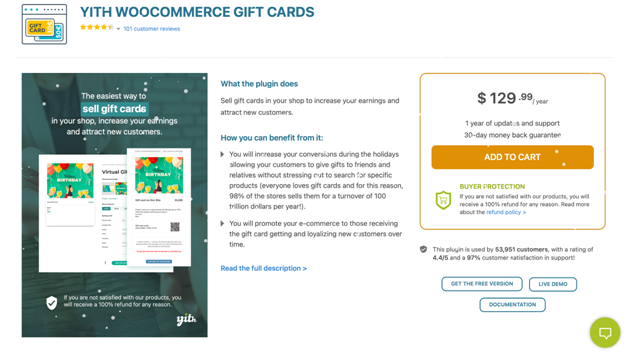
2. YITH WooCommerce Gift Cards

This is one of the best WooCommerce Coupon Plugins. It empowers you to provide your site visitors with the opportunity to buy gift cards to your WooCommerce store.

Yith woocommerce

Ideally, you can send these gift vouchers to new potential clients who will make purchases. They will become loyal adherents of your brands. This is a gainful methodology for lead generation.

For instance, you can make digital and physical gift vouchers. It will permit your clients to set their own gift voucher sums. There are numerous other features also that you can enjoy.

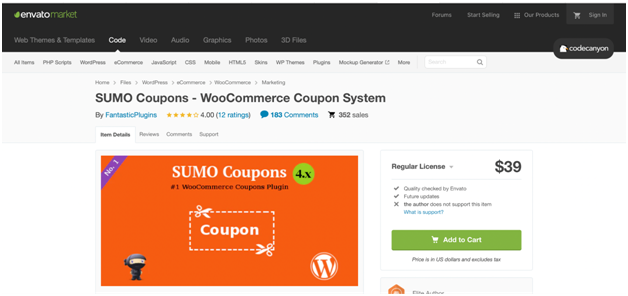
3. SUMO Coupons – WooCommerce Coupon System

Sumo Coupons

SUMO Coupons is the best WooCommerce coupon framework. This WooCommerce Coupon Plugins is best for your online store. Using SUMO Coupons, you can give your clients great coupons for Sign up, social media promotions, Product Purchases, and writing Reviews.

It contains three coupon modes, they are:-

  • Email Coupon Mode
  • Credit Coupon Mode
  • Auto Apply Coupon Mode

You can provide fixed discounts and percentage discounts through coupons using this system of WooCommerce coupons.

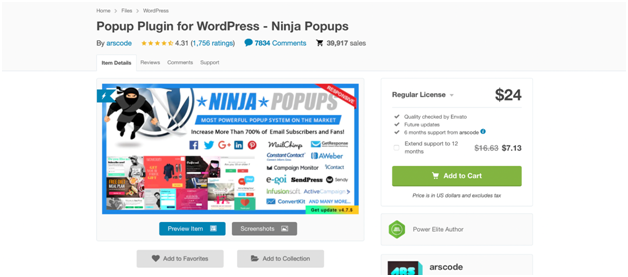
4. Ninja Popups

This is a one-of-a-kind WooCommerce Coupon Plugins. It allows you to add vouchers to pop-ups that it showcases to your WordPress site guests. You can make your popup utilizing the visual editor. You can take advantage of new themes for added creativity and inspiration.

Ninja Coupons

Also, there are eight opt-in panels to choose from seventy-four animation effects.

This dynamic WooCommerce coupon plugin is mobile-friendly and responsive. It can be deciphered utilizing the WPML plugin. It even coordinates with well-known email service providers.

Additionally, you can coordinate your cherished social media networks. It includes Facebook, Twitter, LinkedIn, Google+, and Pinterest

Ninja Popups isn’t an explicitly designed WordPress coupon plugin. But you will love its adaptability.

5. WooCommerce Ultimate Points and Rewards

This WooCommerce Coupon Plugin is a complete answer for compensating clients to your online store.

ultimate points

With this WordPress coupon plugin, you can relegate points to product categories and individual items. You can design the settings to permit your clients to impart points to different clients. You can deduct the points and manually add them to the accounts of the customers.

The fundamental benefit of utilizing this WooCommerce coupon plugin is that it makes it simple for you to secure new clients. It can likewise assist you to build product reviews and boosting referral marketing.

6. WP Coupons and Deals

Your search is over if you are seeking a powerful yet simple WordPress coupon plugin. You can add discounts and vouchers to your site’s pages and posts.

coupons deals

Unlike other WooCommerce coupon plugins, this one is designated explicitly for affiliate marketers.

It is intended to assist to promote deals and affiliate vouchers. WP Coupons and Deals secures your deals by guaranteeing guests to click on your affiliate links.

7. Coupon Creator

This WordPress plugin is a simple-to-utilize custom post type with a couple of settings to design. You should simply generate a shortcode. You can place your coupon on any page or post you need.

Coupons Creators

With this WordPress plugin, you can display your coupons. You can display and create WooCommerce-explicit coupons. You can exploit the speedy and mass functionality of the expiration date.

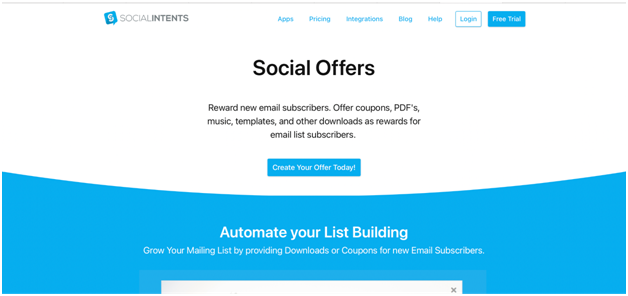
8. Social Offers

Social Offers

It is a strong WordPress coupon plugins. This plugin likewise upholds additional premium applications. For example, an email list builder for expanding supporters or a Live Chat function.

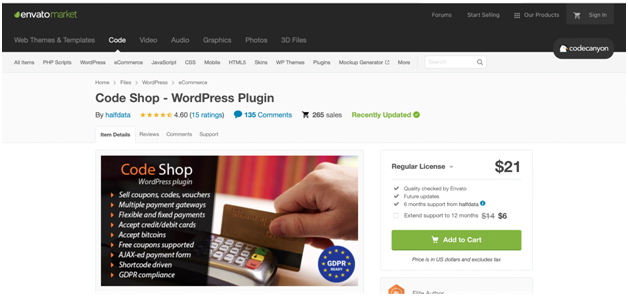
9. Code Shop for WordPress

It is a strong WordPress coupon plugin that allows you to offer the following categories.

  • Licenses
  • Coupons
  • vouchers

You can provide these directly from your websites. It interfaces flawlessly with payment gateways like PayPal, Authorize.Net, and Stripe.

Code shop

It allows unlimited campaigns. You can convey coupons, vouchers, or permit codes by means of email. You can even convert it into numerous languages for reaching a worldwide audience. Hence, you can create more revenue.

10. Coupon Wheel For WooCommerce and WP

Coupon Wheel For WooCommerce and WP will take you back to your childhood. Do you remember spinning a fortune wheel to get your favorite toys and candies? With this WordPress coupon plugin, your clients will enjoy fortune with different limits.

The most outstanding aspect of this WooCommerce coupon plugin is the discount wheel. Hence, your clients can display the exit intent. This WordPress plugin is viable with iOS and Android devices.

You can try these and make your online business phoenix amazon your competitors.

How to integrate WooCommerce with Coupon Plugins?

First, you need to “Enable coupons

For this visit “WooCommerce” and choose “Settings”.

Click “General” and tap “Enable coupons”. To do this, you need to choose the box “Enable the use of coupon codes” in your store.

Enable Settings

Next, we need to manage the General Settings

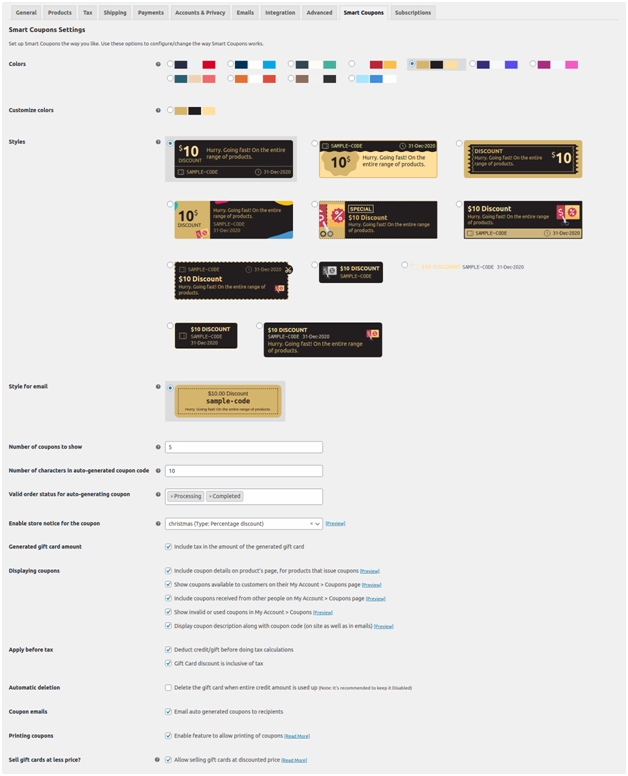
To do this go to “WooCommerce”. Then tap the button “Settings”. Click the tab “Smart Coupons”. You will see the settings of Smart Coupons as shown in the image below:-

Smart coupon seattings

Shop

  • The generated amount for store credit: Enable/ check “Include tax in the amount of the generated store credit”. If it is unchecked/ disabled then the credited amount will be less than the amount paid by the client.

● Display Coupons: This is a section where you can do the settings related to displaying coupons.
● You can include the details related to the coupons on your product page.

Woo logo

You can display the coupons available to your shoppers on their accounts. For this click “My Account” and tap “Coupons page”.

Coupons

You can even list the coupons listed by other people. To do this, click “ My Account”. Next, you need to tap “Coupons page”.

Coupons Received

You can display the used or invalid coupons. Tap “My Account” and click “Coupons”.

invalid coupons

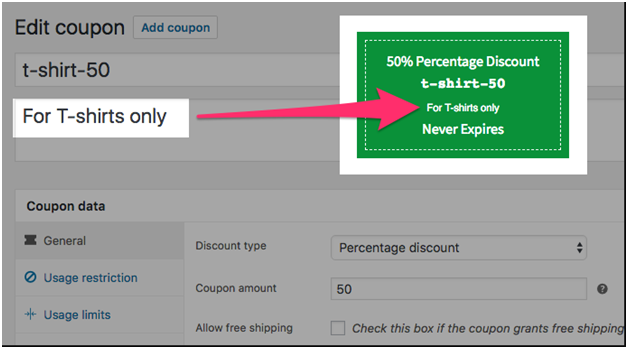
You can also display the description of coupons along with the coupon code.

Edit coupon

In conclusion!!

It is just a common misconception that coupons are used by shoppers who look for bargains. But in a real-time scenario, it is highly appreciated by all types of customers.

Consider checking the following stats if you have doubts regarding this:-

  1. 96% of shoppers will love to use coupons if they already have one.
  2. 49% of users look to shop at discounted rates.
  3. 79% of millennials and Gen Zers check for discounted programs or loyalty from their favorite brands.

With pandemics on the rise, shoppers look for ways to purchase online. Shoppers are struggling hard with the economy. Hence, as the business owner, it is vital for you to consider the strategies. Employing coupons for your eCommerce store is one of the best strategies that you must take for your business. This will assist you to earn long-term acquisition of customers, loyalty, and satisfaction.

Planning to implement WooCommerce Coupon Plugins for your WordPress site, hire WP Customify. With us, you can get support services, configuration support, etc. We can help you streamline and design your WordPress upkeep and site maintenance. Hence you can pay special attention to boosting the conversion and driving traffic. Contact us today!!