
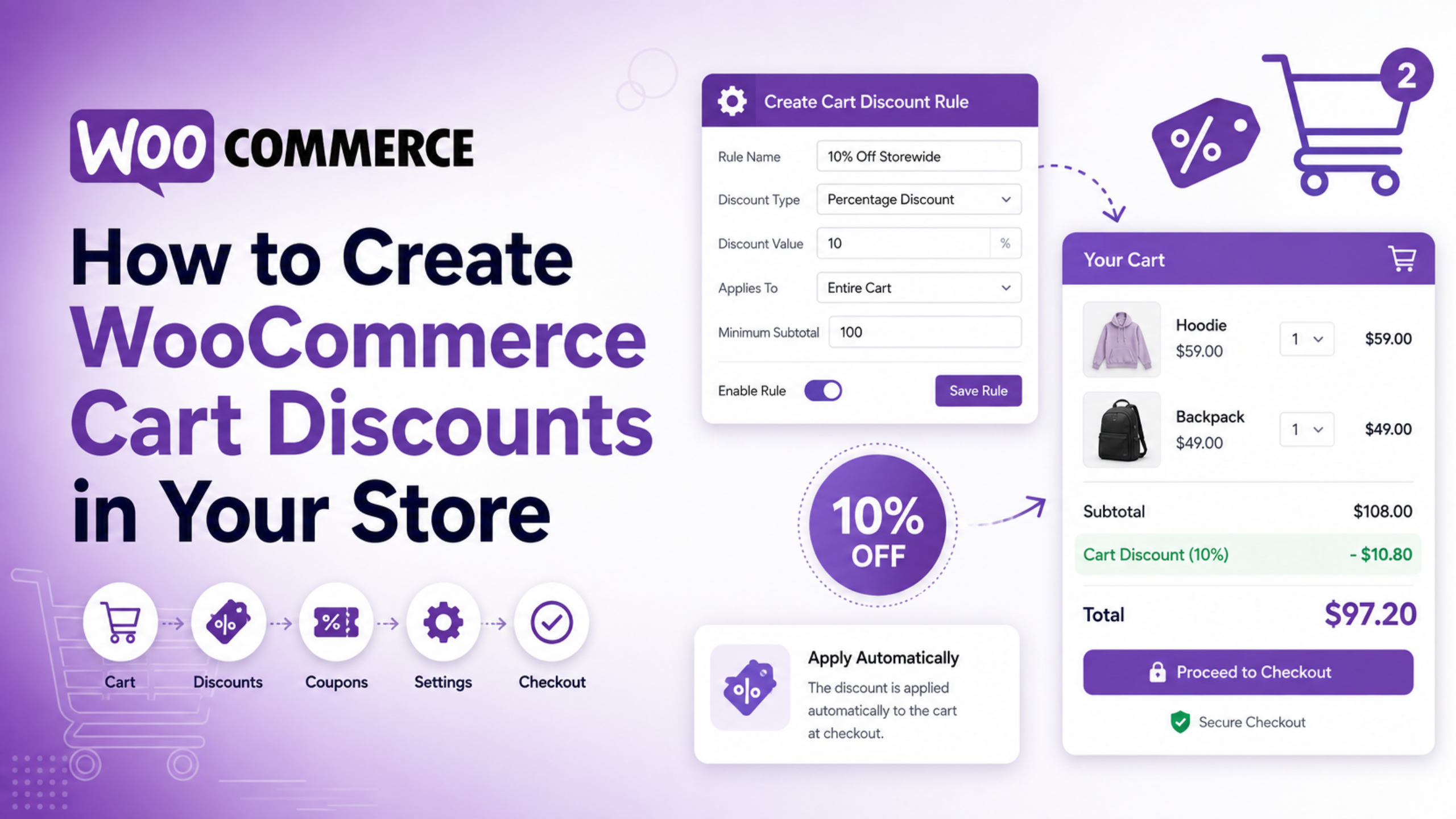
WooCommerce cart discounts are built from coupons, not from a separate discount screen. New store owners hunt for that screen and never find it. There is no such page. Every price cut in WooCommerce core starts as a coupon record. You set a rule once. Then you hand out a code. This guide covers the three discount types, the settings that shape them, and the quiet traps that make a working coupon look broken.
Which of the Three WooCommerce Cart Discounts Do You Need?
Pick the type first. Choosing wrong is the most common setup error, and it costs real money. WooCommerce core gives you three options in the Discount type dropdown.
Fixed cart discount takes a flat amount off the whole cart. A $10 coupon on a $60 cart removes $10. One cart, one deduction. Use it for “$10 off your order” promotions.
Percentage discount removes a share of the price. A 10% coupon on that same $60 cart removes $6. Use it when order sizes vary a lot. The discount scales with the basket.
Fixed product discount is the one that bites people. It takes the amount off each matching item, not off the cart. Three shirts at $20 with a $10 fixed product coupon means $30 off, not $10. Three items, three deductions. That is by design.
Ask one question to decide. Should the discount grow when the shopper buys more? If yes, use percentage or fixed product. If no, use fixed cart. Store owners who want “$10 off” and pick fixed product often give away far more than they planned.
There is a second question worth asking. Does the discount need to target certain products? Fixed cart cannot really do that, because it works on the cart as a whole. Percentage and fixed product both can, once you name the products or categories. Answer both questions before you open the coupon screen, and the rest of the setup takes minutes.
Turn On Coupons Before You Build Anything
The coupon field can be switched off store-wide. If it is off, your discount works in the admin but never reaches a shopper. Check this first.
Go to WooCommerce > Settings > General. Find the Enable coupons row. Tick Enable the use of coupon codes. Click Save changes at the bottom. The box is ticked by default on a fresh install, but themes, staging imports and setup wizards do untick it.
Now look at your cart page. On the classic cart shortcode you should see a coupon box near the totals. On the block-based Cart and Checkout you see a small Add coupons link instead. The field is collapsed behind that link by default. Shoppers miss it constantly, which shows up as “nobody used my coupon” rather than as an error.
Worth knowing: the two layouts behave differently. If your cart page still uses the classic shortcode, our guide to WooCommerce shortcodes explains which shortcode renders which page. Confirm the layout you have before you blame the coupon.
Create a Fixed Cart Discount Step by Step
Coupons live under Marketing > Coupons. Not under Products. Not under WooCommerce. That path alone stalls a lot of first attempts.
Click Add new coupon. Then work through the screen in this order.
Type a Coupon code in the title field, or click Generate coupon code for a random one. Codes are not case-sensitive. SAVE10 and save10 are the same coupon. Special characters like &, $, – and @ are allowed, but plain letters and numbers travel better in print and email.
Add a Description. Customers never see it. Use it for the campaign name and end date, so a teammate can read the coupon list six months later and know what each code was for.
In the General tab, set Discount type to Fixed cart discount. Enter the Coupon amount as a bare number. Type 10, not $10 and not 10%. WooCommerce adds the symbol from your currency settings. A stray symbol here saves without warning and then applies oddly.
Leave Allow free shipping unticked unless you mean it. Set Coupon expiry date if the promotion ends. Then click Publish.
Percentage and Fixed Product Discounts in Practice
The build steps are the same. Only the amount field changes meaning.
For a percentage discount, enter 15 to mean 15% off. WooCommerce applies it to the cart subtotal by default. If you fill the Products or Product categories box under Usage restrictions, it applies to those lines only. That is how you run “20% off winter stock” without discounting the rest of the store.
Fixed product discounts need one of those boxes filled almost every time. Leave them empty and the coupon takes the amount off every single line in the cart. On a ten-item basket a $5 coupon becomes $50 off. Fill in Products, and only those lines get the deduction.
There is a rounding detail worth knowing. WooCommerce applies coupons to product prices before tax, and splits a fixed cart discount across the cart lines in proportion. This keeps tax maths accurate. It also means the per-line figures in an order will look slightly odd if you check them by hand. Nothing is wrong. If your store margins depend on volume rather than single orders, a tiered pricing setup may serve you better than a flat code.
Usage Restrictions That Protect Your Margin
The Usage restrictions tab decides who qualifies. Most discount leaks happen because this tab was left blank.
Minimum spend sets the smallest subtotal that can use the code. This is the single most useful field on the screen. It stops a $10 coupon from wiping out a $12 order. One trap: WooCommerce compares against the subtotal plus tax. On a tax-inclusive store, a $50 minimum triggers a little earlier than you expect. Test it with a real cart.
Maximum spend caps the other end. It is rarely needed, but useful for percentage codes on high-value carts.
Individual use only blocks the code from stacking with any other coupon. Tick it on every deep discount. Without it, a shopper who finds two codes can apply both.
Exclude sale items keeps the coupon off products that already have a sale price. Note the documented quirk: per-cart coupons do not behave as expected when a sale item is added after the coupon. The shopper sees a discount that seems to survive when it should not.
Allowed emails ties a code to specific billing addresses. Wildcards work, so *@example.com lets a whole domain through.
Usage Limits and Expiry Dates Done Right
The Usage limits tab has three fields and one hidden dependency.
Usage limit per coupon is the total number of uses across all shoppers. Set it for anything you post publicly. A code that leaks to a deal forum with no cap is how stores lose a month of margin overnight.
Usage limit per user caps how often one customer can redeem it. Here is the catch most guides skip: this check leans on the account or billing email. A guest shopper who checks out with a new email each time is not reliably blocked. If a one-per-customer rule really matters, require an account at checkout.
Limit usage to X items only works if the Products field in Usage restrictions is filled. Leave Products empty and this field does nothing at all. It saves without complaint, which makes it look active when it is not.
On expiry, set the date and then check Settings > General in WordPress for your site timezone. Expiry follows the store clock, not the shopper’s. If a campaign must run through a specific evening, test the code late on that day before you promote it.
Settings That Break Discounts Quietly
These are the ones support engineers see weekly. None of them throw an obvious error.
Coupons never reduce shipping. They apply to cart items, and shipping is not a cart item. A code that covers the full product total still leaves a $10 shipping charge to pay. The only exception is a free shipping coupon, and that needs two pieces: Allow free shipping ticked on the coupon, plus a Free Shipping method set to require a valid coupon. Miss the second half and nothing changes. Our post on free shipping not applying walks through that pairing.
A coupon in the Trash still holds its code. Try to create a new coupon with the same code and it will clash. Empty the Trash under Marketing > Coupons first.
Scheduled coupons trip people up too. The Publish box lets you set a future date. A coupon scheduled for next week is not live now, and applying it returns a “does not exist” style message rather than a helpful one.
Finally, stacked codes do not compound by default. Two 10% coupons give 20% off the original subtotal, not 19%. Plan promotions with that in mind, or tick Individual use only.
Test Every Discount Before You Announce It
Never send a code out untested. Five minutes of checking prevents most refund requests.
Test as a real shopper, not as an admin. Open a private browser window and log out. Admin sessions can carry cached cart data and skip rules that a normal visitor hits. This one habit catches more problems than any other step.
Build the smallest cart that should qualify. If your minimum spend is $50, try a $49 cart first. The coupon should be refused. Then add an item to cross the line and confirm it applies. You have now proved both halves of the rule.
Check the totals block, not just the coupon message. Read the discount line and the final total. A fixed product coupon on a multi-item cart is where the number usually surprises people. Compare it against what you expected to give away.
Then place a full test order and open it under WooCommerce > Orders. The order should list the code and the amount deducted. If the coupon vanished between cart and order, you have a session or caching problem rather than a coupon problem. Our notes on checkout process issues in WooCommerce cover that split.
Finally, check the coupon list. The Usage / Limit column should now read 1. If it still reads 0, the order did not record the redemption, and your usage limits will not hold.
Get Your WooCommerce Discounts Set Up Properly
Discounts look simple until one behaves in a way you cannot explain. A fixed product coupon multiplies. A minimum spend fires early. A code works for you in the admin and fails for a real shopper. Each of those has a specific cause, and none of them announce themselves.
If a promotion is close and the numbers are not adding up, get a second pair of eyes on the configuration before you send the email. A short review of your coupon rules, tax settings and cart layout is far cheaper than a discount that runs away for a weekend. It is also faster than working through every field on your own.
The team at WP Customify works on WooCommerce stores every day. We set up discount rules, fix coupons that refuse to apply, and audit checkout so the code your shopper types actually lands. If you would rather spend the week selling than testing coupon combinations, we can take it off your plate. Visit WP Customify and tell us what your promotion needs to do. We will handle the rest.