
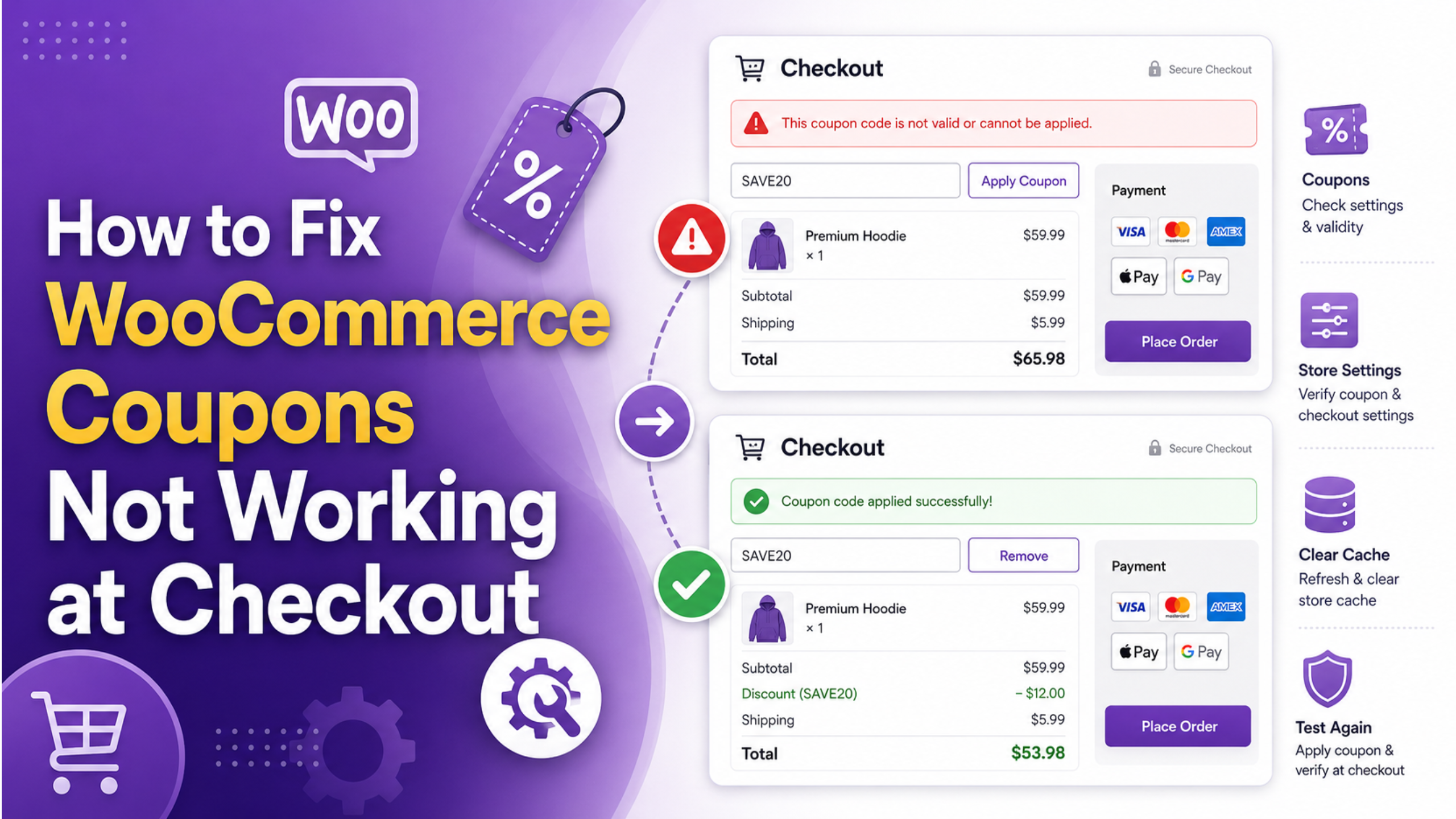
WooCommerce coupons not working at checkout is rarely one problem. It is four or five different problems that all end with an unhappy shopper. The good news is that WooCommerce usually tells you which one you have. The message under the coupon box is a specific string, not generic filler. Read it first, and you can skip most of the fixes below. This guide maps each message to its cause, then covers the silent failures that show no message at all.
Start With the Error Message, Not the Settings
Do not open the coupon and start changing fields. Reproduce the failure first and write down the exact wording. Each string points at a different part of the system.
Open a private browser window. Log out. Add the same products your customer had. Then apply the code and read what appears.
You will see one of four families of message. “Coupon “X” does not exist!” means WooCommerce cannot find that code at all. That is a lookup problem, not a rules problem. “This coupon has expired.” and “Coupon usage limit has been reached.” are different. The coupon was found. It was then rejected on a date or a count. “Sorry, this coupon is not applicable to your cart contents.” means it was rejected on the cart itself. No message at all means the request never reached WooCommerce.
Those four families need four different fixes. Guessing between them is why this issue takes people a whole afternoon. Sort the message first and you cut the work by three quarters.
WooCommerce Coupons Not Working With No Error Shown
Silent failure is the hardest case, so handle it early. Nothing happens when the shopper clicks Apply. No red banner. No green banner.
First check that coupons are switched on store-wide. Go to WooCommerce > Settings > General and confirm Enable the use of coupon codes is ticked. If it is off, the coupon field does not render at all on the front end. Some themes and setup wizards untick this.
Next, work out which cart layout you have. The block-based Cart and Checkout hide the field behind a small Add coupons link. Shoppers who never click the link report the coupon as broken when it was simply collapsed. On the classic shortcode cart, the box sits near the totals instead.
Then open your browser console on the checkout page and look for red errors. The coupon form on the classic cart submits by AJAX. A JavaScript error anywhere on the page can stop the handler from firing, so the click does nothing at all. That error is often thrown by an unrelated script, which is why the cause is so hard to spot.
Finally, confirm the page really is a cart or checkout page. A coupon form placed on a plain page with no cart context will accept a code and do nothing.
Fix “Coupon Does Not Exist” Errors
This message means the lookup failed. The code the shopper typed does not match a published coupon.
Go to Marketing > Coupons and search for the code. Check three things in order.
Is it published? A coupon left as a draft is invisible to the front end. So is one scheduled for a future date. Look at the Publish box and confirm the status and date. A coupon dated for next Monday will refuse to work today, and this exact message is what shoppers see.
Is it in the Trash? A trashed coupon keeps its code reserved. If someone rebuilt the coupon after trashing the old one, you may now have two records fighting over the same code. Empty the Trash, then check the live coupon still works.
Is the code what you think it is? Codes are stored in lowercase and are not case-sensitive, so SAVE10 and save10 both match. What does not match is a stray space, a curly quote, or a hyphen that a word processor turned into a dash. Copy the code out of the coupon screen and paste it into your test cart. If the pasted version works and the printed one does not, you have a character problem in your marketing material.
Fix Cart Restriction Errors
Now the coupon exists but the cart does not qualify. The wording narrows it down further.
“The minimum spend for this coupon is…” points straight at the Usage restrictions tab. Open the coupon and read the Minimum spend value. One detail catches people out: WooCommerce compares against the subtotal plus tax. On a tax-inclusive store the threshold triggers slightly earlier than the raw product total suggests. Test with a cart just above and just below the line.
“Sorry, this coupon is not valid for sale items.” means Exclude sale items is ticked and something in the cart carries a sale price. Check the product for a leftover sale price with no end date. Old promotions left in place are the usual culprit.
“Sorry, this coupon is not applicable to your cart contents.” is the vaguest of them. It fires when the Products, Exclude products, Product categories or Exclude categories fields do not line up with the cart. Read all four. A common mistake is filling Products for a fixed product discount, then forgetting that the cart must contain one of those exact items. Variations count as separate products here, which trips up variable product stores constantly.
“Sorry, coupon “X” has already been applied and cannot be used in conjunction with other coupons.” means Individual use only is ticked on a code already in the cart.
Fix Expiry and Usage Limit Errors
“This coupon has expired.” looks simple and often is not. Open the coupon and read Coupon expiry date. Then go to Settings > General in WordPress and read your site timezone. Expiry runs on the store clock, not on the shopper’s clock. A store set to UTC will cut off a promotion hours early for customers further west. If a campaign must run through a specific evening, set the date one day later and test late in the day.
“Coupon usage limit has been reached.” sends you to the Usage limits tab. Compare Usage limit per coupon against the Usage / Limit column in the coupon list.
Two behaviours here surprise store owners. Failed and cancelled orders can still count against the limit. A shopper whose payment dropped may then be locked out of retrying the same code. The second is Usage limit per user. It relies on the account or billing email. A guest using a fresh email each time is not reliably blocked. A family sharing one address may be blocked when they should not be.
If the count looks wrong, raise the limit rather than deleting and rebuilding the coupon. Rebuilding loses the redemption history you may need later.
When the Coupon Works in the Cart but Drops at Checkout
This one is different. The code applies, the total updates, and then the discount disappears on the next page.
Watch for this message: “Sorry, it seems the coupon “X” is invalid – it has now been removed from your order.” A coupon lives in the customer session. If the session is lost between pages, the coupon goes with it.
Page caching is the leading cause. Cart and checkout pages must never be served from cache. Most caching layers exclude them by default, but a custom cart page or a renamed URL can slip through that rule. Confirm the exclusion covers the actual page slugs your store uses.
Session storage is the second cause. WooCommerce stores sessions in the database, and an aggressive cleanup job or an object cache flushed on every request will break them. If shoppers also report emptying carts, the session is the problem, not the coupon.
The third cause is a mismatch between the billing email and an Allowed emails restriction. The check runs at checkout, not in the cart, so the coupon passes and then fails once an email is entered. Our guide to checkout process issues in WooCommerce covers the wider session picture, and a slow checkout often shares the same root.
Rule Out Plugin and Theme Conflicts Safely
Leave this step until last. It is slow, and the earlier checks solve most cases.
Work on a staging copy, never on the live store. Deactivating plugins on a shop that is taking orders will cost you sales.
Deactivate every plugin except WooCommerce. Test the coupon. If it works, reactivate in small batches and test after each batch. Halving the list each time finds the offender faster than going one by one. Then switch to a default WordPress theme and test again.
Pay attention to anything that touches pricing, cart totals or checkout fields. Discount and pricing extensions frequently hook the same filters WooCommerce uses to validate coupons. Two plugins adjusting the cart subtotal can produce a coupon that passes one check and fails the next. Currency switchers cause similar trouble, because a minimum spend set in one currency may not convert the way you expect.
Also check whether a coupon extension has taken over the native rules entirely. If you have added one, the core fields may no longer control behaviour. Our roundup of WooCommerce coupon tools explains where those overlaps usually sit.
Confirm the Fix With a Real Test Order
A coupon that applies in the cart is not proof of a fix. Finish the job with a full test order.
Log out first. Use a private browser window. Admin sessions behave differently and can hide the very bug you just chased. This step alone catches false fixes.
Add the smallest cart that should qualify. Apply the code. Check the discount line in the totals, not just the success banner. The number should match what you intended to give away. Fixed product coupons are where that number often surprises people.
Move to checkout and enter a billing email. Watch the totals again. If the discount survives this step, your session and email restrictions are both fine. Then place the order.
Open the order under WooCommerce > Orders. The coupon code should be listed on the order with its amount. Now return to Marketing > Coupons and read the Usage / Limit column. It should have gone up by one. If it still reads zero, the redemption was not recorded. Your usage limits will not hold, and the same shopper can use the code again.
Repeat the test with a cart that should be refused. A fix is only proven when both outcomes are correct.
Get Your Checkout Discounts Working Again
A coupon that fails at checkout costs more than the discount. The shopper has already decided to buy. They have entered an address. Then something refuses them at the last step, and most of them leave rather than email you about it. That makes this a revenue problem, not a settings problem.
If you have read the error, checked the restrictions and still cannot explain the behaviour, the cause is probably outside the coupon screen. Session handling, caching rules and pricing plugins all interfere in ways that look identical from the front end. Finding which one takes a proper look at the store, not more guesswork in the admin.
WP Customify works on WooCommerce checkouts every day. We trace coupons that vanish between pages, fix restriction rules that reject the wrong carts, and clean up the caching and session settings behind both. You get a store where the code you advertise actually works when a customer types it. Visit WP Customify and tell us what your shoppers are seeing. We will find the cause and fix it properly.