
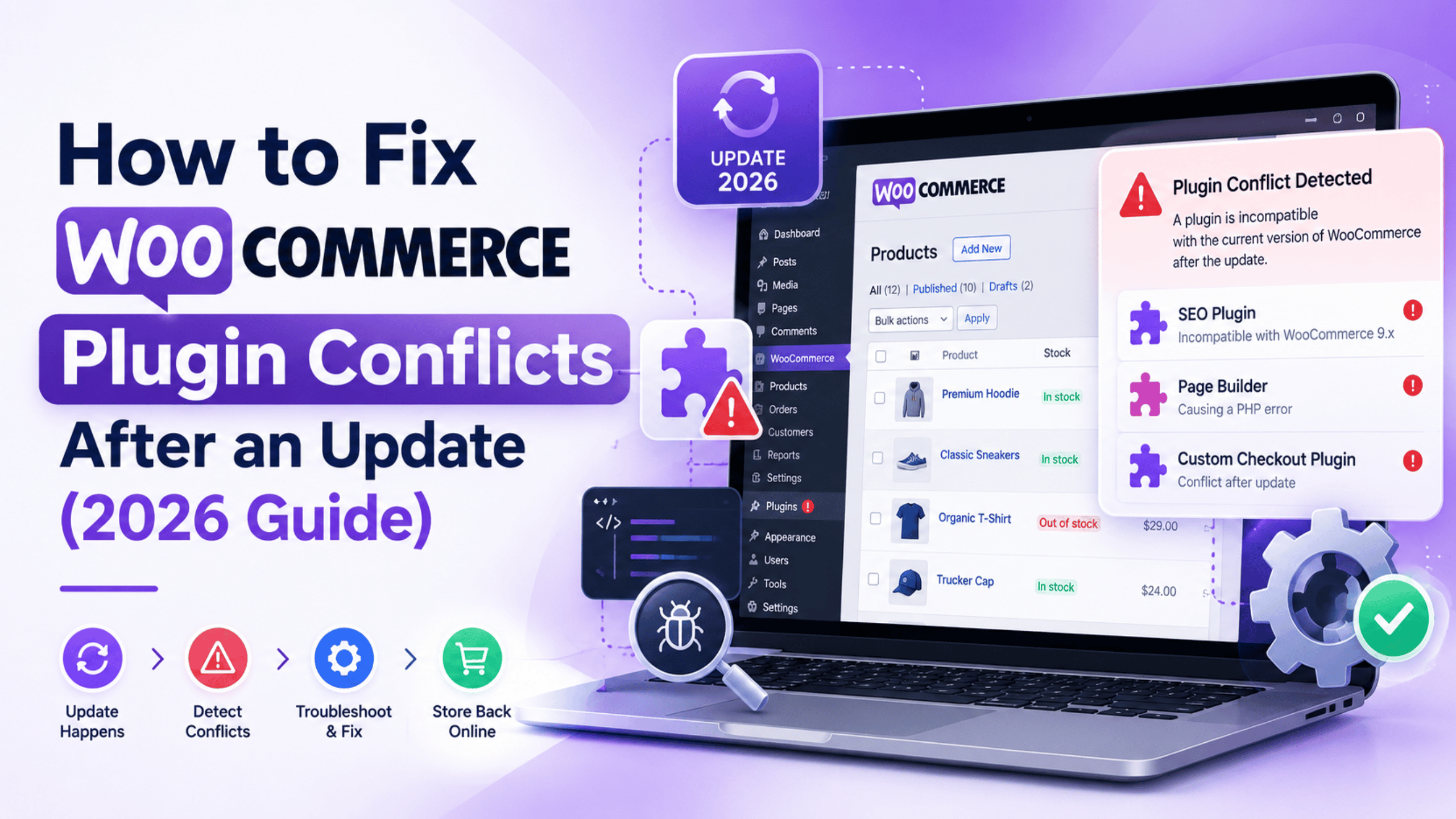
Introduction
A WooCommerce update can improve security, speed, and store features. However, an update can also expose hidden compatibility problems. Some plugins may stop working with newer WooCommerce code. This often leads to unexpected errors across your online store.
WooCommerce plugin conflicts can affect checkout, cart, payments, or products. Some problems appear immediately after completing an update. Others may become visible only during customer actions.
A WooCommerce plugin conflict after update does not always mean damage. In many cases, two pieces of code simply disagree. Finding that conflict early can prevent larger store problems.
This guide explains how these conflicts happen and appear. Later sections will cover safe WooCommerce plugin troubleshooting steps.
What Is a WooCommerce Plugin Conflict?
A plugin conflict happens when two features interfere with each other. WooCommerce works with themes, extensions, and many WordPress plugins. Each plugin adds its own code and store functions.
Problems can start when two plugins change similar WooCommerce processes. One plugin may control checkout fields or payment methods. Another plugin may try changing those same areas.
Both plugins may work perfectly when used separately. However, using them together can create unexpected behavior.
For example, an optimization plugin may delay important checkout scripts. A payment plugin may need those scripts immediately. The payment option may then disappear from checkout.
If your payment method disappears, check our guide about WooCommerce payment gateways not showing. It covers several common payment-related causes.
Understanding this connection makes a WooCommerce plugin conflict fix easier. You can focus on the affected feature first.
Why Plugin Conflicts Happen After a WooCommerce Update
A WooCommerce update can change how plugins connect with store functions. New versions may update APIs, database handling, checkout features, or internal code. Older plugins may not support these changes immediately. This can cause WooCommerce plugin conflicts after an update.
1. Plugin Code Is Not Updated for New WooCommerce Versions
Some plugins use functions built for older WooCommerce releases. A new update may change those functions or their behavior. If the plugin developer has not updated the code, WooCommerce plugin compatibility issues can appear across checkout, orders, products, or admin pages.
2. Plugins Use WooCommerce Internal Code
Some extensions connect directly with WooCommerce internal classes or functions. WooCommerce does not guarantee backward compatibility for internal code. When internal structures change, these plugins may fail. This can create a WooCommerce plugin error after update even when WordPress remains stable.
3. High-Performance Order Storage Causes Compatibility Problems
WooCommerce now stores order data using High-Performance Order Storage, or HPOS. Older plugins may still read wp_posts and wp_postmeta directly. That approach can return outdated order data. Plugins should instead use supported WooCommerce order APIs.
4. HPOS Data Sync Behavior Has Changed
WooCommerce 10.7 changed how HPOS synchronization works by default. Plugins writing directly to older WordPress order tables can face problems. Order information may become inconsistent if extensions bypass supported WooCommerce APIs. This makes proper WooCommerce plugin compatibility increasingly important.
5. Checkout and Cart Features Use Different Technology
Modern WooCommerce stores may use Cart and Checkout blocks. Older extensions may have been designed for classic shortcode-based checkout pages. A plugin can therefore work on one checkout type but fail on another, causing payment, shipping, or validation problems.
6. Two Plugins Modify the Same WooCommerce Hook
WooCommerce plugins often use actions and filters to change store behavior. Two plugins may modify the same checkout, cart, product, or order process. Their execution order can then create unexpected results, making WooCommerce plugin troubleshooting necessary after updates.
7. JavaScript Changes Break Front-End Functions
WooCommerce updates may change scripts used for cart actions or checkout events. Older plugins may depend on previous JavaScript behavior. This can stop buttons, payment fields, shipping calculators, or product options from working correctly after an update.
8. Theme Overrides Become Outdated
WooCommerce themes can include custom copies of template files. These files may remain unchanged while WooCommerce updates its main templates. Outdated overrides can then conflict with newer plugin code, causing broken product layouts, checkout sections, notices, or account pages.
9. PHP Compatibility Changes Affect Plugin Code
WooCommerce extensions run within the WordPress and PHP environment. Older plugins may use outdated PHP functions or coding methods. A WooCommerce, WordPress, or hosting update can expose those problems and leave a WooCommerce plugin not working after update.
10. Cached Files Still Load Older Plugin Code
Caching systems may continue serving old JavaScript, CSS, or generated pages after an update. The browser may then combine outdated files with newer WooCommerce code. This can look like a plugin conflict even when the installed plugin itself is compatible.
11. Custom Code Uses Deprecated WooCommerce Functions
Custom snippets often rely on WooCommerce hooks, classes, or methods. Some functions can become deprecated over time. Older custom code may still run until a major update changes its behavior. That can create errors affecting checkout, orders, pricing, or products.
12. Extensions Were Not Tested Together
A plugin may support the latest WooCommerce version independently. However, compatibility with every third-party extension cannot always be guaranteed. WooCommerce recommends cross-plugin testing because conflicts may only appear when several extensions operate on the same store functions.
Common Signs of a WooCommerce Plugin Conflict
A WooCommerce plugin conflict can affect different store functions. Some signs appear directly after an update. Others become visible only during checkout or order processing. Checking browser errors, WooCommerce logs, and system status can help confirm the source.
1. Checkout Page Stops Working
The checkout page may freeze, reload repeatedly, or reject orders. JavaScript errors can block checkout updates or form actions. Use browser developer tools to inspect console errors and failed requests. Payment and checkout plugins should also be tested separately.
2. Payment Methods Disappear
A payment gateway may suddenly disappear after updating WooCommerce or another plugin. Theme conflicts, outdated templates, caching, and plugin code can cause this issue. WooCommerce also recommends checking gateway logs and running a conflict test when payment options disappear.
3. Add to Cart Button Stops Responding
Customers may click Add to Cart without any response. A JavaScript conflict can prevent the required WooCommerce request from running. Check the browser console, AJAX requests, optimization plugins, and custom scripts to identify what is blocking the action.
4. Cart Totals Do Not Update
Cart quantity, shipping cost, or order totals may stop refreshing. This often points toward blocked AJAX requests, caching problems, or JavaScript errors. Inspect WooCommerce requests in the browser Network panel to confirm whether recalculation requests complete successfully.
5. Product Pages Display Incorrectly
Product images, variation selectors, prices, or tabs may disappear unexpectedly. These problems often involve outdated theme templates or extensions changing product hooks. Review the WooCommerce System Status report for outdated templates, version warnings, and other compatibility information.
6. WordPress Shows a Critical Error
A PHP conflict may trigger WordPress’s critical error message. WooCommerce automatically records many PHP fatal errors under WooCommerce > Status > Logs. The error entry may include a plugin file path, function name, and affected code location.
7. WooCommerce Admin Pages Stop Loading
Orders, products, settings, or analytics screens may become blank or slow. An extension may be generating PHP errors or conflicting with WooCommerce admin scripts. Check fatal-error logs and temporarily disable recently updated plugins during controlled troubleshooting.
8. Orders Remain in the Wrong Status
Orders may remain pending, processing, or on hold unexpectedly. One extension can change the order status while another blocks that action. WooCommerce describes conflicting code instructions as a common example of plugin conflicts.
9. Shipping Rates Stop Updating
Shipping methods may disappear or fail after address changes. A checkout plugin can block WooCommerce’s order-review AJAX request. Developers can inspect wc-ajax=update_order_review activity to confirm whether shipping calculations are being requested and returned correctly.
10. Store Performance Drops After an Update
A plugin conflict may increase PHP processing or repeated background tasks. Customers may notice slower product pages or checkout steps. Review server resources, error logs, Site Health, and WooCommerce Scheduled Actions when performance changes immediately after an update.
11. REST API or Gateway Requests Fail
Some extensions depend on external API communication for payments or services. A conflict may block those requests or change their response. Payment troubleshooting should include gateway logs, API responses, SSL checks, and plugin testing before changing account credentials.
12. The Problem Disappears After Disabling One Plugin
This is one of the strongest signs of a conflict. WooCommerce recommends disabling other plugins, keeping WooCommerce active, then enabling plugins individually. Repeating the same test after each activation helps identify the exact conflicting extension.
Preparing and Diagnosing WooCommerce Plugin Conflicts
Before changing plugins, identify what actually caused the problem. Good WooCommerce plugin troubleshooting starts with safe testing and clear evidence. A structured check helps protect orders, customer data, and checkout functions. It also prevents unnecessary changes that can create new issues.
1. Create a Complete Backup Before Testing
Create a full backup of website files and the database first. WooCommerce stores orders, customers, products, and settings inside the database. A current backup gives you a safe restore point if troubleshooting causes unexpected changes or store errors.
2. Build a Staging Copy of the Store
Use a staging website for WooCommerce plugin conflict testing whenever possible. A staging copy lets you disable plugins, change themes, and test updates without affecting customers. WooCommerce also recommends staging environments for safer conflict testing.
3. Record Recent Software Changes
Check which plugins, themes, PHP settings, or WooCommerce versions changed recently. Note the exact update time and version numbers. This information helps connect a WooCommerce plugin error after update with the software change that likely triggered it.
4. Review WooCommerce System Status
Open WooCommerce > Status and inspect the System Status Report. Check WooCommerce versions, active plugins, theme details, database information, server settings, and important environment values. These details can quickly expose outdated components or WooCommerce plugin compatibility issues.
5. Check WooCommerce Error Logs
Go to WooCommerce > Status > Logs and review recent entries. Focus on fatal errors, PHP warnings, payment errors, REST requests, and extension-related messages. WooCommerce logs often identify the plugin or process involved in a store failure.
6. Enable WordPress Debug Logging on Staging
WordPress includes WP_DEBUG for technical troubleshooting. Enable debugging on a staging or development copy, not a public production store. Error messages can reveal PHP failures, deprecated functions, and plugin code responsible for the conflict.
7. Reproduce the Exact Problem
Repeat the exact action that creates the error. Test checkout, cart updates, payments, product variations, or admin actions separately. Record what you expected and what actually happened. Repeatable errors make WooCommerce plugin troubleshooting much more accurate.
8. Disable Browser and Website Caching
Cached scripts can make a fixed problem appear unchanged. Clear WordPress, server, CDN, and browser caches before every major test. Developers can also disable browser caching through browser developer tools while performing a controlled conflict test.
9. Test With a Default Theme
Temporarily switch to a standard WordPress theme or WooCommerce Storefront. Test the same problem again. If the error disappears, the active theme may be conflicting with WooCommerce templates, scripts, hooks, or another installed extension.
10. Disable Plugins in a Controlled Order
Keep WooCommerce active and temporarily disable other plugins. Start with recently updated extensions or plugins connected with the broken feature. Reactivate each plugin individually and repeat the same test until the WooCommerce plugin conflict returns.
11. Check Cross-Plugin Compatibility
Some plugins work correctly alone but fail when another extension activates. Test payment, shipping, checkout, caching, security, and optimization plugins together. WooCommerce recommends cross-plugin testing because extensions can interact with the same hooks, scripts, or data.
12. Check Modern WooCommerce Feature Compatibility
Verify whether important extensions support current WooCommerce features. These include Cart and Checkout Blocks, High-Performance Order Storage, Product Editor, and Site Editor. Older extensions may create WooCommerce update issues when newer store features become active.
13. Inspect PHP and JavaScript Errors
Open browser developer tools and check the Console and Network tabs. JavaScript errors may stop checkout buttons, AJAX requests, or product actions. PHP errors can appear inside server logs. Both provide useful technical clues about the conflicting code.
14. Use Query Monitor for Deeper Testing
For advanced diagnosis, Query Monitor can inspect PHP errors, database queries, REST requests, AJAX calls, hooks, scripts, and stylesheets. WooCommerce developer resources recommend it as a useful debugging tool when normal logs do not reveal enough information.
15. Use Health Check for Session-Based Testing
The Health Check & Troubleshooting plugin can disable plugins only for your browser session. Visitors continue seeing the normal live website. However, WooCommerce notes that session testing may sometimes behave differently from completely disabling plugins.
16. Document the Final Conflict
Record the plugin names, versions, error messages, affected pages, and steps needed to reproduce the problem. Good documentation helps developers understand the WooCommerce plugin compatibility failure and makes future troubleshooting faster after another WooCommerce update.
How to Fix WooCommerce Plugin Conflicts After an Update
A WooCommerce plugin conflict after update needs careful troubleshooting. Randomly disabling settings can make the problem harder to trace. Instead, follow each step in the correct order.
Before starting, create a full backup of your website. Use a staging site whenever your hosting provider supports one. WooCommerce recommends staging because testing can affect live store functions.
Step 1: Confirm When the Problem Started
First, identify exactly when your WooCommerce problem appeared. Check whether WooCommerce, WordPress, your theme, or plugins updated recently.
Go to Plugins > Installed Plugins and review version information. Also check recent update records provided by your hosting dashboard.
Write down the affected feature before making changes. For example, note whether checkout, payments, cart, or products failed.
This information helps narrow down WooCommerce update issues quickly.
Step 2: Clear Every Cache Before Testing
Clear your WordPress caching plugin first. Next, clear server caching from your hosting account.
If you use Cloudflare or another CDN, purge that cache. Finally, clear your browser cache or open Incognito mode.
For deeper testing, open Chrome Developer Tools. Select Network, then enable Disable cache while testing. WooCommerce recommends bypassing browser caching during conflict checks.
Now reproduce the original problem again.
Step 3: Update Supported Plugins and Themes
Check whether newer plugin or theme releases are available. A developer may already have fixed the compatibility problem.
Do not update everything directly on your live store. Test available updates on staging first.
Check each plugin’s changelog for WooCommerce support information. Also review its supported WordPress and PHP versions.
Current extensions should also declare support where relevant for features like HPOS and Cart and Checkout Blocks.
Step 4: Switch Temporarily to a Default Theme
Your plugin may not actually be causing the problem. The active theme may contain outdated WooCommerce code.
On staging, go to Appearance > Themes. Temporarily activate a default WordPress theme or WooCommerce Storefront.
Repeat the same action that caused the original error.
If the problem disappears, your theme is likely involved. WooCommerce currently recommends this test before deeper plugin isolation.
Step 5: Disable All Plugins Except WooCommerce
Go to Plugins > Installed Plugins on your staging site. Deactivate every plugin except WooCommerce.
If one WooCommerce extension is directly involved, keep it active initially.
Now repeat the exact failing process again. Test the same product, checkout method, payment option, or cart action.
If the issue disappears, another plugin is causing the conflict. This is the main isolation step for WooCommerce plugin troubleshooting.
Step 6: Reactivate Plugins One at a Time
Activate one disabled plugin. Then repeat the same test immediately.
If everything works, activate the next plugin. Continue this process until the problem returns.
The last activated plugin becomes your main conflict candidate.
For faster testing, begin with plugins connected to the broken function. Check caching, security, checkout, payment, shipping, and optimization plugins first.
Step 7: Check WooCommerce Logs
Go to WooCommerce > Status > Logs.
Select logs created around the failure time. Look for fatal errors, payment failures, REST errors, PHP warnings, or plugin names.
Copy the exact error message before changing anything.
A WooCommerce plugin error after update often leaves useful evidence inside these logs.
Step 8: Inspect Browser Console Errors
Some conflicts happen only inside JavaScript.
Open the broken page in Chrome. Press F12 and select Console.
Repeat the failed action. Look for red JavaScript errors.
Then open the Network tab. Check failed requests with error codes such as 400, 403, 404, or 500.
Checkout, cart, and product variation problems often appear here.
Step 9: Check Modern WooCommerce Compatibility
Do not check only the WooCommerce version number.
Confirm whether the plugin supports the features your store uses. These may include High-Performance Order Storage, Cart and Checkout Blocks, Product Editor, or Site Editor.
WooCommerce recommends extension developers test and declare compatibility with these components.
An older extension may work with classic checkout but fail with Checkout Blocks.
Step 10: Apply the Correct Fix
Once you identify the conflicting plugin, check for an updated version first.
If an update fixes the issue, install it on staging. Test checkout, orders, payments, products, and admin functions again.
If no fix exists, contact the plugin developer. Provide WooCommerce versions, plugin versions, logs, and reproduction steps.
You may temporarily roll back the conflicting plugin when necessary. Use a backup and test the older version first.
Replacing the plugin may be safer when development has stopped.
Step 11: Test the Complete Store Before Going Live
Do not stop after one successful page test.
Test product pages, Add to Cart, cart updates, checkout, payment methods, emails, and order creation.
For variable products, test every important variation path.
Place a test order using your normal checkout process. Confirm the order reaches the correct WooCommerce status.
Only move the fix to production after these checks pass.
Step 12: Monitor the Store After the Fix
After applying the WooCommerce plugin conflict fix, monitor the store closely.
Review WooCommerce logs again after test orders. Check customer-facing pages using a logged-out browser.
Also watch payment and order activity for unexpected failures.
This final check confirms that you truly fix WooCommerce plugin conflicts, rather than only hiding the visible symptom.
How to Prevent WooCommerce Plugin Conflicts in the Future
Preventing WooCommerce plugin conflicts requires a careful update process. Regular testing, backups, and compatibility checks can reduce store errors. These steps also protect checkout, payments, products, and customer orders.
1. Test Updates on a Staging Site
Always test WooCommerce, plugin, and theme updates on staging first. This helps find compatibility problems before customers experience them on your live store.
2. Create Backups Before Every Major Update
Take a complete backup before changing WooCommerce or important plugins. Include website files and the database so you can restore the store quickly.
3. Keep WooCommerce and Plugins Updated
Use current versions of WooCommerce, WordPress, and active plugins. Regular updates often include security fixes, bug repairs, and better WooCommerce plugin compatibility.
4. Check Plugin Compatibility Before Updating
Review plugin requirements before installing major updates. Confirm support for your WooCommerce version, WordPress version, PHP version, and important store features.
5. Avoid Installing Duplicate Function Plugins
Do not use several plugins for the same function. Multiple caching, checkout, security, or optimization plugins may change the same code and create conflicts.
6. Remove Unused or Abandoned Plugins
Delete plugins you no longer use. Also replace extensions that receive no updates. Old plugins can create WooCommerce plugin compatibility issues and security risks.
7. Update Plugins in Small Groups
Avoid updating every plugin at the same time. Update a few extensions first, then test checkout, cart, products, and payments before continuing.
8. Review Plugin Changelogs Before Updating
Read the latest changelog before installing updates. Look for WooCommerce support changes, PHP fixes, database updates, checkout changes, and known compatibility problems.
9. Monitor WooCommerce Logs Regularly
Check WooCommerce > Status > Logs after important updates. New warnings, fatal errors, or failed requests can reveal problems before customers report them.
10. Test Checkout After Every Major Change
Place a test order after WooCommerce or payment updates. Check product selection, cart, shipping, checkout, payment, order creation, and confirmation emails carefully.
11. Check PHP Version Compatibility
Your server PHP version affects many WooCommerce plugins. Before upgrading PHP, confirm that WooCommerce, your theme, and important extensions support the selected version.
12. Review Theme Compatibility
Keep your active theme updated and maintained. Outdated WooCommerce template files or custom theme code can create errors that appear similar to plugin conflicts.
13. Be Careful With Performance Plugins
Caching and optimization tools can delay or combine JavaScript files. Test cart and checkout carefully after changing minification, defer, delay, or cache settings.
14. Keep Custom Code Organized
Store custom PHP code inside a child theme or suitable code plugin. Document each change so outdated snippets can be found and removed easily.
15. Check Modern WooCommerce Feature Support
Confirm extensions support features your store uses, including HPOS and Cart or Checkout Blocks. Older plugins may fail when newer WooCommerce systems become active.
16. Maintain a Regular Store Testing Routine
Test key store functions every month and after important updates. Regular WooCommerce plugin troubleshooting helps detect small problems before they affect sales or customers.
Conclusion
WooCommerce plugin conflicts can appear after major updates. Careful testing helps prevent checkout, payment, and product issues. Always create backups, use staging, and check plugin compatibility first. Regular updates and store testing can also reduce future problems.
If you still face WooCommerce plugin conflicts, WPCustomify can help identify the cause and restore store functions. Our team can review plugin errors, compatibility problems, checkout issues, and other WooCommerce update concerns.
Visit WPCustomify.com for more WooCommerce troubleshooting guides and support. You can also call +1-(888) 602-0119 to discuss your WooCommerce issue.