
Introduction
WooCommerce stock not reducing after an order is one of the fastest ways to oversell a product. The order lands. The money arrives. But the quantity on the product page never drops. So the next shopper buys an item you no longer have. This problem has several different causes, and they need different fixes. Guessing wastes an afternoon. Start with the check below instead. It tells you in about three minutes which branch you are on.
Run This Three-Minute Check First
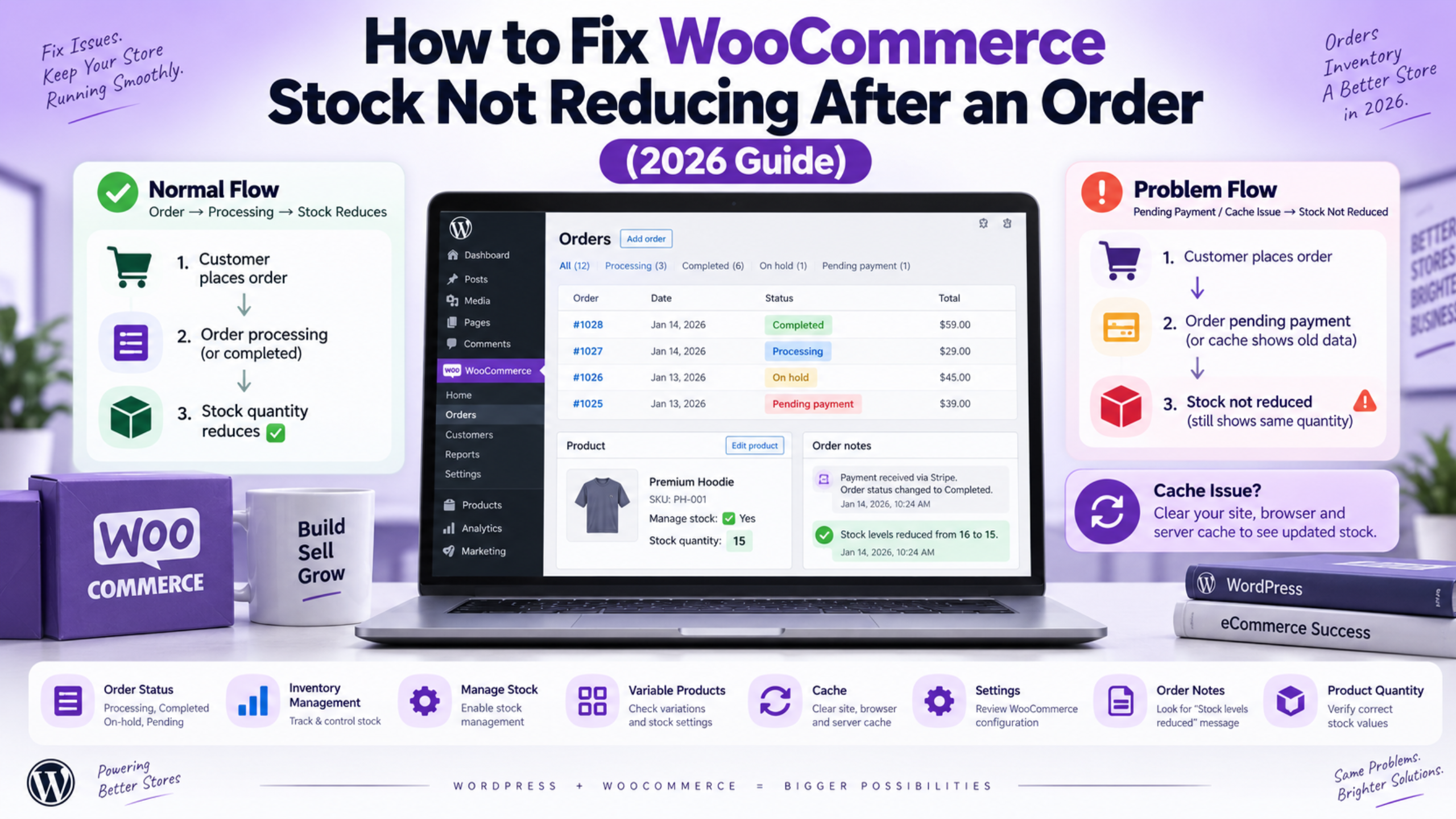
Open any recent order in WooCommerce → Orders. Scroll to the Order notes box on the right. You are looking for one line.
WooCommerce writes a note that begins “Stock levels reduced:” whenever it takes stock off a product. The note names the item and shows the old and new counts. That note is the truth. Everything else on screen can lie to you.
If the note is there, stock did reduce. Your real problem is display. Something is showing a stale number, and you can skip straight to the caching section below. If the note is missing, stock never reduced at all. Keep reading in order.
Now check two more things on the same screen. First, the Status field at the top left. Note what it says. Second, whether this order was placed by a customer or created by you in the dashboard. Admin-created orders behave differently, and that catches a lot of people out.
Do this on three or four orders, not one. A single odd order tells you little. A pattern tells you everything. If every order missing the note shares one status, you have found your cause already.
Pick a mix of orders for this test. Include one paid online, one paid on delivery, and one you entered by hand. Include a variable product too, such as a size or colour option. Those four cover almost every path stock can take through a store. Write down which ones had the note. That short list points you at the right section below.
Know When WooCommerce Actually Reduces Stock
Stock does not come off the moment a customer clicks Place Order. It comes off when the order reaches a status that counts as paid or held.
WooCommerce reduces stock when payment completes, and when an order moves to Processing, Completed, or On hold. It does not reduce stock for an order sitting in Pending payment. It does not reduce stock for a Failed order either. That is by design. An unpaid order should not lock away your inventory.
The reverse also happens. Move an order to Cancelled, Pending payment, or Failed, and WooCommerce puts the stock back. Many owners see this as a bug. It is not.
So if your orders sit at Pending payment, the count is behaving correctly. Your gateway is not confirming payment. That is a payment problem wearing a stock costume. Our guide to errors preventing order completion covers why orders stall at that step.
There is one more rule worth knowing. WooCommerce marks each order once stock has been taken. It stores a flag so the same order can never reduce stock twice. This protects you from double deductions when a gateway sends two notifications. It also means a manual status change on an old order will not reduce stock again, because the flag is already set.
Turn On Stock Management in Both Places
Stock tracking has two switches. Missing either one produces the same symptom.
The first is store wide. Go to WooCommerce → Settings → Products → Inventory. Tick Manage stock at the top. With this off, WooCommerce keeps no counts at all. Products can only be marked in stock, out of stock, or on backorder. No number will ever move.
The second switch is per product. Edit the product, open the Inventory tab in the Product data box, and tick Manage stock?. A Quantity field appears once you do. Enter your real count and update.
Here is the part people miss. The store-wide switch does not turn on tracking for products you created earlier. Each product keeps its own setting. So a store can track ten products correctly and ignore forty others. Use the Products list to check quickly. The Stock column shows a number for tracked items and a plain “In stock” label for untracked ones. Any product showing the plain label is not being counted.
Fix them in bulk. Tick the products, choose Edit from the Bulk actions menu, and apply. Set Manage stock? to Yes, then set the quantity per product afterwards.
Fix WooCommerce Stock Not Reducing on Variable Products
Variable products have a third layer, and it trips up nearly everyone.
A variable product can track stock at the parent level or at the variation level. These are separate settings. Ticking Manage stock? on the parent tracks one shared pool for every variation. Ticking it inside a single variation tracks that variation on its own.
Open the product and click the Variations tab. Expand a variation. You will see its own Manage stock? checkbox. If that box is clear, the variation has no count of its own. It falls back to the parent. And if the parent is not tracking either, nothing reduces anywhere.
Watch for a half-configured setup. Some variations tracked, others not, is the most confusing case of all. Sizes that sell out correctly sit beside sizes that never move. Owners then chase a plugin conflict that does not exist. Expand every variation and check each one.
Bulk editing helps here too. Above the variation list is a dropdown of bulk actions. Choose Toggle “Manage stock” to switch them all at once, then set quantities. If your variations misbehave in other ways as well, see our guide on WooCommerce product variations not working.
Manual, Imported and Edited Orders Behave Differently
Orders you create yourself do not touch stock on their own. This surprises almost every store owner the first time.
Add an order in the dashboard, add line items, set it to Processing, and the counts stay put. WooCommerce waits for you to say so. Open the order, find the Order actions box, and choose Reduce stock. Click the arrow to run it. A “Stock levels reduced:” note then appears, and the counts move.
Phone orders and wholesale orders are the usual source of drift here. A shop can look perfectly configured and still creep out of sync, purely because staff never run that action.
Imported orders behave the same way. A CSV import writes the order record without firing the normal status hooks. So no stock changes. If you migrated a store recently, expect your counts to be wrong from day one. Do a physical count and reset the numbers rather than trying to replay the history.
Editing line items on an existing order is the third trap. Change a quantity after stock was already reduced, and the adjustment is not always clean. Check the notes afterwards. If the numbers look wrong, correct the product quantity by hand. It is faster than tracing the edit. Exporting your orders first makes that audit easier, and our guide on exporting orders from a WooCommerce store shows how.
The Count Reduced but the Page Shows the Old Number
This is the branch you reach when the order note is present. Stock moved. The page did not.
Check the truth first. Open the product in the dashboard and read the Quantity field. If that number is correct, your data is fine and only the front end is stale.
Page caching is the usual culprit. A cached product page holds whatever count was true when it was saved. Clear your cache and reload in a private window. Many hosts run caching at the server level as well, so clearing a plugin cache alone may not be enough. Clear both.
Object caching causes a quieter version of the same thing. It stores the product record itself, so even a fresh page render reads an old number. Flush the object cache after any manual stock edit.
A content delivery network adds a third layer. Purge it last, after the other two, or you will simply pull the stale copy back in. If a page still shows the old count after all three, check whether your theme is printing a hard-coded stock message.
Shop and category pages can lag behind single product pages too. They are cached separately and often for longer. If only your listings look wrong, our guide on a WooCommerce shop page not showing products covers how those archives are built.
Settings That Make Stock Look Wrong When It Is Not
Three settings on the Inventory screen change what customers see without changing the count itself.
Hold Stock (minutes) holds inventory for unpaid orders. When the limit passes, WooCommerce cancels the pending order and releases the stock. So a count can appear to bounce back up on its own. That is the hold expiring, not a fault. Note that this applies only to orders in Pending payment, not orders On hold.
Out Of Stock Threshold sets the count at which an item is treated as sold out. Leave it at zero and a product stays buyable until it hits zero. Set it to two and the product reads out of stock while two units remain. Stock is still reducing correctly. The label just changes earlier.
Stock Display Format controls what shoppers see. Choose Never show amount and the page shows only “In stock”. The number is still moving behind the scenes. Set it to Always show stock while you are testing, so you can watch counts change in real time.
Backorders are the last piece. If a product allows backorders, it keeps selling past zero and the count goes negative. Customers then see a “Available on backorder” label. Nothing is broken. Turn backorders off in the product Inventory tab if you do not want that.
Get Expert Help With Your WooCommerce Store
Overselling costs more than the refund. It costs the customer. Someone pays for an item, waits, and then gets an apology email instead of a parcel. That is the sale you do not get back. So it is worth fixing properly rather than patching one product at a time.
Most stores in this position have two or three causes stacked together. A few untracked products. A batch of phone orders that never reduced. A cache holding old numbers on top. Fix one and the symptom half improves, which makes the remaining causes harder to see. That is why a full audit beats a quick guess.
Our team traces the whole path for you. We check every product and variation setting, confirm the order statuses your gateway actually sets, review the caching layers, and reconcile your counts against a real stock take. Then we set up the alerts so you hear about low stock before a customer does.
If your inventory numbers have stopped making sense, we can help. Visit WP Customify and tell us what your order notes show. We will find the cause, correct the counts, and make sure the next order reduces stock the way it should.