
Introduction
WooCommerce registration spam fills your Users list with fake accounts you never wanted. The count climbs a little more each night. Your inbox keeps showing “New user registration on your site” emails. Most owners install a form plugin and hope for the best. That often fails, because the bots may not use the form you just locked down. This guide starts with a check that finds the real entry point. Then it walks through fixes, strongest first. You will also learn how to clear out the junk accounts you already have.
Find Out Which Door the Bots Are Using
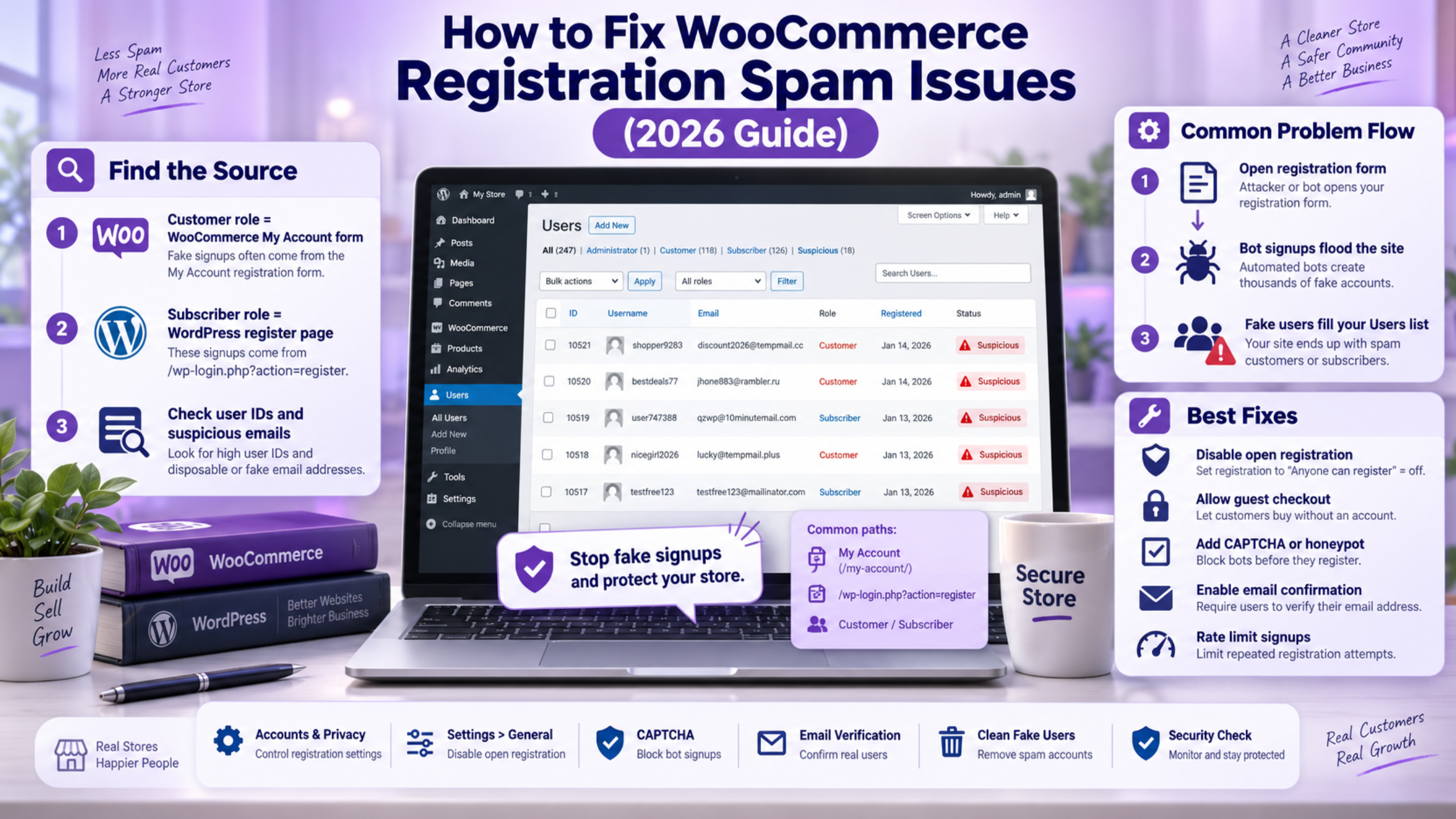
Do this before you change a single setting. Go to Users → All Users in your dashboard. Look at the Role column. That one column tells you almost everything.
Accounts with the Customer role came through WooCommerce. That means the signup form on your My Account page. Accounts with the Subscriber role came through WordPress itself. That form sits at /wp-login.php?action=register. Many stores have both problems running at once. Fixing only one door leaves the other wide open.
The Users screen does not show a signup date. So use the user ID instead. Hover over a username and read the ID in the link at the bottom of your browser. IDs are handed out in order. A long run of back-to-back IDs means one scripted burst, not slow drip signups.
Now read the email addresses. Bot signups often share a shape. You may see random letters, a repeated domain, or the same name with numbers on the end. Real customers rarely look like that.
One more clue matters. Check whether these users have orders. Go to WooCommerce → Orders and search a few of the emails. Zero orders across the whole batch confirms the accounts are junk. If some do have orders, slow down. You may be looking at a card testing attack instead, which needs a different response.
Your admin alerts help as well. Open the folder holding those “New user registration on your site” emails. Sort them by time. Signups landing every few seconds are scripted. Signups spread across the day may be real people. Note the exact hours too. A burst that repeats at the same time each night points to a scheduled bot rather than a random crawler.
Fix WooCommerce Registration Spam on the My Account Page
This is the door most bots use. Go to WooCommerce → Settings → Accounts & Privacy. Look at the Account creation block. In current WooCommerce you will see three switches.
On the My Account page lets anyone sign up with no purchase. Turn this off. Almost no store needs it. Customers can still get an account when they buy.
During checkout creates the account before the order is placed. After checkout creates it once the order goes through. Choose After checkout if you want accounts at all. It is the safer of the two, because a real payment has to happen first. A bot will not pay to make a fake account.
Also switch on Enable guest checkout under the Checkout block. Guest checkout removes the reason to force accounts on people. Fewer forced accounts means fewer forms for bots to hit.
Save, then load your My Account page in a private window. The signup form should be gone. If it is still there, your theme or a page builder is printing its own form. Search your theme files for the login shortcode and remove the extra block. A cached page can also fool you here, so clear your cache and check again.
Watch for a silent failure at this point. Turning the form off hides it from the page. It does not always block a direct POST to the same endpoint. A bot that already scraped your form can keep posting to it. So test properly. If the message “An account is already registered with your email address.” still appears in your logs, requests are still landing. That is your cue to add server-level blocking, covered further down.
Close the WordPress Registration Door Too
WooCommerce settings do not touch this one. That is why the spam often keeps coming after step two. Go to Settings → General and find Membership. Uncheck Anyone can register. Save.
Bots hit /wp-login.php?action=register directly. They never load your shop pages at all. So a shop-side plugin never sees them. This is the single most missed fix in every spam thread.
Check New User Default Role while you are on that screen. It should read Subscriber. If it reads Contributor, Author, or anything higher, change it now. A wrong default role turns a spam signup into a content risk.
There is one catch. If you sell memberships or run a community site, you may need open registration. In that case leave the box ticked and rely on the verification steps below. Do not leave it ticked “just in case”. Turn it off unless a real feature depends on it.
After saving, visit the register URL yourself. You should be bounced to the login screen with “User registration is currently not allowed.” Seeing that message means the door is shut.
One warning before you move on. Some plugins add their own signup form and ignore this setting entirely. Booking tools and forum add-ons are common culprits. If your Subscriber count still grows, deactivate plugins one at a time and watch. Test on a staging copy so live shoppers are not affected while you work.
Add Verification So Real Buyers Still Get Through
Some stores must keep signups open. Then the goal shifts. You want a form that a person can pass and a script cannot.
Start inside WooCommerce. Under Account creation options, switch on Send password setup link. New users then get an email and must click it to set a password. A bot using a fake address never sees that email. The account stays useless.
Turn on Customer email confirmation as well. It asks the customer to confirm their address. It also links their older guest orders to the new account, which real customers like.
Next, add a challenge to the form. A CAPTCHA service or a hidden honeypot field both work. A honeypot is a field a human never sees. Bots fill every field they find, so anything that fills it gets blocked. Honeypots are quiet and add no friction for real people.
Rate limiting is the third layer. Cap signups from one IP address to a handful per hour. Your host may offer this at the server level. Ask them before you add another plugin. Server-level blocking is faster and cheaper, because the request dies before WordPress even loads.
Use two of these layers, not one. Bots that beat a CAPTCHA still trip on a honeypot.
Test every layer after you add it. Open a private window and sign up as a customer would. Then check that the confirmation email actually arrives. A verification step that never sends its email locks out real buyers while the bots carry on. That trade is worse than the spam. Send yourself a test signup once a month so you notice if mail delivery breaks later.
Clean Up the Fake Accounts You Already Have
Blocking new spam does not remove the old accounts. Go to Users → All Users and click the Subscriber or Customer filter at the top. Set the screen to show 100 or more per page using Screen Options. Then sort and scan for the ID runs you spotted earlier.
Tick the fakes, choose Delete from the bulk menu, and apply. WordPress will ask what to do with any content they own. Choose to delete it unless you know better.
Be careful with one thing. Never bulk delete accounts that have orders attached. Doing so can strip the customer link from real sales and skew your reports. Search each batch in WooCommerce → Orders first, or export your orders and check the list offline. Our guide on exporting orders from a WooCommerce store walks through that export step.
There is also a setting that cleans up for you. Under Accounts & Privacy, scroll to Personal data retention and set Retain inactive accounts. Enter a value such as 12 months. WooCommerce then runs a daily job and deletes accounts that have not logged in or ordered in that window. It only removes customer and subscriber roles, so your staff accounts are safe. Set the period in your privacy policy too.
Take a database backup before any bulk delete. User deletion cannot be undone from the dashboard. A backup turns a bad click into a ten minute restore. Work in batches of a few hundred as well. Very large deletions can time out on shared hosting and leave the job half done.
Watch for Damage the Spam Already Caused
Fake signups rarely arrive alone. They tend to leave a mess behind, and store owners often blame the wrong thing.
The first cost is email. Every signup fires a welcome message and an admin alert. Send thousands of those and your host may throttle your mail. Real order emails then stop landing. If your receipts have gone quiet, read our fix for WooCommerce email notifications not working before you blame your theme.
The second cost is speed. Bots hammering a form create a flood of database writes. Your cart and checkout slow down for real shoppers. If pages started dragging around the same week, the two are probably linked. Our guide to errors preventing order completion covers the checkout side of that problem.
The third cost is data. Your customer count is now fiction. Any report built on user numbers is wrong until you clean house. So clean first, then judge your marketing.
Last, check your login logs if your host keeps them. A signup wave is often a warm-up. The same script may come back to guess passwords. Force strong passwords on admin accounts now, while you are already in there.
Payment pages deserve a look as well. Fake accounts sometimes arrive beside probing checkout attempts. If your gateway list has started behaving oddly, our guide on a WooCommerce payment gateway not showing explains what to rule out.
Get Expert Help With Your WooCommerce Store
Spam signups look small until they break something you rely on. Emails stop. Reports lie. Checkout drags. And the fix is rarely one switch, because most stores have two open doors rather than one. If you have worked through this list and the fake accounts keep arriving, something deeper is running. It may be a theme printing its own signup form. It may be an old plugin exposing an endpoint you cannot see from the dashboard.
That is where a second pair of eyes pays off. Our team audits the whole path a bot takes, from the server request to the database write. We shut the open doors, remove the junk accounts safely, and leave your real customer data intact. We also tune the settings so genuine buyers never notice the change.
If your store also shows odd behaviour at checkout, we can look at that in the same pass. Many owners find the two issues share a single root cause. See our related fix for a WooCommerce cart that is not working if that sounds familiar.
Ready to hand this over? Visit WP Customify and tell us what your Users list looks like. We will trace the source, stop the flood, and get your store back to serving real customers.