Introduction
Duplicate orders can quickly create problems for any online store. A customer may receive two orders for one purchase. Stock may also reduce twice for the same items. In some cases, the customer may even see two charges.
A WooCommerce duplicate order issue can have several causes. The problem may start during checkout or payment processing. Plugins, webhooks, caching, or slow servers can also play roles. Sometimes, customers simply click the order button more than once.
Understanding the cause is important before making any changes. Deleting an extra order does not solve the real problem. You first need to learn why WooCommerce duplicate orders appear.
This guide explains how to fix duplicate orders in WooCommerce safely. We will first understand the issue and its common causes.
What Are Duplicate Orders in WooCommerce?
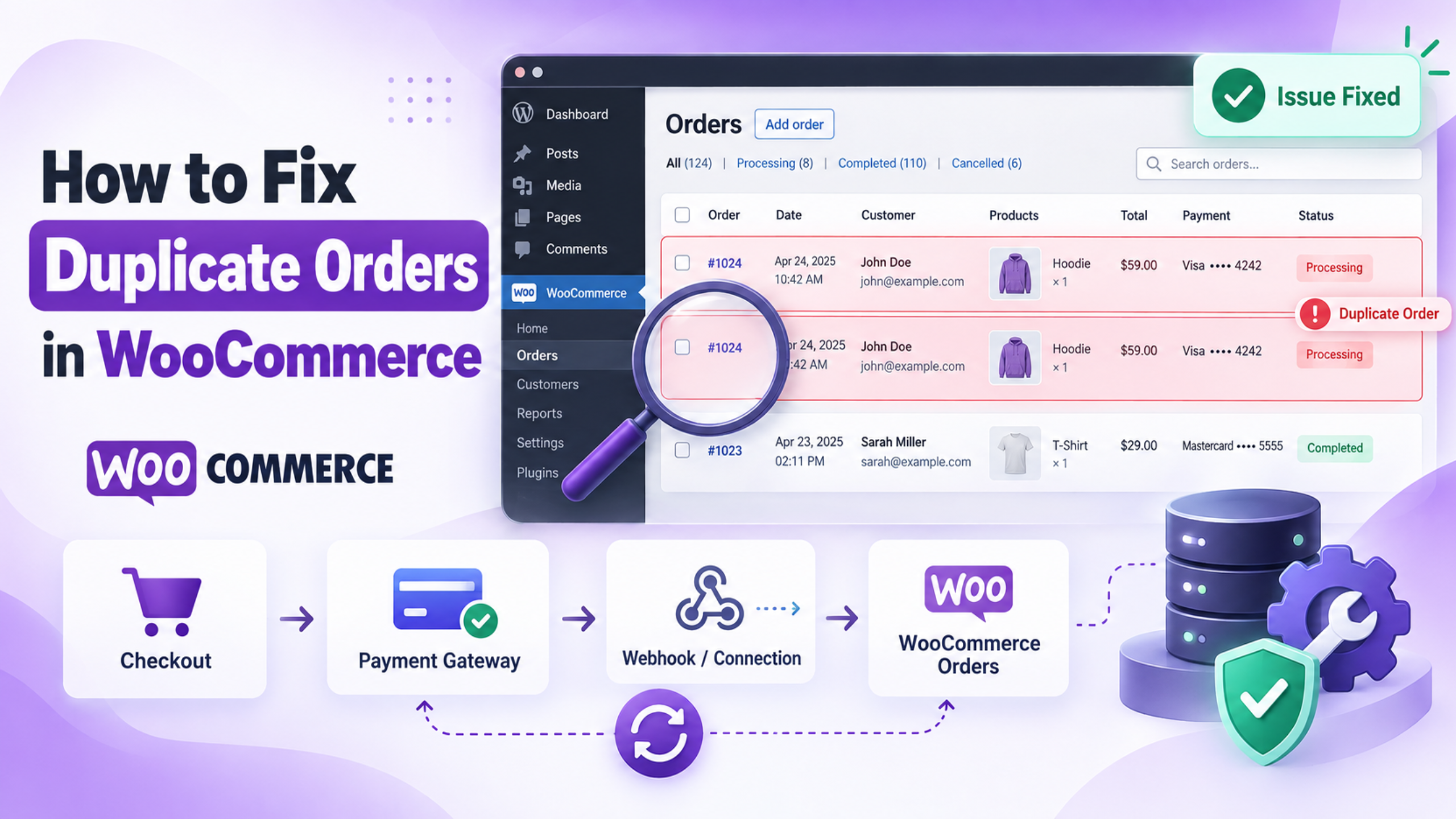
Duplicate orders in WooCommerce are two or more similar orders. They usually contain the same customer and product details. The order totals may also be exactly the same.
However, similar orders are not always true duplicates. A customer might intentionally place another order later. For this reason, store owners should compare each order carefully.
WooCommerce’s current troubleshooting guidance also recommends checking order numbers, timestamps, payment details, and customer information before treating orders as duplicates.
A WooCommerce order created twice may involve one or two payments. For example, two WooCommerce orders may exist with one gateway transaction. Another case may involve two orders and two successful transactions.
These situations require different troubleshooting steps. One may involve WooCommerce checkout processing. Another may indicate a payment gateway or webhook problem.
WooCommerce orders can also come from connected external systems. The WooCommerce REST API can create orders from outside applications. Therefore, integrations should also be checked when duplicate records appear.
For more checkout-related information, see WPCustomify’s guide to WooCommerce checkout process issues.
Common Signs of WooCommerce Duplicate Orders
- Two Orders Created Within Minutes If two orders appear within a very short time, check them carefully. Compare customer details, products, order totals, and payment methods. This is one of the clearest signs of WooCommerce duplicate orders and may indicate repeated checkout processing.
- Same Customer Details on Multiple Orders Duplicate orders often contain the same customer name, email, billing address, and shipping address. If these details match exactly, review the order times and payment records. This can help confirm whether the customer placed one order or two.
- Same Products and Quantities Repeated Another common sign is identical products appearing in separate orders. The product names, quantities, variations, and totals may match. If the orders were created close together, it may indicate a WooCommerce duplicate order issue.
- Customer Charged Twice A customer may report seeing two charges for one purchase. Check both WooCommerce orders and the payment gateway dashboard. Duplicate charges need quick attention because they may involve separate transactions, repeated payment requests, or incorrect gateway responses.
- Duplicate Order Confirmation Emails Customers may receive two order confirmation emails for the same purchase. This usually means WooCommerce created or processed more than one order. Compare the order numbers and timestamps to confirm whether both emails relate to duplicate orders.
- Stock Reduced More Than Once Duplicate orders can reduce product stock twice. This may create incorrect inventory levels and cause products to appear unavailable. If stock drops unexpectedly, compare recent orders and check whether the same customer purchase was processed more than once.
- Different Order Statuses for the Same Purchase You may see one order marked Processing while another remains Pending Payment. This can happen when checkout or payment communication fails. Different statuses for identical orders often help identify a WooCommerce order created twice problem.
- Multiple Payment Transaction IDs If two similar orders contain different transaction IDs, the payment gateway may have processed two payments. This is more serious than a simple duplicate record. Always compare transaction details before refunding, deleting, or changing either WooCommerce order.
- Same Order Total Appearing Repeatedly Two orders with the same products, shipping charges, taxes, discounts, and final total may be duplicates. Check when they were created and which payment method was used. Matching totals alone are not enough, but they provide useful evidence.
- Repeated Customer Complaints About Double Orders If several customers report duplicate orders, the problem may be technical. The cause could involve checkout scripts, payment gateways, plugins, caching, or webhooks. Repeated complaints usually mean the issue needs deeper WooCommerce troubleshooting instead of individual order corrections.
Why Is WooCommerce Creating Duplicate Orders?
WooCommerce duplicate orders usually appear when the checkout request gets processed more than once. A customer may double-click the Place Order button during a slow response. Refreshing the checkout page can also create another order attempt. WooCommerce lists these browser and network actions as common causes.
Payment gateways can also trigger a WooCommerce duplicate order issue. Repeated webhook calls, delayed callbacks, or duplicate payment notifications may process the same transaction again. WooCommerce recommends checking gateway logs, transaction IDs, and order notes during diagnosis.
Server delays, plugin conflicts, custom checkout code, and staging sites can also cause duplicate processing. A staging website may even process live recurring orders if it is not isolated correctly.
Firewall behavior can also matter. WooCommerce reported cases where Sucuri Firewall appeared to resend requests, causing duplicate orders across Stripe, PayPal, and Square stores.
Finding the request source is essential before applying any fix.
How to Identify the Cause of WooCommerce Duplicate Orders
Before fixing WooCommerce duplicate orders, you need to find their source. Duplicate orders may come from checkout requests, payment gateways, plugins, webhooks, or server delays. Checking each area carefully helps you identify the real cause without making unnecessary changes.
1. Compare the Duplicate Orders
Open both orders and compare their timestamps, customer details, products, quantities, totals, and payment methods. Orders created within seconds may indicate repeated checkout processing. Also compare order statuses because different statuses can reveal where the payment or checkout process failed.
2. Compare Payment Transaction IDs
Check the transaction ID attached to each order. Then compare those IDs inside your payment gateway dashboard. Two different transaction IDs may mean two payments occurred. One transaction linked with two orders may point toward a WooCommerce duplicate order issue.
3. Review WooCommerce Order Notes
Open each affected order and review its order notes carefully. Look for payment confirmation, failed attempts, status changes, and gateway responses. Repeated or missing events can help identify why a WooCommerce order created twice during the checkout process.
4. Check WooCommerce Logs
Go to WooCommerce > Status > Logs and review available gateway records. Look for repeated payment requests, API errors, timeouts, or failed responses. Logs can show whether WooCommerce creating duplicate orders relates to checkout processing or gateway communication.
5. Check the Payment Gateway Dashboard
Open your Stripe, PayPal, Square, or other gateway account. Compare payment amounts, timestamps, customer details, and transaction IDs. This check confirms whether WooCommerce double orders created two real payments or only two separate order records.
6. Review WooCommerce and Gateway Webhooks
Check WooCommerce and payment gateway webhook records for repeated deliveries. A failed response may cause some systems to retry the same event. If one webhook gets processed multiple times, it may contribute to a WooCommerce duplicate order problem.
7. Check Browser Console and Network Requests
Run a controlled checkout test and open the browser developer tools. Look for JavaScript errors, failed AJAX calls, or repeated network requests. A broken checkout script can cause users to click Place Order again before receiving confirmation.
8. Review Server and PHP Logs
Check server access logs and PHP error logs near the duplicate order time. Look for repeated POST requests, timeouts, memory errors, or slow responses. Server delays can make customers resubmit checkout, resulting in duplicate orders in WooCommerce.
9. Check Plugins, Themes, and Custom Code
Review recent plugin, theme, or code changes affecting checkout. Payment extensions, custom hooks, and checkout plugins can sometimes trigger the same action twice. Testing these components separately can help identify the source of repeated WooCommerce order creation.
10. Record Findings Before Applying Any Fix
Save order numbers, timestamps, transaction IDs, logs, and gateway responses before changing anything. Do not delete duplicate orders immediately. Clear records help confirm the root cause and make how to fix duplicate orders in WooCommerce much easier and safer.
How to Fix Duplicate Orders in WooCommerce
Fixing WooCommerce duplicate orders requires more than deleting extra orders. You first need to find which system created them. The problem may start inside checkout, a payment gateway, webhook, plugin, server, or staging site.
Follow these steps in order. Test the store after each major change. This approach helps identify the exact source without creating new problems.
Step 1: Create a Backup and Staging Environment
Create a complete website and database backup before troubleshooting. Avoid testing payment changes directly on a busy live store.
Use a staging copy whenever your hosting provider supports one. However, make sure staging cannot process real payments. Remove live gateway keys or enable the gateway’s test mode.
WooCommerce also recommends using backups and staging environments during conflict testing.
Step 2: Confirm Whether the Orders Are Really Duplicates
Go to WooCommerce > Orders and open both affected orders. Compare the order time, products, quantities, customer email, total, payment method, and status.
Next, compare the transaction IDs shown inside each order.
Then open your Stripe, PayPal, Square, or other payment dashboard. Search those transaction IDs directly.
If WooCommerce shows two orders but only one payment exists, the problem may involve order creation. If two gateway charges exist, payment processing may have occurred twice.
Do not delete or refund anything before completing this check. WooCommerce specifically recommends comparing order records with gateway transactions.
Step 3: Check Whether Checkout Is Sending Multiple Requests
Perform a controlled test order using the gateway’s test mode. Open Chrome Developer Tools before clicking Place Order.
Select the Network tab and clear existing requests. Complete checkout once and watch the requests sent afterward.
For stores using the modern Checkout Block, WooCommerce uses its Store API during checkout. Current Store API checkout routes use the /wc/store/v1/checkout namespace for order and payment processing.
Look for two similar checkout requests sent within seconds.
If one click creates multiple requests, investigate JavaScript, checkout extensions, custom code, or button handling. Also test whether double-clicking Place Order reproduces the issue.
Do not simply hide the problem by disabling the button visually. The underlying checkout request should only be processed as expected.
Step 4: Review the Order Notes
Open each duplicate order and scroll to Order Notes.
Compare both timelines carefully. Look for payment confirmations, gateway callbacks, status changes, failed payments, or repeated processing messages.
For example, one order might show:
Payment completewhile another shows:
Payment pendingThis pattern may mean checkout created two orders before payment completed.
Also compare the timestamps. Events occurring within seconds usually provide strong troubleshooting clues.
Order notes are one of WooCommerce’s recommended checks for suspected duplicate orders.
Step 5: Check WooCommerce Payment Logs
Go to:
WooCommerce > Status > Logs
Use the source filter to find logs for your payment gateway. Choose the log covering the exact order date.
Search for the order ID, customer email, transaction ID, or payment reference.
Look for repeated API requests, payment callbacks, timeout errors, authentication failures, or repeated successful responses.
Some payment plugins only create detailed logs after logging is enabled. Enable gateway debugging temporarily if necessary.
Run another test transaction after enabling logging. Then compare the new log entries.
For additional checkout troubleshooting, review WPCustomify’s guide to resolving WooCommerce checkout problems. WooCommerce Checkout Process Issues
Step 6: Test for Plugin Conflicts
A checkout or payment extension can cause a WooCommerce duplicate order issue.
First, update WordPress, WooCommerce, your theme, and payment extensions. Create another backup after confirming updates.
On staging, deactivate every nonessential plugin. Keep only WooCommerce and the affected payment gateway enabled.
Place a test order.
If the duplicate problem disappears, reactivate one plugin. Test checkout again. Continue this process until the problem returns.
The last activated plugin becomes the main conflict suspect.
WooCommerce recommends this one-by-one conflict test for duplicate order troubleshooting.
Step 7: Test Your WooCommerce Theme
Switch the staging website to a standard compatible theme. WooCommerce’s conflict guide currently recommends a default WordPress theme or Storefront for testing.
Place another test order after switching.
If duplicate orders stop, check your original theme for custom checkout templates, JavaScript, or WooCommerce hooks.
Pay special attention to customized checkout buttons and overridden WooCommerce templates.
Never edit WooCommerce core files to solve this problem.
Step 8: Inspect Payment Gateway Webhooks
Payment gateways often use webhooks to notify WooCommerce about payment events.
Go to:
WooCommerce > Settings > Advanced > Webhooks
Review active WooCommerce webhooks and their delivery URLs.
Then go to:
WooCommerce > Status > Logs
Filter the logs for webhook deliveries.
WooCommerce stores webhook delivery details for troubleshooting. Current WooCommerce documentation states that repeated delivery failures can automatically disable a webhook after the failure threshold is reached.
Also check webhooks inside your payment provider.
Look for the same payment event being delivered several times. A retry is not automatically an error. The receiving code must handle repeated events safely.
For custom integrations, store the gateway event or transaction ID. Check whether it was already processed before creating another order.
Do not let the same callback repeatedly execute custom order-creation code.
Step 9: Exclude Checkout From Full-Page Caching
Never apply normal page caching rules to dynamic checkout sessions.
Check your WordPress caching plugin, server cache, and CDN configuration.
Exclude important WooCommerce areas such as:
Cart
Checkout
My Account
Also ensure WooCommerce session cookies are handled correctly.
After changing cache rules, purge the plugin cache, server cache, browser cache, and CDN cache.
Then test checkout again in a private browser window.
Caching problems can make checkout behavior unpredictable. Related WPCustomify guidance also covers caching and checkout troubleshooting. WooCommerce Cart and Checkout Troubleshooting
Step 10: Check CDN, Firewall, and Security Rules
Temporarily review any Cloudflare, Sucuri, WAF, reverse proxy, or security configuration.
Look for repeated POST requests around checkout time.
Security systems should not resend a payment or checkout request after receiving an unclear response.
WooCommerce previously documented cases where certain Sucuri Firewall configurations appeared to resend requests and generate duplicate orders. This affected stores using gateways including Stripe, PayPal, and Square.
If logs show repeated requests from the proxy layer, contact the firewall or hosting provider.
Step 11: Check Server Response Time and PHP Errors
A slow server can make customers click Place Order twice.
Go to:
WooCommerce > Status
Review the environment for outdated PHP versions, memory limitations, database issues, or other warnings.
Also review:
PHP error logs
Web server access logs
Database errors
Request timeout logs
Find requests matching the duplicate order timestamp.
If checkout requests regularly take several seconds, address server performance first.
You can also review WPCustomify’s guide for diagnosing a slow WooCommerce checkout. Fix Slow WooCommerce Checkout
Step 12: Check Scheduled Actions for Subscription Orders
This step is important when duplicate orders involve subscriptions.
Go to:
WooCommerce > Status > Scheduled Actions
Search using the affected subscription ID.
Look for repeated actions using:
woocommerce_scheduled_subscription_paymentTwo scheduled payment actions for the same subscription and billing time may generate duplicate renewal activity.
WooCommerce recommends reviewing these scheduled actions when investigating duplicate subscription renewals.
Do not cancel scheduled actions randomly. Confirm which task is duplicated before changing anything.
Step 13: Check Old and Staging Websites
An old website can continue processing real payments after migration.
This issue is especially important for WooCommerce Subscriptions.
Check whether old, development, or staging websites still contain:
Live Stripe keys, PayPal credentials, Square connections, active webhooks, scheduled renewals, or production API credentials.
WooCommerce warns that an old site may continue processing recurring payments unless it is correctly decommissioned.
WooCommerce Subscriptions also uses staging detection to help prevent duplicate automatic payments. However, the staging setup still needs correct configuration.
Disable live payments on every site except production.
Step 14: Review Custom WooCommerce Code
If the problem remains, inspect custom plugins and theme code.
Search for code using order-related functions and hooks. Pay attention to custom callbacks triggered during checkout, payment completion, REST API requests, and webhook processing.
A common custom development mistake is creating an order every time a callback arrives.
Instead, custom integrations should first check whether that transaction or external event was already processed.
This is especially important when using the WooCommerce REST API, CRM software, ERP systems, POS platforms, or external payment services.
Step 15: Test the Fix With Controlled Orders
After making the suspected fix, clear all relevant caches.
Open a private browser window and place several test orders. Use the same checkout flow that previously caused duplicates.
Check:
Order count, order timestamps, transaction IDs, order notes, gateway logs, webhook logs, and payment records.
Each checkout should produce the expected order and payment activity.
Do not consider the issue fixed after only one successful test. Repeat the same process several times.
How to Prevent and Manage WooCommerce Duplicate Orders
- Verify Payments Before Changing Orders Before editing or deleting suspected duplicates, compare transaction IDs and gateway records. Confirm whether one or two payments were captured. This prevents wrong refunds and helps identify whether the problem involves checkout records, payment processing, or both.
- Keep WooCommerce and Payment Plugins Updated Use current versions of WordPress, WooCommerce, themes, and payment extensions. Updates often include compatibility and checkout fixes. Test major updates on staging first, especially when your store uses custom checkout features or several payment gateway plugins.
- Prevent Multiple Checkout Submissions A slow checkout can make customers click Place Order again. Improve page speed and reduce checkout delays. Also make sure checkout requests are processed safely, so repeated clicks or network retries do not create unnecessary WooCommerce duplicate orders.
- Exclude Checkout Pages From Full-Page Cache Cart, Checkout, and My Account pages should remain dynamic. Exclude them from page caching, server caching, and aggressive CDN rules. Incorrect caching can affect sessions, checkout updates, and payment responses, creating confusing order behavior.
- Monitor Payment Gateway Logs Regularly Check Stripe, PayPal, Square, or other gateway logs for repeated requests. Watch for duplicate callbacks, failed responses, and payment retries. Regular log checks can reveal issues before customers report a WooCommerce duplicate order problem.
- Review WooCommerce Webhook Activity Check webhook logs for repeated deliveries or failed responses. Payment systems may retry events when they do not receive a proper response. Your integration should recognize already processed events and avoid creating another order from the same payment.
- Keep Staging Sites Away From Live Payments Never leave production payment keys active on staging websites. Disable live webhooks, subscription renewals, and production API credentials. Old or staging stores can sometimes continue payment activity, causing duplicate orders in WooCommerce after migrations.
- Monitor Server and Checkout Performance Track PHP errors, request timeouts, database load, and checkout response times. Slow servers can make users resubmit checkout requests. Better server performance reduces repeated submissions and makes checkout confirmation faster and more reliable for customers.
- Test Plugins and Themes After Major Changes After installing or updating checkout-related plugins, place controlled test orders. Also test after theme updates or custom code changes. Early testing helps catch conflicts before they start WooCommerce creating duplicate orders during real customer purchases.
- Check Inventory After Duplicate Orders A duplicate order may reduce stock more than once. After identifying the valid order, compare current inventory with actual sold quantities. Correct any extra stock reduction carefully, especially when both duplicate orders reached Processing or Completed status.
- Keep Clear Internal Order Notes When fixing duplicate orders, add notes explaining what happened. Record transaction IDs, refunds, stock corrections, and customer contact. Clear notes help future troubleshooting and reduce confusion when another administrator reviews the same order later.
- Review Subscription Scheduled Actions Subscription stores should check scheduled renewal actions regularly. Duplicate scheduled tasks can cause repeated renewal attempts. Review WooCommerce Scheduled Actions when duplicate subscription orders appear, and confirm which task belongs to the correct billing cycle.
- Audit Custom Checkout Code Custom functions, hooks, API integrations, and payment callbacks should not create orders repeatedly. Developers should check whether each transaction or external event was already processed. This is important when handling webhook retries or third-party order creation.
- Run Controlled Tests After Every Fix After making changes, place several test orders using the same checkout flow. Compare order count, transaction IDs, gateway logs, and order notes. Repeated testing helps confirm whether the original WooCommerce duplicate order issue is actually resolved.
- Keep Monitoring After the Problem Is Fixed Continue reviewing new orders for several days after troubleshooting. Watch for repeated timestamps, duplicate payments, or matching customer records. Ongoing checks can catch hidden issues that may not appear during a small number of test transactions.
Conclusion
WooCommerce duplicate orders can affect payments, inventory, and customer trust. The right fix starts with finding the exact cause. Check order details, transaction IDs, payment logs, webhooks, plugins, caching, and server activity carefully. Never delete duplicate orders before confirming which payment is valid. After applying the fix, test checkout several times and monitor new orders regularly. Proper updates, secure staging, and regular log checks can prevent future issues. If you still need help with how to fix duplicate orders in WooCommerce, contact WPCustomify for WooCommerce technical support. Call +1 (888) 602-0119 for assistance.