
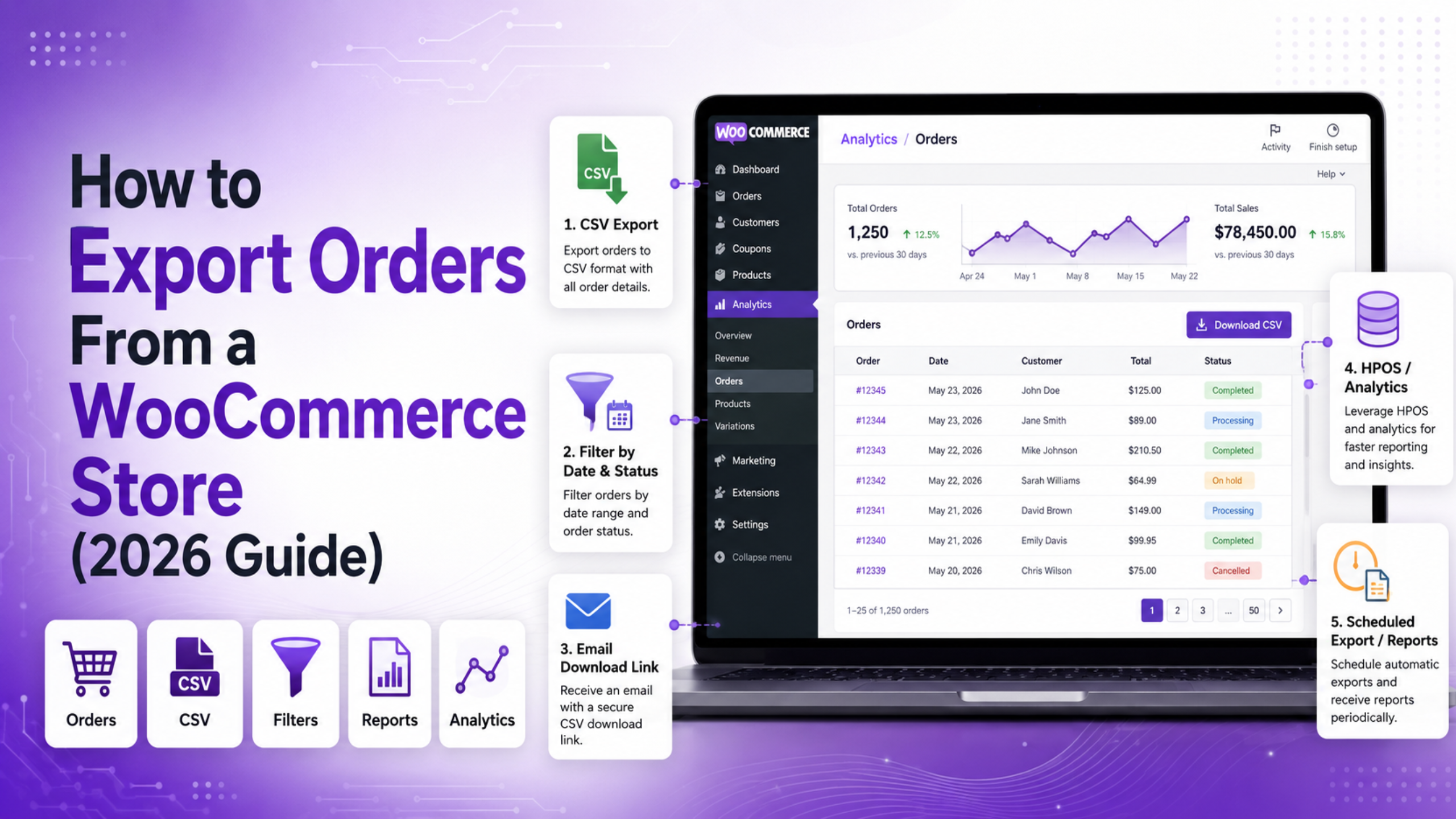
Store owners who try to export WooCommerce orders usually hit one of four walls. The download never starts. The file arrives but rows are missing. The WordPress export tool hands back an empty file. Or the totals do not match the store. Each wall has its own cause. Fix the wrong one and you lose an afternoon. This 2026 guide shows you how to tell them apart in about two minutes. Then it walks you through the fix that matches your store.
Start With the Symptom, Not the Fix
Most guides open with a long list of steps. That wastes your time. Order exports fail in four distinct ways. Match your symptom first, then jump to that section.
Nothing downloads. You click Download and the screen just sits there. Nothing lands in your downloads folder. This is normal for larger date ranges. Your file is being built in the background and mailed to you.
The file arrives, but rows are missing. You know there were 90 orders last month. The file holds 61. This is almost never a bug. It is a filter you did not know was on.
The file is completely empty. You used the WordPress export screen, not the store report. That screen reads the wrong database table on modern stores.
The numbers look wrong. Your report data is cached. It may also be keyed to a date field you did not expect.
Write down which line matches you. One of these four covers nearly every case. The sections below follow the same order.
How to Export WooCommerce Orders From the Analytics Report
WooCommerce ships with a working order export. You do not need to add anything. It lives inside the reports, which is why so many people miss it.
Go to Analytics > Orders in your WordPress admin menu. This is a separate top-level menu from WooCommerce. Set your date range with the picker at the top. You get presets such as Today, Last Week and Last Month. Pick the Custom tab if you need exact dates.
Now scroll to the table below the chart. Look at the top right corner of that table header. There is a Download link. Click it.
What happens next depends on size. If every row fits on one screen, the file saves straight away. If the data runs to more than one page, WooCommerce builds it in the background instead. It then emails you a link. That email goes to the address on your own WordPress user profile. It does not go to the store admin email.
The default page size is 25 rows. So any export above 25 orders takes the email route. That single number explains most “my export never downloaded” reports.
You can raise the rows per page in the table footer. Set it higher than your order count and the file downloads on the spot. That trick is handy for a quick check of forty or fifty orders. It is a poor idea for a full year, because the browser has to hold the whole report.
The same Download link sits on every Analytics report. Revenue, Products, Coupons and Taxes each export the same way. Learn it once and you can pull any of them.
Why Your Order Export Is Missing Rows
A short file is the most common complaint. It has three usual causes, and all three are settings.
Some order statuses are hidden by default
Go to Analytics > Settings and look at Excluded Statuses. Out of the box, WooCommerce leaves out Pending payment, Cancelled and Failed orders. Those orders exist in your store. They simply never reach the report, so they never reach your file. Uncheck a status to bring it back in. Do this before you download, not after.
This matters most for tax work and fraud reviews. It matters less for revenue reports. If you are chasing orders that stalled before payment, our guide to errors preventing order completion covers why they pile up.
The report uses Date paid, not Date created
Still on Analytics > Settings, find Date type. The default is Date paid. An order placed on 30 June and paid on 1 July lands in July, not June. Bank transfer and cheque orders can sit unpaid for weeks. Those orders fall outside your chosen range entirely. Switch to Date created if you need the order date instead.
Pick one setting and stick with it. Half your team exporting by paid date and half by order date is how month-end figures stop agreeing. Note your choice somewhere your bookkeeper can see it.
The report data is out of date
Analytics keeps its own cached tables. On recent versions it refreshes on a schedule, roughly every twelve hours. Very new orders may not be in there yet. Look for the data status line at the top of the report. It shows the last update and gives you an Update now button. Use it, then export again.
Older orders are a different case. If you moved from another platform, or turned reports on late, that history may never have been indexed. Go to Analytics > Settings and scroll to Import historical data. Run it once with the range set to All. Large stores should import a year at a time to spare the server.
Why the WordPress Tools Export Comes Back Empty
Many store owners reach for Tools > Export in WordPress. It offers an Orders option. It produces an XML file. On a modern store, that file is often empty or badly short.
The reason is a storage change. WooCommerce now uses High-Performance Order Storage, known as HPOS. Orders live in their own database tables. They are no longer stored as posts. The WordPress export tool only reads the posts table. So it finds nothing to hand you. This is a known gap, not a broken install.
You have two clean options. The simple one is to stop using that screen and use the Analytics download instead. It reads the correct tables.
The second option suits anyone mid-migration. Go to WooCommerce > Settings > Advanced > Features. There you can switch order storage back to legacy posts, or turn on syncing between both. Syncing copies orders into the posts table as well. The old export tool then sees them. Be careful here. Syncing costs write time on busy stores, so switch it back off when you are done.
If you are unsure which mode your store runs, check WooCommerce > Status. The report names your order storage method near the top.
When the Download Email Never Shows Up
You clicked Download. A notice said the file was being prepared. Nothing landed in your inbox. Work through these in order.
Check the address on Users > Profile first. The link goes to the email on your own account. On sites with several admins, only the person who clicked gets the mail. A shared login with an old address is a common trap.
Next, check your spam folder. The mail carries a download link, so filters are harsh on it. Whitelist your own domain if this keeps happening.
If nothing arrives at all, your site probably cannot send mail. Most hosts block the default PHP mail function. Test this by asking WordPress to send a password reset to yourself. If that does not arrive either, the export is not the problem. Your whole site is silent, which also means customers get no receipts.
One more cause is worth knowing. The file is built by a queued background task. If that queue is stuck, the job never runs. Look at WooCommerce > Status > Scheduled Actions. A long list of pending actions with old dates points at a stalled queue. A real cron trigger on the server fixes this for good.
Make the File Match Your Accounting Records
An export that opens is only half the job. It also has to reconcile. Three habits save hours here.
First, decide what counts as revenue. Completed orders are money you kept. Refunded orders reduce it. Export both statuses in one range so the net figure is right. Exporting only Completed gives you a gross number that never ties out.
Second, be precise about tax. Order totals include tax unless your store is set to show prices without it. If your books need net figures, pull the Taxes report separately for the same range. Mismatched tax settings cause most reconciliation gaps. Our notes on tax misconfiguration issues in WooCommerce explain the usual setup errors.
Third, watch how the file opens. A CSV is plain text. Spreadsheet software often guesses badly at it. Long order numbers turn into scientific notation. Leading zeros vanish. Dates flip between day-first and month-first formats. The safe route is to import rather than double-click. Use the import option in your spreadsheet tool, then set the encoding to UTF-8 and the delimiter to comma. Accented customer names stay readable that way.
Exporting Before a Store Move or a Backup
A report export is a snapshot for analysis. It is not a backup. This distinction catches people out during migrations.
The Analytics file holds what the report shows. It does not hold every custom field on the order. It skips internal order notes. It skips refund records tied to each line. It does not carry the link between an order and a registered customer account. Restore from that file and you get a spreadsheet, not a working store.
For a real move, take a full database export instead. Ask your host for a database dump, or use the backup tool built into your hosting panel. That captures the order tables intact, along with everything attached to them.
There is a second trap in migrations. Order numbers are not guaranteed to survive. Sequential numbering is often added by a plugin. Move the store without it and numbering can restart. Record your highest order number before the move. Check it afterwards. If you are also rebuilding the front end, our guide to checkout process issues in WooCommerce is worth reading before you go live.
Get Expert Help With Your WooCommerce Store
Order data sits at the centre of every store. When exports go wrong, the fix is rarely a plugin. It is usually a setting three menus away from where you were looking. Excluded statuses hide rows. The date field shifts orders into the wrong month. A stalled queue swallows the file before it is built. None of that is obvious from the screen you are on.
That is where most owners lose time. They try tool after tool when the store was fine all along. Working through the four symptoms above in order will save you that trip.
If your store still will not hand over clean order data, we can look at it for you. Our team works on WooCommerce every day. We check your storage mode, your report settings, your mail delivery and your scheduled tasks. Then we tell you plainly what broke and what it costs to fix. Payment problems are a common neighbour to this one, so it is worth reviewing why a WooCommerce payment gateway is not showing as well. Visit WP Customify to get started with expert WooCommerce support today.