
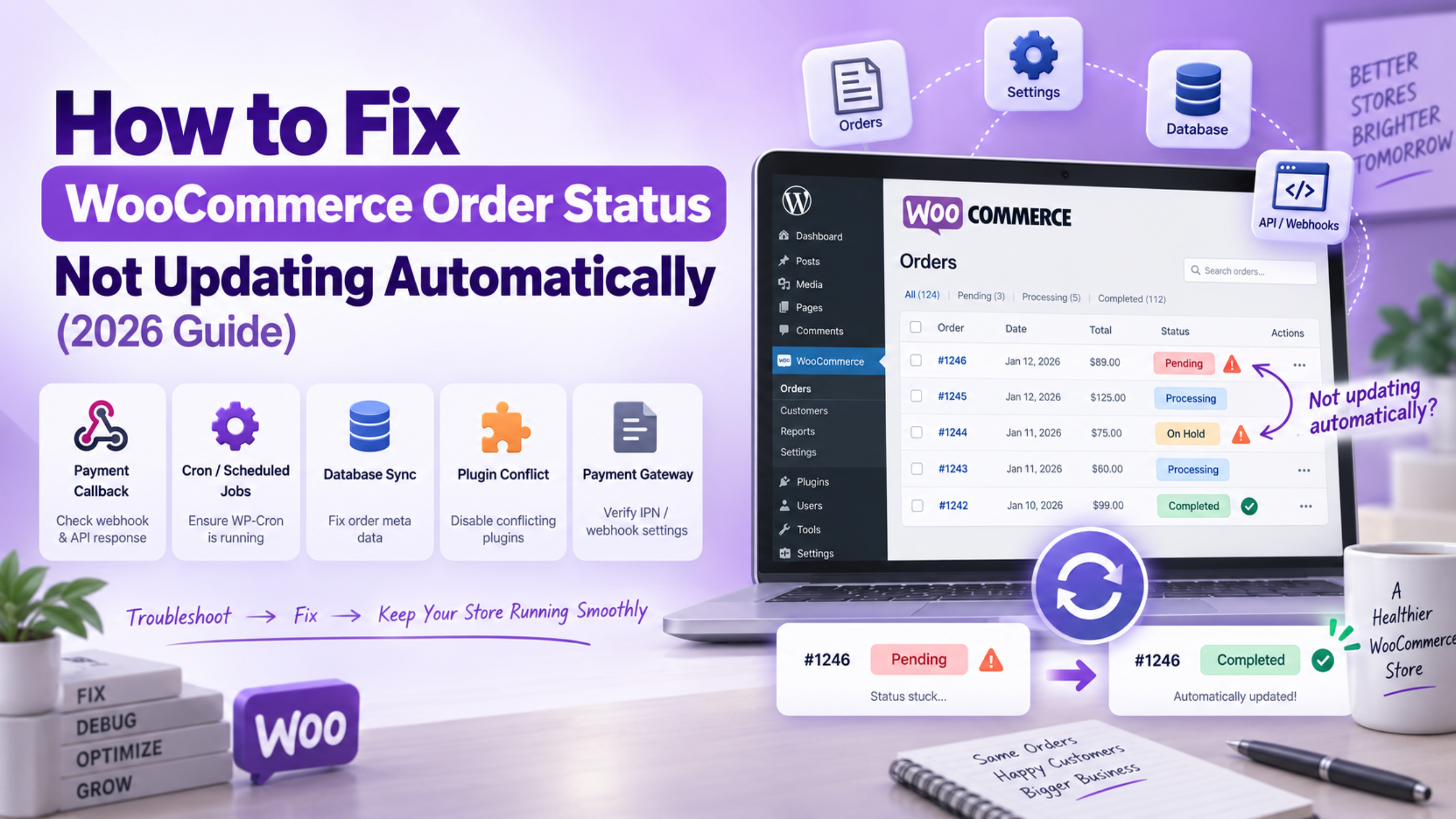
What Is the WooCommerce Order Status Not Updating Automatically Issue?
WooCommerce order status not updating automatically is a common issue faced by many online store owners. It happens when a customer completes payment, but the order status does not change correctly. The order may remain stuck on Pending payment even after successful payment confirmation.
Normally, WooCommerce changes order status without manual work. A customer places an order and completes payment through a payment gateway. The gateway then sends a message back to your website. WooCommerce uses this information to update the order status.
For example, a successful payment usually changes an order from Pending payment to Processing. After the order is shipped, it can move to Completed. This automatic flow helps store owners manage orders without checking every payment manually.
When the system fails, orders can stop moving between statuses. A paid order may still appear unpaid in the dashboard. This creates confusion because the payment has already been received. However, WooCommerce does not know that the transaction was completed.
The main reason behind this problem is communication between different systems. WooCommerce depends on payment gateways, webhooks, and scheduled tasks. These systems work together to keep order updates running smoothly.
A webhook is a message sent from the payment gateway to your website. It tells WooCommerce that payment has been completed. If this message fails, the order status may not update automatically.
WooCommerce also uses WordPress Cron and Action Scheduler for background tasks. These tools handle delayed actions and automatic processes. If they stop working, some order updates may remain pending for a long time.
How WooCommerce Automatically Updates Order Status
Understanding the order update process makes troubleshooting easier. Every WooCommerce order follows a specific status flow. The process starts when a customer creates an order and selects a payment method.
After payment confirmation, the payment gateway sends details to WooCommerce. The website checks the information and changes the order status. This happens within seconds when everything works properly.
Different order statuses represent different stages of the buying process. Pending payment means payment has not been confirmed yet. Processing means payment is received and the order needs fulfilment.
A problem occurs when one part of this process stops working. The payment gateway may send the message incorrectly. The website may block the request. A scheduled task may also fail to complete the update.
Finding the exact cause is important before making changes. A correct diagnosis prevents unnecessary fixes and protects your store operations. In the next sections, we will explore the common causes and solutions for this issue.
What Causes WooCommerce Order Status Not Updating Automatically?
Understanding the cause is the first step toward fixing the issue. WooCommerce order status not updating automatically usually happens because one part of the payment process stops working. Several systems work together behind the scenes to update orders correctly.
The most common cause is a problem with the payment gateway webhook. A webhook sends payment information from the gateway to your WooCommerce website. If this message does not reach your website, the order status stays unchanged.
A blocked webhook can happen because of security plugins, firewall rules, or server settings. Sometimes, a website migration also creates problems. The webhook may still point to an old staging website instead of the live store.
An SSL certificate issue can also stop communication between systems. Payment providers require secure connections before sending payment details. If your website security certificate has expired, updates may fail.
Problems With WP-Cron and Action Scheduler
WooCommerce depends on background tasks for many automatic actions. WordPress Cron helps run these tasks at scheduled times. However, WP-Cron does not use a real server clock.
Instead, it runs when someone visits the website. Low-traffic stores may experience delays because scheduled tasks wait for visitors. Cache systems can also prevent these tasks from running properly.
WooCommerce uses Action Scheduler to manage many background activities. These activities include payment updates, emails, and order changes. If scheduled actions become stuck, the order update process can stop.
A large number of failed or pending actions often indicates a queue problem. Checking scheduled actions regularly helps identify these issues early. You can also learn more about improving WooCommerce performance through resources available on WP Customify.
Plugin Conflicts and Server Limitations
Another reason for WooCommerce order status issues is plugin conflict. Some plugins connect with payments, inventory, or checkout features. A small conflict can change how orders are processed.
Security plugins may block important requests without showing clear warnings. Payment plugins may also create unexpected status changes. Testing plugins one by one helps find the source of the problem.
Server limitations can create similar problems. Low PHP memory, slow hosting, or short execution limits may stop tasks halfway. When a process fails during an update, WooCommerce cannot complete the status change.
Impact of WooCommerce Order Status Problems
A broken order status flow affects daily store operations. Paid orders may remain hidden as unpaid orders. This can delay shipping and create customer frustration.
Order emails also depend on status changes. If the order does not update, confirmation emails may not send. Customers may think their payment failed and contact support.
Incorrect statuses can also affect reports and inventory. Sales numbers may become inaccurate. Stock levels may not match actual customer purchases. Fixing the root cause helps maintain a reliable WooCommerce store.
How to Identify WooCommerce Order Status Not Updating Automatically
Before applying any solution, you need proper diagnosis. Finding the exact reason behind WooCommerce order status not updating automatically saves time and prevents unnecessary changes. WooCommerce provides useful tools that help identify where the problem starts.
The first place to check is the order notes section. Open any affected order from your WooCommerce dashboard. These notes record important actions, including payment confirmations and automatic status changes.
If the order note shows payment confirmation, the gateway communication worked correctly. The issue may exist with a plugin, theme, or order status rule. If no payment note appears, the gateway message probably never reached your website.
Delayed order notes usually indicate a scheduling problem. The payment information arrived, but WooCommerce processed it later than expected. This often points toward WP-Cron or Action Scheduler issues.
Check WooCommerce Scheduled Actions
WooCommerce Scheduled Actions provide details about background tasks. You can find them under WooCommerce settings and check their current status. Failed or stuck actions can explain why automatic updates are not working.
Look for actions marked as failed or in progress. A large number of unfinished tasks may show that your website queue is blocked. Clearing these tasks can help restore normal background processes.
You should also review WordPress Site Health information. It can show warnings related to cron jobs, server settings, or website configuration. These warnings often provide useful clues during troubleshooting.
Review Payment Gateway Logs
Payment gateway logs help confirm whether your website receives payment information correctly. Enable logging from your payment gateway settings before testing a new order.
Create a small test order and complete the payment process. Then check the WooCommerce logs for new entries. If there is no record, the payment request may be blocked.
Testing payments carefully helps protect your live store. You can also explore more WooCommerce troubleshooting resources on WP Customify for related store issues.
How to Fix WooCommerce Order Status Not Updating Automatically
After identifying the cause, start with the safest solutions first. Always create a backup before making technical changes. A staging website is recommended for testing important updates.
One common fix is improving the way scheduled tasks run. WordPress Cron depends on website visitors, which may delay automatic actions. Setting up a real server cron job provides more reliable task execution.
You can disable the default cron system and configure your hosting cron settings. This allows scheduled WooCommerce tasks to run at regular intervals. It helps prevent delayed order updates.
Another important step is checking Action Scheduler problems. Remove old failed actions and restart blocked tasks carefully. This allows new order processes to continue normally.
If the issue continues, check payment gateway webhook settings. Confirm that the webhook URL is correct and uses your live website address. A wrong callback address can stop payment updates completely.
Advanced Fixes for WooCommerce Order Status Not Updating Automatically
If basic fixes do not solve the problem, deeper checks are required. WooCommerce order status not updating automatically can sometimes come from hidden conflicts. Careful testing helps locate the exact cause.
Start by checking security plugins and server firewall settings. These tools protect your website from harmful requests. However, they can sometimes block valid payment gateway connections.
Temporarily disable security features and test a new order. If the status updates correctly, a security rule may be blocking communication. You can then adjust settings without removing protection.
Plugin conflicts are another common reason for order problems. Payment plugins, checkout tools, and inventory extensions can affect order updates. Disable plugins one at a time to find the conflict.
Testing with a default WooCommerce theme can also help. Some themes include custom code that changes order behavior. A clean theme test shows whether the theme causes the issue.
Server resources should also be reviewed carefully. Low PHP memory or slow server responses can interrupt automatic tasks. Increasing available resources can improve WooCommerce stability.
How to Prevent WooCommerce Order Status Issues in Future
Preventing problems is easier than fixing broken orders later. A few regular checks can keep your store workflow reliable. Good maintenance helps avoid unexpected order delays.
Keep a real server cron job active for your website. Reliable cron execution helps WooCommerce complete scheduled tasks on time. It reduces delays caused by inactive background processes.
Review WooCommerce Scheduled Actions regularly. Check failed tasks before they become larger problems. Early checks help maintain smooth order processing.
Always test payments after major website changes. Updates to WooCommerce, payment plugins, or hosting can affect order flow. A simple test order can reveal problems quickly.
Regularly compare payment gateway records with WooCommerce orders. This helps identify missing updates before customers notice issues. Order checks also improve store accuracy.
Using a staging website before changes is another smart practice. It allows safe testing without affecting real customers. You can test updates before applying them to your live store.
Keep WooCommerce, WordPress, plugins, and PHP versions updated. Older software may create compatibility problems over time. Regular updates improve security and overall performance.
You can find more WooCommerce management tips and troubleshooting guides on WP Customify. These resources help store owners handle common website challenges.
Conclusion
WooCommerce order status not updating automatically usually happens because communication fails somewhere. The issue may involve payment webhooks, scheduled tasks, plugins, or server settings.
The best approach starts with proper diagnosis. Check order notes, scheduled actions, and payment logs first. These areas usually reveal where the problem begins.
Once you find the cause, apply the correct solution carefully. Fixing cron tasks, webhooks, and conflicts restores normal order updates. Regular monitoring also prevents future issues.
A reliable order system keeps customers informed and your store organized. With proper maintenance, WooCommerce can handle payments and updates smoothly.