
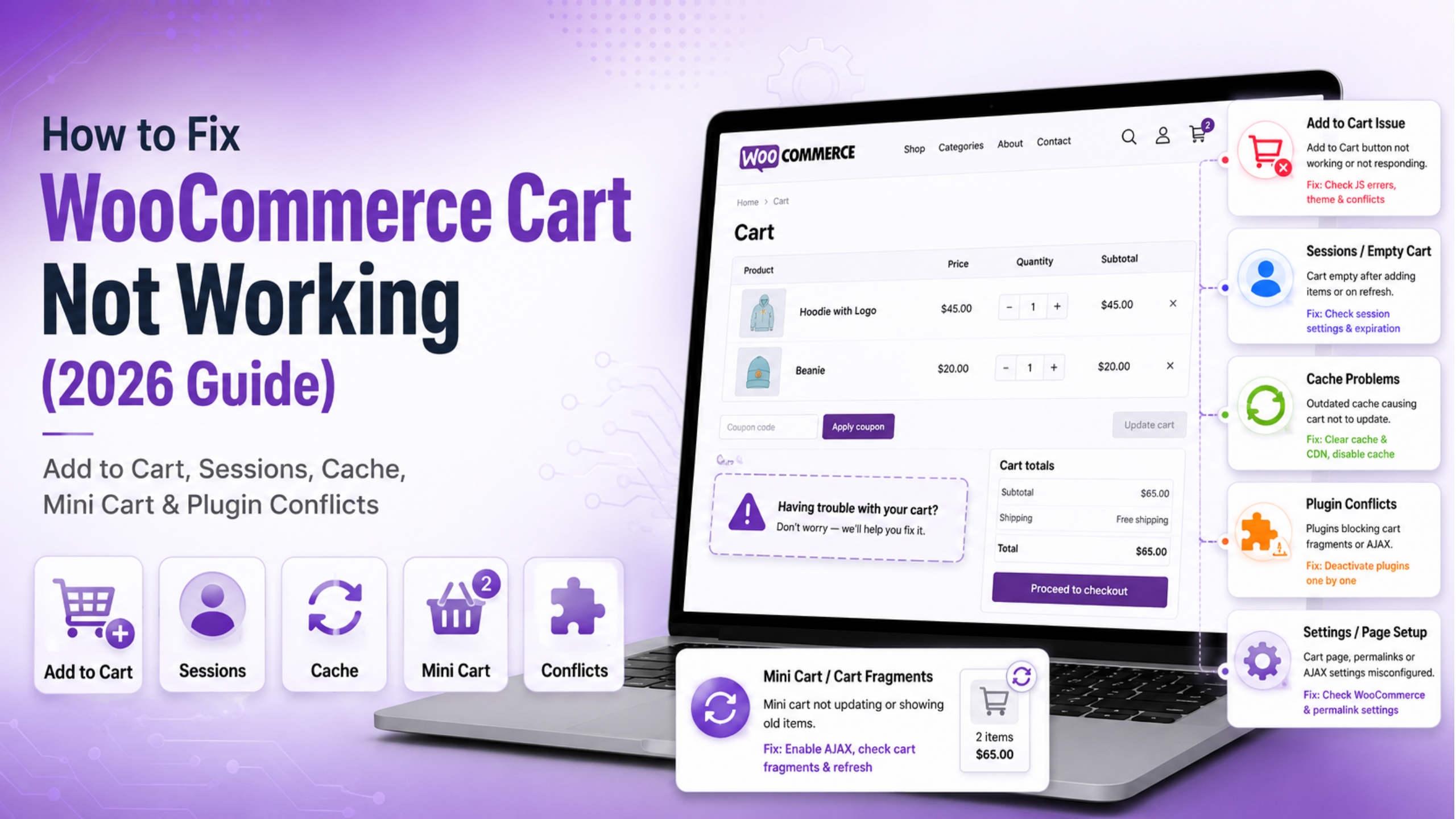
WooCommerce cart not working covers five different faults, and the fix depends entirely on which one you have. Items may refuse to add. The cart may empty itself between pages. Quantities may not update. The cart page may load blank. Or the mini cart may show a stale number while the real cart is fine. Naming your symptom first saves hours, because a fix for one of these cannot touch the others.
Which Cart Symptom Do You Actually Have?
Run this test before changing anything. Log out and open the store in a private window. Then add one simple product to the cart and watch carefully.
Nothing happens on click. The button spins forever, or does nothing at all. Your problem is the add to cart request. Skip to the button section.
The item adds, then disappears. The counter goes to 1, but the cart page says “Your cart is currently empty”. This is a session or caching fault, not a product fault.
The cart page loads blank. No table, no totals, no empty-cart message either. That is a page setup problem, and it is the fastest of the five to fix.
Quantities will not change. You type 3, click update, and it stays at 1. The cart works; the update request does not.
Only the header number is wrong. The cart page is correct but the mini cart disagrees. That is a caching problem confined to one fragment of the page.
Write down which one you saw. Then test a second product. If a simple product works and a variable one does not, the fault is in the product configuration rather than the store.
WooCommerce Cart Not Working Because the Page Is Missing
Handle this first, because it is quick and it explains a blank cart page completely.
Go to WooCommerce > Settings > Advanced. Look at the Cart page dropdown. It must name a published page. If it is empty, or points at a page in the trash, shoppers get nothing. Set it and click Save changes.
Now open that page in the editor. It needs either the Cart block or the [woocommerce_cart] shortcode. A page with neither renders as an empty white area, which looks like a serious bug but is not.
Watch for duplicates. Sites often end up with two cart pages after a redesign, and WooCommerce only honours the one named in settings. Shoppers who reach the other page see an empty cart no matter what they added. Check Pages > All Pages and search for “cart”.
Check the checkout page in the same screen while you are there. A broken cart and a broken checkout usually arrive together, since both are page assignments in the same place. Our guide to checkout process issues in WooCommerce covers the checkout half in detail.
Fix Add to Cart Buttons That Do Nothing
Now the page exists but the button will not work. Read what the button does before you touch settings.
If you see “Please choose product options before adding this product to your cart.”, the product is variable and no variation is selected. Check that every attribute is set to Used for variations, and that each combination has a price. A variation without a price cannot be purchased, and the button silently refuses.
If you see “Sorry, this product cannot be purchased.”, the product itself is the problem. It has no price, or its status is not Published, or its stock status is out of stock.
If you see “You cannot add another item to your cart.”, the product has Sold individually ticked under Product data > Inventory.
If there is no message at all, open your browser console and reload. The button uses an AJAX request on shop and category pages. A JavaScript error from any script on the page stops it firing. The error often comes from something unrelated, which is why this one is hard to trace.
One setting worth knowing: WooCommerce > Settings > Products controls whether AJAX add to cart is enabled on archives. Turning it off makes the button reload the page instead. That is a useful diagnostic, because a button that works without AJAX confirms a JavaScript fault.
Fix a Cart That Empties Itself
Items add correctly, then vanish. The cart is stored against a session, and the session is being lost.
Page caching is the usual cause. Cart, checkout and my account pages must never be served from cache. Most caching layers exclude them by default, but a renamed cart URL slips past those default rules. Confirm the exclusions match the actual page slugs your store uses.
Cookies are the second cause. WooCommerce sets a cookie to link the visitor to their session. Say your site answers on both www and non-www. A cookie set on one address is invisible on the other, so the cart looks empty. Check Settings > General in WordPress. The site address and home address must match exactly. Then force one canonical version of the URL.
Object caching is the third. WooCommerce keeps sessions in the database. An aggressive object cache, or a cleanup job that trims those rows early, drops carts at random. The tell is that it affects some shoppers and not others.
There is a useful reset at WooCommerce > Status > Tools. The Clear customer sessions tool wipes stored sessions. Use it on staging first, since it logs shoppers out and empties every live cart.
Fix Quantities and Totals That Will Not Update
The cart holds its items but refuses to change them. This is a form submission problem rather than a session problem.
Check that the update button is actually enabled. On the classic cart, the Update cart button stays greyed out until you change a quantity field. Shoppers who type a number and press Enter often miss it entirely.
Then check the quantity limits on the product. Under Product data > Inventory, a stock quantity of 2 caps the field at 2. Typing 5 silently reverts to 2, which reads as “the cart will not update” to a customer. If you see “Sorry, we do not have enough items in stock”, that is exactly what happened.
Security plugins and firewalls are the other frequent cause. The cart update posts to a WooCommerce endpoint, and rules that block unusual requests sometimes block it too. The symptom is a page that reloads with no change and no error. Check your firewall log at the moment you clicked update.
Nonce expiry produces the same silence. A cart page left open for hours carries a stale security token, so the update is rejected. Reload the page and try again before assuming anything is broken.
Fix a Mini Cart Showing the Wrong Number
Here the cart page is right and the header is wrong. Only the fragment is stale.
WooCommerce refreshes the mini cart with a separate background request called cart fragments. It runs after the page loads and rewrites the counter. When that request fails or is blocked, the header keeps whatever number the cached page contained.
Test it directly. Add an item, then hard refresh the page. If the number corrects itself on refresh, fragments are not running. If it stays wrong even after a refresh, the whole page is cached and you are back to the caching section above.
Two things commonly block fragments. Some performance plugins disable them deliberately, because the request runs on every page and costs speed. That trade is reasonable on a brochure site and harmful on a shop. Check your optimisation settings for anything naming cart fragments.
A content delivery network can also cache the response. The fragments request must always be dynamic. If your network caches it, every visitor receives the first shopper’s cart count, which is both wrong and a privacy problem worth fixing quickly.
If the counter is slow rather than wrong, that is a performance question instead. Our post on slow checkout loading times covers the same request path.
Rule Out Plugin and Theme Conflicts Safely
Save this for last. The checks above solve most cart faults, and this one carries real risk.
Work on a staging copy. Deactivating plugins on a shop that is taking orders will cost you money, and cart bugs are hard to reproduce once you have disrupted live sessions.
Deactivate everything except WooCommerce, then test the cart. If it works, reactivate in batches rather than one at a time. Halving the list finds the culprit in a few rounds instead of twenty. Then switch to a default WordPress theme and repeat.
Pay closest attention to anything that changes prices, quantities or the cart display. Discount engines, currency switchers and quantity field plugins all hook the same cart calculations. Two of them adjusting the same total will produce results that look random.
Custom code in your theme deserves the same scrutiny. Snippets pasted into a theme file years ago are a common cause, and they survive plugin testing entirely because they are not plugins.
If a discount is involved in the failure, check the coupon rules separately. Our guide to WooCommerce coupons not working at checkout walks through those rejections.
Confirm the Fix as a Real Shopper
Do not trust a cart that works in your admin session. Prove it the way a customer would meet it.
Log out and use a private window. Admin accounts skip some stock and visibility rules, so a cart can behave for you and fail for everyone else. This is the single most common reason a fix gets called done too early.
Clear every cache layer first. Then add a simple product, refresh the page, and confirm the item is still there. Refreshing is the important part, because that is where a lost session shows itself.
Now change the quantity and click update. Watch the line total and the cart total both move. Then add a second product and check the mini cart number in the header matches the cart page.
Test a variable product too. Pick a variation, add it, and confirm the correct option is listed in the cart. Variable products fail in ways simple ones never do.
Finally, walk through to checkout and place a test order. A cart that survives to a completed order is fixed. One that only survives to the cart page is not.
Get Your Cart Working Again
A broken cart is the most expensive fault a store can have. Every other problem still lets someone buy. This one stops the sale at the exact moment a shopper decided to spend money, and almost nobody emails to tell you about it. They simply leave.
That is also what makes it hard to catch. Carts often fail for guests but not for logged in admins, or on one browser but not another, or only when a cache is warm. If you cannot reproduce it yourself, you are not looking at a settings problem you can click your way out of.
WP Customify works on WooCommerce stores every day. We repair add to cart buttons that do nothing, stop carts emptying between pages, fix stale mini carts, and sort out the caching and session rules underneath them. You get a cart that holds what your customer put in it. Visit WP Customify and tell us what your shoppers are seeing. We will find the cause and fix it properly.