
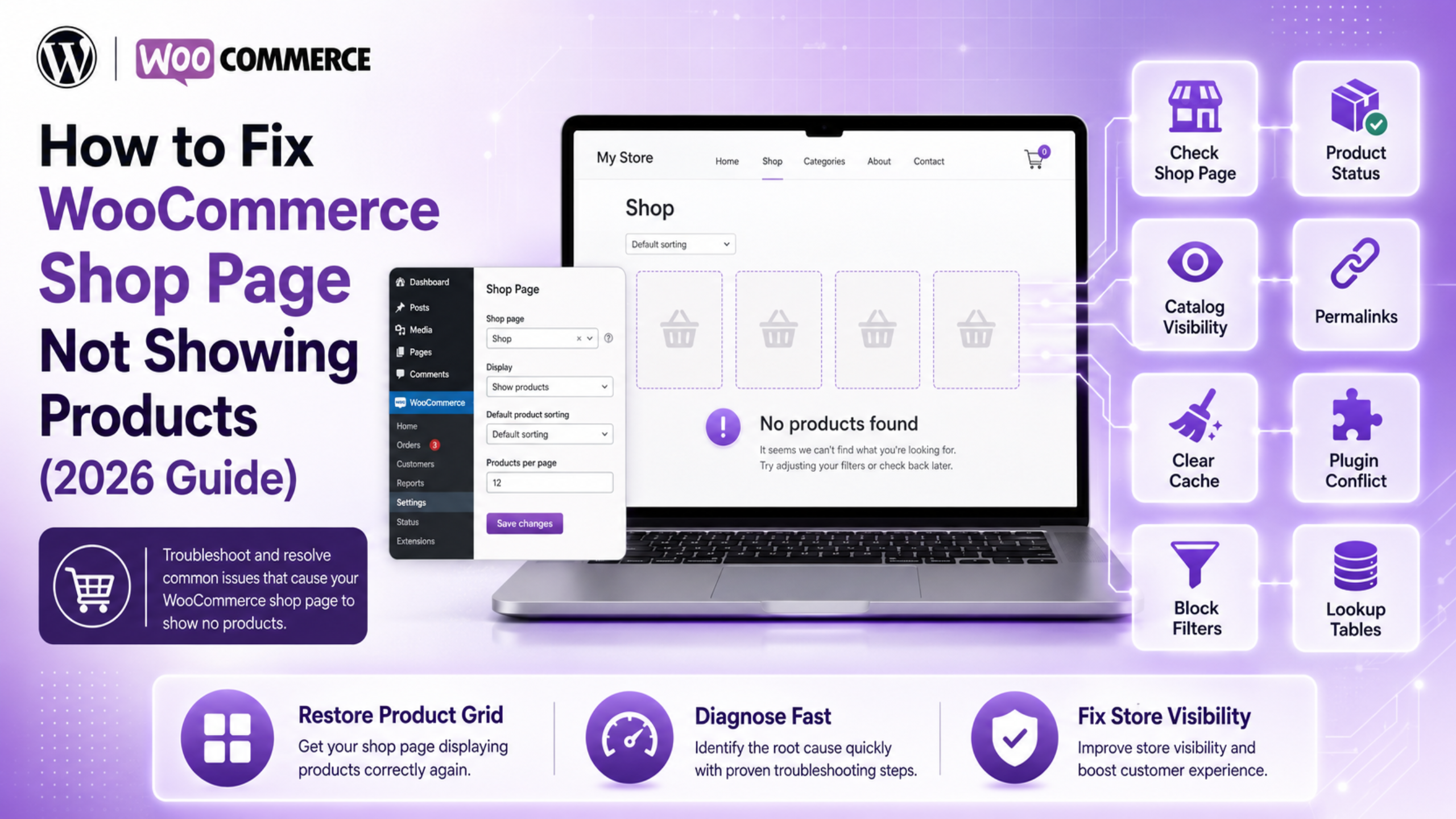
A blank shop page is a scary sight. Your products sit safely in the admin area. Yet the shop page shows nothing at all. Every minute it stays empty, you lose sales. The good news is simple. This problem almost always has one small cause. Most store owners fix it in under ten minutes.
This guide covers every common reason for a WooCommerce shop page not showing products. We start with the fast checks. Then we move to the deeper ones. Work through the steps in order. Reload your shop page after each step. That way you learn exactly what fixed it.
Why Your WooCommerce Shop Page Is Not Showing Products
A WooCommerce shop page not showing products is a symptom, not a fault on its own. WooCommerce builds that page from a database query. If anything blocks that query, the page loads but stays bare. The layout still appears. The product grid does not. Some stores show the message no products were found matching your selection where the grid should be. Others load a completely empty space.
There are seven usual causes. The shop page setting points at the wrong page. Your products are drafts instead of published items. Catalog visibility is set to hidden. Permalinks are stale after a move or an update. A cache is serving an old copy of the page. A plugin or theme is filtering the query. Or the product lookup tables have fallen out of sync, which more often distorts sorting and filtering than empties the page completely.
Notice what is missing from that list. Losing your products is very rare. The data is almost always safe in the database. Something is simply stopping it from reaching the screen. You are hunting a blocked query, not lost data.
One more tip before you start. Open your shop page in a private browser window. Logged-in admins often see a different version of a page. A private window shows you what real shoppers see.
Step 1: Check the Shop Page Setting in WooCommerce
In our support work this is the first thing worth checking. WooCommerce needs to know which page is your shop. If that link is empty or wrong, the page renders as a plain, blank page.
Go to WooCommerce → Settings → Products → General. Look at the field marked Shop page. It should name your real shop page. If the box is blank, pick the right page from the dropdown. Then click Save changes at the bottom.
What to do if the shop page is missing
Sometimes the page itself was deleted. Check Pages → Trash first. If it sits there, restore it. If it is gone for good, create a new page called Shop. Leave the content area empty. WooCommerce fills the page for you. Then point the setting at that new page and save.
Now reload your shop page. If products appear, you are done. If the page still looks bare, move to the next step. Do not undo this change. A correct shop page setting matters for the rest of the fixes too.
Step 2: Fix Product Status and Catalog Visibility
Two settings explain most cases of WooCommerce products not showing on the front end. WooCommerce hides products that are not published, and products marked as hidden. Both are easy to miss because they look fine in the admin list.
Open Products → All Products. Look at the counts along the top of the screen. You will see links such as All, Published, Draft and Trash. If the Published count is zero, that is your answer. Your items are drafts or pending review. Tick the boxes next to them. Choose Edit from the Bulk actions menu and click Apply. Set the status to Published and update.
Check catalog visibility on each product
Catalog visibility is a separate setting. A product can be published and still stay hidden. Open any product for editing. In the Publish box on the right, find Catalog visibility. Click Edit next to it. Choose Shop and search results. Click OK, then Update the product.
You can fix many products at once. Select them on the All Products screen. Use Bulk actions, then Edit. A Catalog visibility dropdown appears in the panel. Set it to Catalog & search and click Update. If you have deliberately hidden items in the past, our guide on how to hide products in WooCommerce explains each visibility option in detail.
Step 3: Reset Permalinks and Clear Every Cache
WordPress stores its URL rules in the database. Those rules can break after a site move, a plugin update or a core update. When they break, the shop page loads the wrong template. The result is a page with no products.
The fix takes ten seconds and is completely safe. Go to Settings → Permalinks. Do not change anything. Just click Save Changes. That single click rebuilds all the rewrite rules. Now reload the shop page.
Clear your caches in the right order
Caching is the second half of this step. A cache can keep serving the broken version of your page long after you fix it. Clear them in this order for the best result.
Start with your caching plugin and purge everything. Next, clear your host’s server cache from your hosting panel. Then purge your CDN if you use one. Finally, clear your own browser cache, or just open a private window. Test the shop page after each purge.
Step 4: Find the Plugin or Theme Conflict
If the page is still empty, something is filtering the product query. A WooCommerce plugin conflict is the likely culprit, and your theme is the next suspect. Conflict testing sounds risky, but it is safe when you do it properly.
Never test on a live store during busy hours. Use a staging copy if you have one. If you must test live, pick your quietest hour and work fast.
How to run the conflict test
Deactivate every plugin except WooCommerce. Reload the shop page. If products appear, a plugin is the cause. Now switch them back on one at a time. Check the shop page after each one. The plugin that breaks the page is your answer.
If the page is still empty with only WooCommerce active, the theme is next. Switch to a default WordPress theme for a moment. Reload the shop page again. If products appear, your theme is filtering them out. Switch back to your own theme right after the test. Then contact the theme author with what you found.
Keep a note as you go. Write down each plugin name and what the shop page looked like after it.
Common conflict sources to check first
Some plugin types cause this far more often than others. Product filter and search tools rewrite the main query. Membership and role-based pricing tools can hide products from certain visitors. Multi-currency and regional tools sometimes hide items with no price in the active currency. Import tools can leave products in a half-finished state. Start your testing with these groups and you will usually find the cause quickly.
Recently updated plugins deserve a look too. Check your update history and note anything changed in the last week. That is often where the fault began. If one plugin turns out to be the cause, roll it back to the older version first. Then report the bug so the author can fix it properly.
Step 5: Fix Block Theme and Product Collection Issues
Block themes changed how the shop page works. With a block theme, the shop page is a template, not a classic page. WooCommerce fills it using the Product Collection block. That block has its own filters, and those filters can empty your grid.
Go to Appearance → Editor → Templates. Open the template named Product Catalog. Click on the product grid to select the block. Now open the settings panel on the right.
Check the block filters
Look at the Filters section. Common traps include a stock status filter set to In stock, a category filter pointing at an empty category, and an attribute filter with no matches. Remove any filter you do not need. Save the template and reload the shop page.
Watch the “Products per page” value too. A very high number can time out on a large catalog. Set it to 12 or 16 and test again. If the message reads “There are no products to display”, the block is working but the filters return nothing. That message is a clue, not a failure. It tells you the fault is in the filters, not in your data.
Step 6: Repair the WooCommerce Product Lookup Tables
WooCommerce keeps copies of key product data in lookup tables. These tables make the shop page load fast. They also break silently. A failed import or an interrupted update can leave them out of sync. When that happens, WooCommerce queries the tables, finds nothing, and shows an empty grid.
Go to WooCommerce → Status → Tools. Find the row called Product lookup tables. Click Regenerate. The button changes to show progress. Do not refresh the page while it runs. Large catalogs can take several minutes.
While you are on this screen, look for Reset product count cache as well. It rebuilds the counts shown against each category and attribute. Run it if your categories list numbers that do not match what the shop page displays.
If the regeneration gets stuck
The job runs through the scheduler in the background. If the scheduler is stalled, the job stalls too. Go to WooCommerce → Status → Scheduled Actions and check the Pending tab. A long queue of old pending actions means your cron is not firing. Ask your host to check the server cron, or trigger it manually.
While you are on the Status screen, open the System status tab. Look for red warnings about database tables. A missing table here explains a lot of odd behaviour across the store, including problems like product pages that will not open.
How to Keep Your Shop Page Working
Fixing the page is only half the job. Keeping it working is the part that saves you time later. A few habits make a real difference.
Update on staging first, never straight on the live store. Test the shop page right after every WooCommerce or theme update. Keep a short list of the plugins that touch products, so conflict testing starts in the right place. Set up simple uptime monitoring on the shop URL itself, not just the home page. A blank page still returns a healthy status code, so monitor the page content, not only the response.
It also helps to know the shortcode fallback. If your template is broken, you can drop the products shortcode onto any page. That gives you a working product grid while you repair the real one. Our guide to WooCommerce shortcodes lists the ones worth keeping to hand. Finally, take a backup before any conflict test.
Get Expert Help With Your WooCommerce Store
A WooCommerce shop page not showing products almost always comes down to one of the six steps above. Work through them in order and you will find the cause. If your WooCommerce shop page is still not working after all six steps, the fault usually sits deeper. A large catalog, heavy customisation or a stack of old plugins can hide the real fault. Broken product queries often sit alongside other store problems, such as issues in the checkout process, and those need a careful look.
If your shop page is still empty, do not keep guessing while sales slip away. Our WooCommerce experts fix these faults every day. We find the cause, repair it safely, and harden your store so it does not happen again. Talk to the WP Customify team today and get your products back in front of buyers.