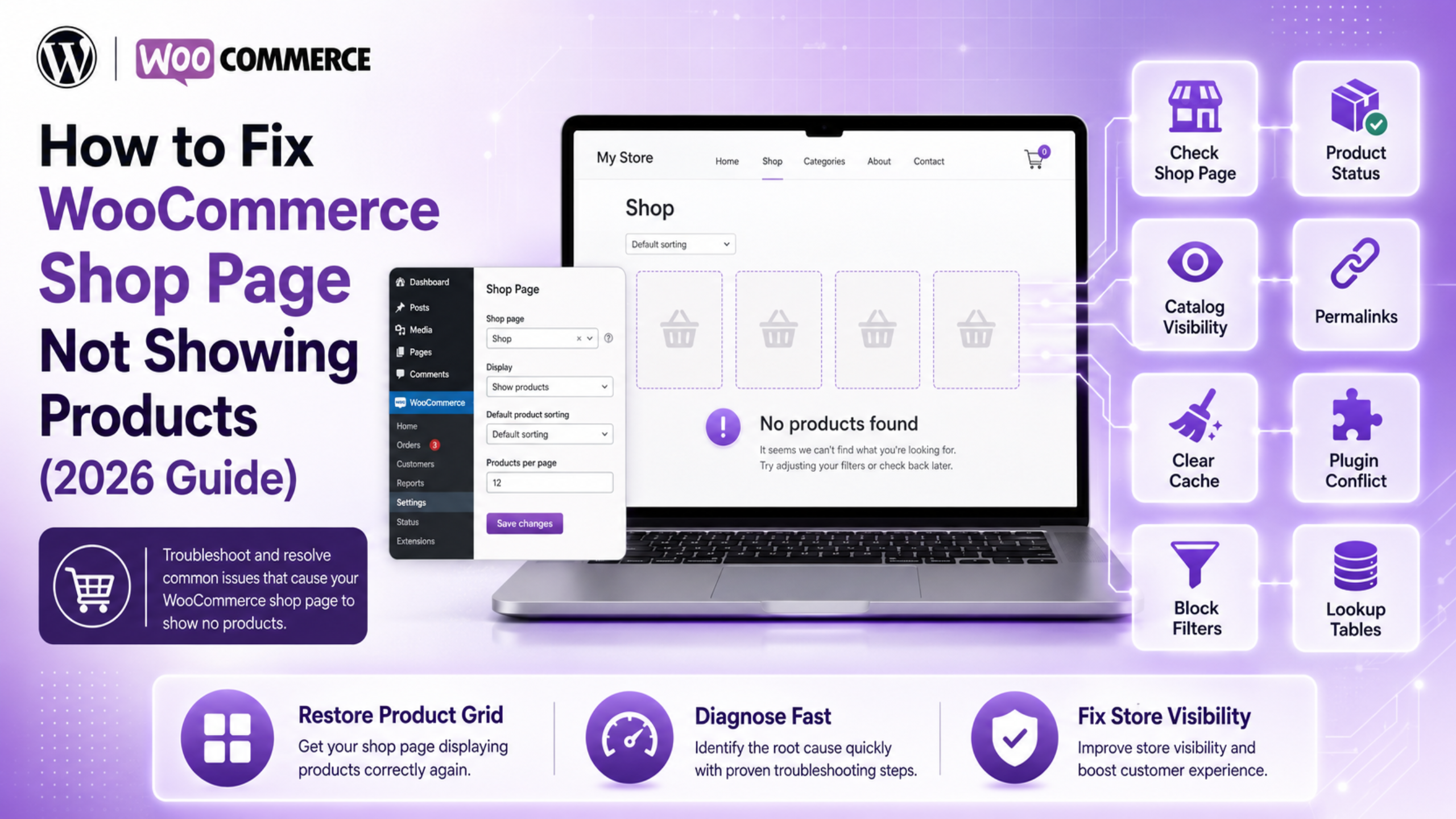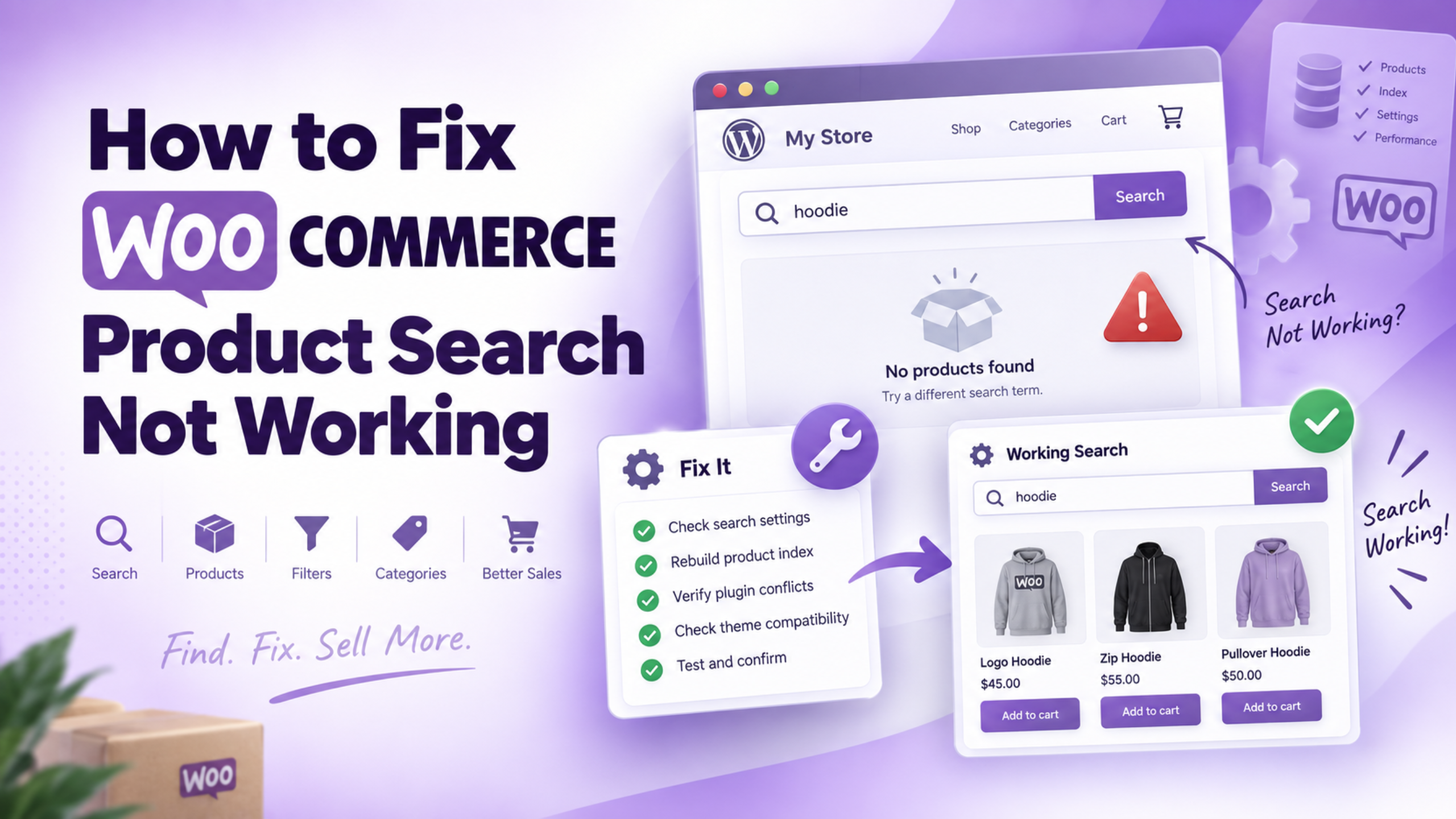
Understanding WooCommerce Product Search Problems
A working product search helps customers find items without extra effort. Shoppers often know what they want before visiting your store. They expect the search box to provide useful results quickly.
However, WooCommerce product search not working can create a frustrating experience. Customers may search for products but find nothing useful. Some searches may even display posts instead of store products. These problems can quickly make shoppers leave your online store.
A reliable search system also supports faster product discovery. Customers can compare products and move toward checkout more easily. Store owners should therefore investigate search problems as soon as possible.
This guide explains common search problems and their possible causes. Later sections will also explain how to fix WooCommerce product search safely.
What Does WooCommerce Product Search Not Working Mean?
A WooCommerce search issue can appear in several different ways. Sometimes the search bar works but displays incorrect results. In other cases, searching returns an empty results page.
You may notice WooCommerce search results not showing products already published. A customer might enter an exact product name without success. Another search may display blog posts instead of matching products.
Some stores face problems only when customers search product SKUs. Others experience WooCommerce search no results for specific categories. Newly published products may also remain missing from search pages.
A WooCommerce product search issue does not always affect every product. One item may appear correctly while another stays completely hidden. This difference often gives useful clues during troubleshooting.
Before changing settings, test several products and search terms. This simple check helps you understand the problem more clearly.
How Does WooCommerce Product Search Work?
WooCommerce works with WordPress to handle basic website searches. WordPress checks stored content when visitors enter a search phrase. WooCommerce helps make products available within those search queries.
Product titles and descriptions can influence standard search results. Product status and catalog visibility are also very important. Hidden or unpublished products may not appear during normal searches.
Themes can also control how the search box behaves. Some themes provide a special search form for WooCommerce stores. Page builders may also include their own product search elements.
Stores sometimes use plugins for faster or smarter searches. These tools may provide live suggestions while customers are typing. They may also support SKU, category, or attribute searches.
Incorrect settings can create problems with these added search features. Store owners using additional extensions should review their WooCommerce plugin integration carefully.
Understanding these parts makes troubleshooting much easier later.
Common Signs of a WooCommerce Product Search Problem
The clearest sign is WooCommerce products not showing in search results. Products may exist normally within your shop or category pages. However, customers cannot locate them through the search bar.
You may also see unrelated products for simple search terms. Search pages might show articles instead of store inventory. Sometimes the page stays blank after submitting a search.
Another common WooCommerce product search problem involves mobile devices. Search may work correctly on desktops but fail on phones. AJAX search can also keep loading without displaying suggestions.
New products may not appear after being published. Search results may also differ between visitors and administrators. These signs often point toward cache, indexing, or visibility problems.
Checking your WooCommerce configuration can help identify incorrect store settings.
Why Does WooCommerce Product Search Stop Working?
There is no single cause behind every WooCommerce search results not working problem. Product visibility settings are often one possible reason. Hidden, private, or draft products usually have limited search visibility.
Plugin conflicts can also change normal search behavior. A search plugin may conflict with your theme or WooCommerce. Cache plugins may continue showing older search results after updates.
Theme files can sometimes change standard WordPress search queries. Custom code may also exclude products from search pages. JavaScript errors can stop live search features from responding correctly.
Database problems may affect product information and lookup data. An outdated search index can also hide newly added products. Server caching and object caching may create similar problems.
Recent WordPress, WooCommerce, theme, or plugin updates can cause conflicts. This does not always mean the update itself is faulty. Another installed tool may simply be incompatible with that change.
Finding the exact cause should come before making major changes. Careful testing protects your store from unnecessary errors and downtime. Once the cause is clear, the WooCommerce search not working problem becomes easier to fix.
Part 2: Diagnose WooCommerce Product Search Not Working
Before changing your website, identify where the search problem begins. A careful diagnosis prevents unnecessary changes to working store settings. It also makes the WooCommerce product search not working problem easier to solve.
Check Whether the Problem Affects All Products
Start by searching for several products within your online store. Use exact product names first, then try partial names. You should also search using categories, tags, and product SKUs.
If only certain products fail, inspect those products first. When all searches fail, the cause may affect the whole store. This test helps narrow down the WooCommerce product search issue quickly.
Check Product Publication Status
Open each missing product inside your WordPress dashboard. Make sure its status is set to Published. Draft, pending, private, or scheduled products may behave differently.
Check this setting when WooCommerce products not showing in search becomes noticeable. Also confirm that recently added products were published correctly.
Check Product Catalog Visibility
WooCommerce lets you control where each product appears. A product can appear within both shop and search results. It can also appear only inside the shop.
Open the product and review its catalog visibility setting. Select “Shop and search results” when appropriate. Incorrect visibility can cause WooCommerce search results not showing products.
You can also review common WooCommerce product display problems when products disappear from customer-facing pages.
Check Stock and Inventory Settings
Inventory settings can also affect which products customers can discover. WooCommerce includes an option for hiding out-of-stock products.
Check WooCommerce inventory settings and each product’s stock status. Variable products also need correct stock values for their variations. These checks can explain some WooCommerce search no results cases.
Check Your Search Setup
Review the search box currently used on your website. Your theme may use WordPress search instead of product search. Page builders can also create custom search forms.
Test the search from your shop page and website header. Different results may point toward a theme configuration problem.
Check Whether SKU Search Works
Search for a product using its exact SKU number. Standard search behavior may not always provide strong SKU matching.
Some search plugins add better SKU search features. Review the plugin settings before changing your product information.
Test for Theme Conflicts
Your active theme can sometimes change WooCommerce search behavior. Test the site safely using a staging environment when possible.
Temporarily use Storefront or another compatible default theme. Test the same search terms again. If searching works, your theme needs closer inspection.
Test for Plugin Conflicts
Plugins can change queries, caching, filters, and product display rules. Disable non-essential plugins temporarily and test search again.
Then activate each plugin separately while repeating your search. This method can identify the source of a WooCommerce search issue.
Similar conflict testing is also useful for other WooCommerce functionality problems.
Check Browser Console Errors
Live product search often depends on JavaScript and AJAX requests. Open your browser developer tools and check the Console section.
Look for red errors after using the search box. Script failures can stop live results from loading correctly.
A proper diagnosis should always come before major website changes. Once you locate the cause, you can fix WooCommerce product search more safely and effectively.
How to Fix WooCommerce Product Search Not Working
Once you identify the cause, you can begin fixing search. Start with simple changes before touching database or code settings. Always create a backup before making major website changes.
Fix Product Visibility Settings
Incorrect visibility often causes WooCommerce products not showing in search. Open the affected product from your WordPress dashboard.
Find the catalog visibility option within the product settings. Choose “Shop and search results” when both should display products. Update the product and test the search again.
This simple change can solve many search visibility problems quickly.
Re-Save the Affected Products
Sometimes product data needs refreshing after updates or changes. Open the missing product and review its main settings.
Click Update without making unnecessary changes to the product. This action can refresh stored product information inside WooCommerce.
Then search for the product using its exact name. Repeat this process for other missing products when necessary.
Update WordPress Permalinks
Broken rewrite rules can sometimes affect search-related website functions. Go to Settings and open the Permalinks page.
Do not change your existing permalink structure without good reason. Simply click “Save Changes” to refresh WordPress rewrite rules.
After saving, test whether the WooCommerce search issue remains.
Clear WooCommerce Transients
WooCommerce stores temporary information to improve website speed. Old temporary data can sometimes cause incorrect product information.
Open WooCommerce Status and visit the available Tools section. Clear expired transients and WooCommerce transients when available.
Then test your search again using several different products.
Regenerate Product Lookup Tables
WooCommerce uses product lookup tables for important product information. Problems with these tables may affect product data handling.
Go to WooCommerce Status and open the Tools section. Find the option for regenerating product lookup tables.
Allow the process to finish before testing product searches again. This can help with certain WooCommerce product search issue cases.
Clear Website Cache
Cached pages can keep showing outdated product search results. Clear your WordPress cache after making search-related changes.
You should also clear browser and server cache. If you use Cloudflare, clear its cache as well.
Object caching tools like Redis may also need refreshing. Cache problems can cause WooCommerce search results not working correctly.
Fix AJAX Product Search Problems
Many stores use AJAX for instant product search suggestions. JavaScript conflicts can stop these results from appearing.
Check whether optimization plugins delay important search scripts. Temporarily disable JavaScript delay and minification for testing.
Also inspect browser errors during live product searches. Failed AJAX requests can explain WooCommerce search no results problems.
Update WooCommerce and WordPress
Outdated software can create compatibility and search problems. Check WordPress, WooCommerce, your theme, and active plugins.
Update each item carefully and test after every change. Use a staging site when testing major updates.
WP Customify also provides useful WordPress and WooCommerce guidance for managing common website issues.
Check Custom Code Conflicts
Custom code can change how WordPress handles search queries. Review functions.php and any code snippet plugins carefully.
Look for code using search filters or pre_get_posts. Disable suspicious snippets temporarily and test product search again.
These steps can help fix WooCommerce product search without unnecessary changes. Test after each fix so you can identify the solution.
Advanced WooCommerce Search Fixes and Prevention
Some search problems continue even after basic fixes are completed. These cases often involve updates, mobile layouts, or large catalogs. Careful testing can help locate the remaining WooCommerce search issue.
Fix WooCommerce Search After an Update
A recent update can sometimes change how search features behave. WooCommerce, WordPress, themes, and plugins must work together correctly.
If the WooCommerce product search not working problem started recently, review updates. Check which plugin or theme was updated before search failed.
Use a staging site when testing older plugin versions. Never downgrade important software without creating a full website backup.
Fix WooCommerce Search on Mobile
Search may work on desktop but fail on smartphones. Mobile headers often use different menus and search elements.
Test the search box on several mobile screen sizes. Check whether buttons, overlays, or menus block the search field.
JavaScript errors can also stop mobile search from loading results. Clear mobile cache and test the search again.
If WooCommerce search results not showing products only happens on mobile, inspect your theme first.
Check Page Builder Search Elements
Page builders can create custom search forms for WooCommerce stores. These forms may use different settings than WordPress search.
Check Elementor, Divi, Gutenberg, or other builder settings carefully. Make sure the search element is configured for products.
A wrong content type can cause WooCommerce search no results unexpectedly.
Improve Search for Large WooCommerce Stores
Large stores need faster and more accurate product discovery. Thousands of products can place extra load on database searches.
Consider using a search tool built for larger catalogs. Features like live search can make product discovery easier.
SKU search, category matching, and attribute search can also help. Typo support is useful when customers misspell product names.
Better search tools can reduce a recurring WooCommerce product search problem.
Prevent WooCommerce Product Search Problems
Regular maintenance helps prevent many search failures. Keep WordPress, WooCommerce, themes, and plugins properly updated.
Test major updates on staging before changing your live store. Review product visibility whenever new products are published.
Clear old caches after making important product changes. Also check search results after theme or plugin updates.
Regular backups give you a safe recovery option. You can find more WordPress and WooCommerce guidance for maintaining your website.
Frequently Asked Questions About WooCommerce Product Search
Why are WooCommerce products not showing in search?
Incorrect product visibility is one common reason for missing products. Draft status, caching, and plugin conflicts can also cause problems. Check whether the product is published and visible in search results.
Why does WooCommerce search show no results?
WooCommerce search no results may appear because of wrong settings. Old cached data can also prevent products from appearing correctly. Search plugin indexing problems may cause the same issue.
Why is WooCommerce product search not finding SKUs?
Standard search may not provide complete SKU search support. Your search plugin or theme can also affect SKU searches. Check the search settings and test using an exact SKU.
Can caching cause WooCommerce search problems?
Yes, old cache can display outdated product search information. Clear WordPress, server, browser, CDN, and object cache. Then test your product search again using several terms.
Why does WooCommerce search work on desktop but not mobile?
Mobile headers may use a different search form or script. JavaScript problems can also stop mobile search from working. Theme layout issues may block the search field or button.
Can a plugin cause WooCommerce product search problems?
Yes, plugins can change product queries and search behavior. Search, caching, filtering, and optimization plugins may create conflicts. Test plugins individually to identify the source of trouble.
How do I fix WooCommerce product search safely?
Start by checking visibility, product status, cache, and plugins. Test your theme and search settings before changing code. Make a full backup before using advanced troubleshooting methods.
How can I improve WooCommerce product search results?
Use clear product titles and accurate product information. Consider SKU search, live suggestions, and category matching features. Better search tools can also improve results for large stores.
Conclusion
A WooCommerce search not working problem can have several causes. Start with simple checks before changing code or database settings.
Review visibility, stock settings, caching, plugins, and theme behavior. Then move toward advanced troubleshooting only when needed.
A reliable search system helps customers find products with less effort. Regular testing also prevents WooCommerce search results not working unexpectedly.
Following these steps can help fix WooCommerce product search safely. It also creates a smoother shopping experience for every customer.