
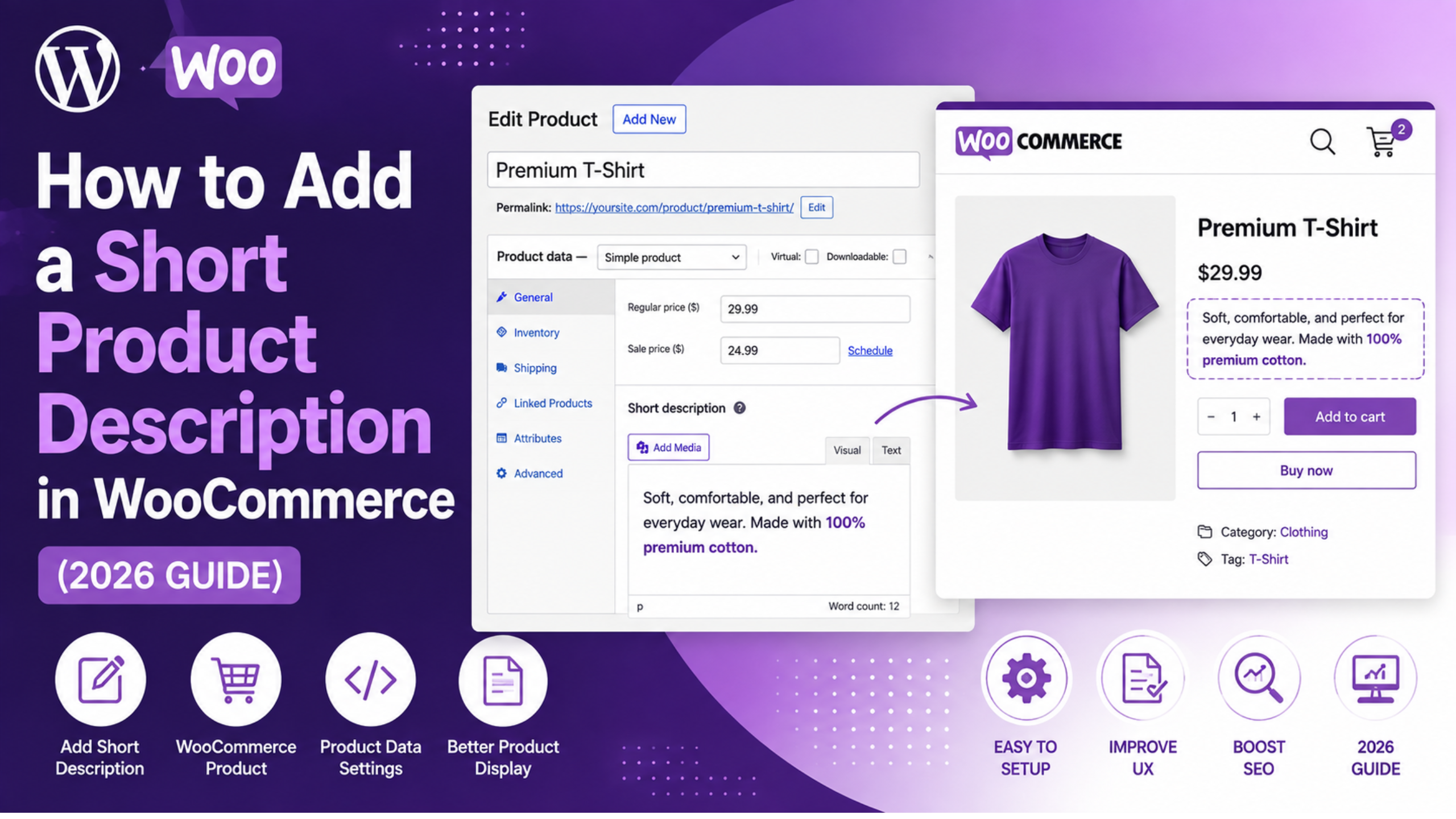
Adding a short product description in WooCommerce takes thirty seconds once you know where the field is. Finding it is the hard part. It hides behind a checkbox on some sites. It moves to a new panel depending on which product editor you run. And on many stores it saves fine, then never shows up on the front end. Owners then hunt through theme settings for a problem that lives elsewhere.
This guide covers all three cases. Where the field lives in each editor. What to write in it. And how to find the exact reason yours is not showing.
First, Identify Which Product Editor Your Store Uses
Everything below turns on this one answer, so settle it first. WooCommerce ships two ways to edit a product. The short description sits in a different place in each.
Open any product for editing. Look at the top of the screen. Do you see a row of tabs marked General, Inventory, Shipping and Linked Products in a box titled “Product data”? That is the classic product editor. It is still the default on most stores.
You may instead see a side menu listing General, Organization, Pricing and Inventory as one long form. That is the newer product editor. It is opt-in. The switch lives under WooCommerce → Settings → Advanced → Features.
One more split matters. Your product template may be classic PHP, or built from blocks. Check Appearance in your admin menu. An Editor item instead of Customize means you run a block theme. Note the answer. It decides which fix below applies to you.
Adding a Short Description in the Classic Product Editor
Go to Products → All Products and open the product you want to edit. Scroll past the main text box and past the “Product data” box. Below both sits a panel titled Product short description, with its own small toolbar.
Type your text there and click Update. That is the whole job. The panel takes basic styling, so bold text, italics and bullet lists all work. Switch to the Text tab in the corner to paste or clean up HTML.
When the Short Description Panel Is Missing Entirely
This is the top reason people think WooCommerce has dropped the feature. It has not. The panel is a standard WordPress box, and those boxes are switched off per user. So a panel one admin can see may be hidden for the next admin on the same site.
Click Screen Options in the top right of the product edit screen. Find Product short description in the list and tick it. The panel shows up at once. The setting is stored against your own account. So a colleague who reports the field missing must tick it in their own login, not yours.
If the checkbox is not in Screen Options at all, something is removing the box. That is nearly always a page builder or a bulk product add-on that replaces the default edit screen. Turn off suspects one at a time. Check Screen Options after each.
Why the Field Is Sometimes Labelled “Excerpt”
Under the hood, this is not a special WooCommerce field at all. It is the standard WordPress post excerpt, stored in the post_excerpt column and simply renamed for products. That fact is worth holding on to, because it explains several odd quirks. Import and export tools often map the data to a column called “excerpt” instead. Custom code that changes excerpts will hit your product text too, whether the author meant it to or not. And any tool that claims excerpt support will work here with no changes at all.
Adding a Short Description in the New Product Editor
In the newer product editor the field sits in the General section. It is marked Summary, not “Short description”. You will find it just below the main Description area. It uses a block-style writing space with a small toolbar for bold, italic and links.
Two quirks here catch people out. First, this field is simpler than the classic panel by design. Complex HTML may be stripped on save. Keep products that rely on tables or custom markup in the classic editor. Second, text edited through the block screen does not always save. The field then reads as empty after a refresh. If your text vanishes, move that product back to the classic editor and use the Product short description panel. The data lands in the same column either way, so mixing the two costs you nothing. Check one saved product on the front end before you write the rest. You will catch this in a minute, not after fifty products.
What to Actually Write in a Short Description
The short description takes the most valuable space on your product page. It sits beside the image, above the fold, under the price and next to the buy button. It is the last text an unsure buyer reads before they decide. Treating it as a cut-down copy of the long text wastes that spot.
How Long It Should Be
Aim for two to four sentences, or 30 to 50 words. Most SEO tools flag text over 50 words as too long for this slot. Under about 150 characters looks thin beside a large product image. There is no hard limit in the code. But themes rarely hold more than a few lines of space. Anything longer pushes the buy button below the fold on a phone. That one result matters more than any word-count rule. So test a long version on a phone before you roll it out across the store.
A Structure That Converts
Open with what the product is and who it suits, in plain words. Follow with the one fact a buyer needs at this stage. That may be a size, a material, a capacity or a fit note. Close with the doubt that most often stops a sale. Often that is fit, delivery time, or whether the item works with what they own. Save the full spec table, care notes and tech detail for the long text below.
Write each one fresh. Copied text creates near-identical pages. This text also feeds marketplace listings, so the copying spreads well beyond your own site. For variants of one base product, change the opening line and the key fact, not just the colour name.
Diagnosing a Short Description That Will Not Display
You saved the text. It is still there after a refresh. The product page shows nothing. Before you change any settings, run this two-minute check. It tells you which of three causes you have.
Open the product page and view the page source in your browser. Search that source for a phrase from your text. Is the phrase in the HTML but not on screen? Then your theme’s CSS is hiding it, and you have a styling bug. Is the phrase missing from the source? Then the template never printed it. Skipping this check is why people spend an afternoon clearing caches for a CSS bug.
The Text Is Missing From the Page Source
On a classic PHP theme the text is printed by woocommerce_template_single_excerpt(). That function hangs off the woocommerce_single_product_summary hook at priority 20. It loads the template file single-product/short-description.php. Two things break that chain. A theme or child theme may have replaced the product template and dropped the call. Or a snippet may run remove_action on that hook, often left over from old custom work.
Switch to a default WordPress theme for a moment and reload the product. If the text appears, the override lives in your theme. If it still does not, the cause is code in a plugin or a snippets tool.
Block Themes and the Product Summary Confusion
Block themes drive a growing share of these reports. In a block-built product template, a block reads the post excerpt and prints it. That block may be set to build an excerpt from the long text on its own, and ignore what you wrote. Or it may cut the text at a fixed word count, mid-sentence.
Open Appearance → Editor and edit the single product template. Click the summary block. Check its settings for an excerpt-length or auto-build option. Set it to show your own text in full. If the block is missing, add it above the buy button.
Formatting Is Stripped but the Text Appears
Do your bullets and bold text print as one flat block? Then something is stripping the tags. The output runs through the woocommerce_short_description filter. SEO plugins and theme code both hook that filter to clean or shorten text. Either can strip markup you wanted to keep. Some block templates treat the excerpt as plain text as well, and drop tags by design. Test on a default theme with other plugins off to find the layer to blame. Then unhook it, or move that styling into the long text instead.
Adding Short Descriptions in Bulk
Editing several hundred products one by one is not real work. The built-in CSV importer is the route for a large store. Export from Products → All Products → Export, open the file, and fill in the Short description column. Import it back through Products → All Products → Import. Tick Update existing products on the import screen. Miss that box and you copy your whole store instead of updating it, which is slow to undo.
Map the column with care at the import step. If the tool leaves Short description unmapped, or ties it to the wrong field, your text lands in the long description and wipes what was there. Run a test import with five products first. Check the result on the front end before you load the full file.
Two warnings apply to any bulk run. Take a backup first, because the importer has no undo. And watch your row count on shared hosting. Large imports can time out part way and leave half the store updated.
Showing Short Descriptions on Shop and Category Pages
By default, WooCommerce prints this text on product pages only. Shop and category pages show the title, price and button. Many owners want a line of copy in the grid too. That helps most in stores where product names alone do not tell items apart.
On a block theme, edit the shop template in Appearance → Editor. Add an excerpt block inside the product template area. Then cap its length so the grid stays even. On a classic theme you hook the output onto an archive hook in your child theme’s functions file. Either way, keep the grid version short. Long text in a grid makes rows of uneven height. That ragged layout costs you more than the extra copy earns. Are products missing from those pages altogether? That is a separate issue, covered in our guide to fixing a WooCommerce shop page that is not showing products.
Mistakes That Quietly Cost You Sales
A few patterns show up again and again in store audits. Pasting maker copy is the worst one. That same text sits on every rival page stocking the item. Search engines then get no reason to pick yours. Repeating the product title wastes the slot, since the title sits right above it. Stuffing the keyword in three times reads badly to the only audience that counts. One natural mention is enough. The rest is noise a buyer has to read past.
Filling the field on some products and leaving it blank on others makes the layout uneven. The gaps read as a broken site, not a choice you made. Remember too that this text does nothing if the product itself is hidden. That is worth checking against our guide to hiding products in WooCommerce. And if the page will not load for buyers at all, start with our article on product pages you cannot view in WooCommerce.
Get Expert Help With Your WooCommerce Store
Short descriptions are small. But they sit at the exact point where a visitor decides to buy. A template fault that hides them across a whole store is easy to miss and costly to leave. The fix is rarely hard once you know which layer is at fault. Finding that layer is where most owners lose a day.
Maybe your text will not show on a block theme. Maybe a bulk import has scrambled your product data and you need it pulled back from a backup. Maybe your store just needs several hundred lines written well. Our WooCommerce team handles all three. We work on live stores without taking them offline. Visit WP Customify to talk to us about a one-off fix or ongoing support. Tell us what your product pages do now, and what you expected. We will name the layer at fault before you spend a thing. In most cases we can do that from your product URL alone.