
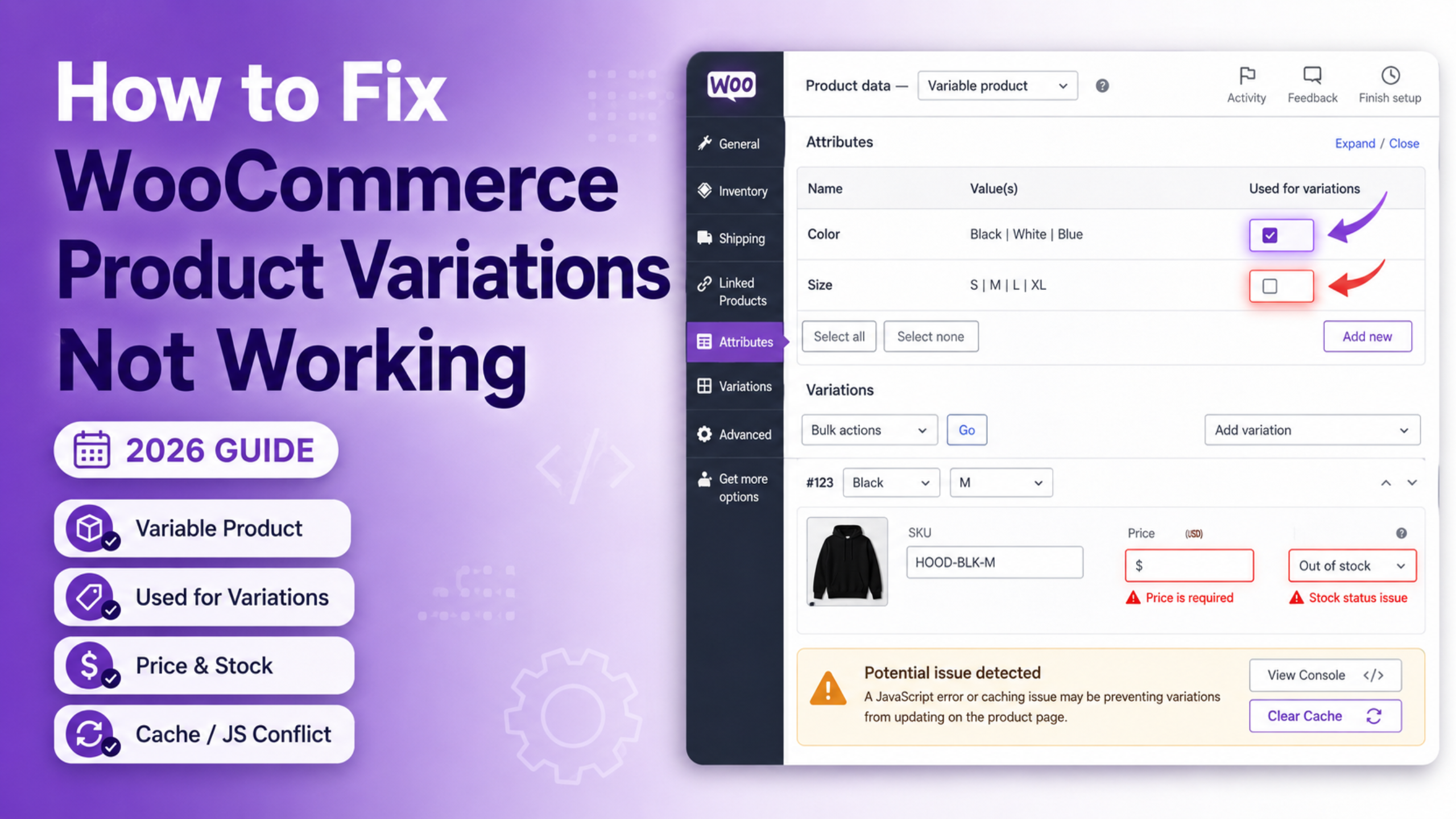
A store with WooCommerce product variations not working loses sales quietly, and the cause is nearly always one of five things. Four are setup mistakes. One is a script conflict. They look identical from the shop page, which is why people fix the wrong one. This 2026 guide starts with a two-minute check. It tells you which fault you have. Then it gives you the exact steps for that fault, and what to try when the obvious fix does nothing.
Run This Two-Minute Check First
Open the product page as a customer would. Use a private browser window. What you see there tells you the cause.
No dropdowns at all. The page shows one plain price and a normal Add to cart button. Your product is not set as a Variable product, or the attribute is not marked for variations.
Dropdowns appear but stay empty. The select boxes are there. They contain nothing to choose. Your attribute has no terms assigned to this product.
Dropdowns work, but no price or button appears. You pick a size and colour. Nothing loads underneath. Your variations have no price set.
You get an error message. Note the exact wording. Two different messages point at two different faults, covered in their own sections below.
Nothing responds at all. The dropdowns are dead. Selecting a value changes nothing on screen. This is a broken script, not a setup problem.
Pick the line that matches. Then read only that section. Skipping this step is how a ten-minute fix turns into a whole morning.
Why WooCommerce Product Variations Are Not Working After Setup
Variations need four separate things to be true. Miss any one and the front end goes quiet. Most stores miss the same one.
Open the product and look at the Product data dropdown. It must read Variable product. Simple product is the default, and it cannot hold variations at all. Change it and the tabs on the left change with it.
Next, open the Attributes tab. Add your attribute, then add its values. Now find the checkbox labelled Used for variations. Tick it. Click Save attributes and wait for the panel to reload. This checkbox is the single most missed step in WooCommerce. Without it the attribute is treated as plain product information. It shows in the description table and does nothing else.
Then open the Variations tab. Attributes alone create nothing. You must generate the combinations. Use Generate variations to build them all, or add them one at a time.
Finally, give every variation a price. This is the fourth condition and the quietest one. A variation without a price is treated as unavailable. It will not appear, and it throws no warning.
Free items trip people up here. Leaving the price box empty does not mean free. Type a zero instead. Then the variation is valid and customers can add it to the cart.
Fix Variations That Never Appear on the Product Page
You saved everything and the dropdowns are still missing. Work through these three checks in order.
Check that the attribute terms are on this product
Global attributes behave differently from custom ones. A global attribute lives at Products > Attributes and holds its own list of terms. Adding the attribute to a product does not add its terms. You have to select them in the Attributes tab, on that product. An attribute with no terms selected renders an empty dropdown or none at all.
Custom attributes work the other way. Their values are typed into the product itself, separated by a vertical bar. They are quick to set up but cannot be filtered or reused. Convert them to global attributes if you plan to grow the catalogue.
Check the variation stock status
Open the Variations tab and expand each row. Look at Stock status. A variation set to Out of stock still shows in the dropdown. It just cannot be bought. If every variation is out of stock, the whole product reads as unavailable. Managed stock is stricter. A variation with a quantity of zero and backorders off behaves the same way.
There is a setting worth knowing here. Under WooCommerce > Settings > Products > Inventory you can hide out of stock items from the catalogue. Turn that on and sold-out variations vanish from the dropdowns rather than showing as unavailable.
Check the product is actually visible
If the product itself is hidden, nothing on it will render. Look at Catalog visibility in the Publish box. Also confirm the product is Published, not draft or private. A scheduled product behaves like a draft until its date arrives, and it gives no warning on the front end. Our guide on how to hide products in WooCommerce explains what each visibility option really does. If whole sections of your catalogue are missing, read our fix for the WooCommerce shop page not showing products instead.
Fix “No Products Matched Your Selection”
The full message reads “Sorry, no products matched your selection. Please choose a different combination.” It means the customer picked a set of options that has no matching variation.
Sometimes that is correct. You may genuinely not stock a red item in extra large. More often it is a gap you did not intend.
Go to the Variations tab and count. Two attributes with four values each need sixteen variations for full coverage. If you built ten, six combinations are dead. Every dead combination shows this message.
There are two ways to close the gaps. Regenerate all combinations, then delete the ones you do not sell. Or use the Any option. Setting an attribute to Any on a variation makes it match every value of that attribute. One variation with Any Colour and size Large covers every colour in Large. This keeps large catalogues manageable.
Watch for a subtler cause. If you edit or rename attributes after building variations, the links break. The variation still exists but points at a value that is gone. Rebuild the variations after any attribute change. This is the most common reason a working product suddenly stops working.
Fix “Please Select Some Product Options”
This message appears on Add to cart. The full text is “Please select some product options before adding this product to your cart.” WooCommerce is saying it did not receive a full selection.
The honest cause is the common one. Your product has two attributes and the customer only chose one. Both must be set. Nothing to fix there.
The frustrating cause is different. The customer did choose everything, and the message still appears. That means the form value did not reach the server. Check the attribute slug first. Go to Products > Attributes and look at the slug column. Accented letters, ampersands, slashes and spaces in a slug can break the form field name. Rename the slug to plain lowercase letters and hyphens. Then rebuild the variations, because the old ones point at the old slug.
Long attribute names cause the same failure. WordPress limits taxonomy names to 32 characters. An attribute name that runs past that limit gets truncated behind the scenes. The form then submits a value the product does not recognise. Keep attribute names short and this never happens.
What Changes Above Thirty Variations
Variation behaviour changes once a product passes a threshold. By default that number is thirty. This surprises store owners who add a size and suddenly find the page acting differently.
Below the threshold, WooCommerce loads every variation into the page. The dropdowns are smart. Choose Red and the sizes you do not stock in red grey out immediately. Customers cannot pick a dead combination.
Above the threshold, that data is too heavy to send. WooCommerce switches to loading each variation on demand instead. The dropdowns now show every value all the time. Nothing greys out. The customer only learns a combination is unavailable after selecting all of it, and then they see the no-match message.
Nothing is broken here. It is a deliberate trade for page speed. If your product has forty variations and you want the smart dropdowns back, a developer can raise the threshold with the woocommerce_ajax_variation_threshold filter. Raise it carefully. Every extra variation adds weight to the page, and slow product pages cost more sales than clumsy dropdowns do. Products with hundreds of variations are usually better split into several simpler products.
Rule Out Cache, Theme and Script Conflicts
If the dropdowns are completely dead, your setup is probably fine. A script is failing before it can run.
Start with the browser console. Right-click the product page, choose Inspect, then open the Console tab. Reload the page. A red error naming a missing file or an undefined function tells you where to look. The variation form depends on a WooCommerce script called add-to-cart-variation. If that file fails to load, every dropdown goes inert.
The usual culprit is optimisation. Combining or minifying JavaScript can reorder files and break dependencies. Deferring scripts can run the variation form before its libraries exist. Turn off JavaScript optimisation for product pages and test again. If that fixes it, add the variation script to your optimiser’s exclusion list.
Caching plugins cause a slower version of the same problem. A page cached before you added variations keeps serving the old markup. Clear every layer. That means the plugin cache, any server cache, and any network cache in front of the site. Then test in a private window.
If the console is clean, do a conflict test. Switch to a default WordPress theme. If variations work, your theme overrides the variation template. If they still fail, disable other plugins one by one. Filter, swatch and speed plugins are the usual suspects. For pages that will not render at all, see our guide on not being able to view WooCommerce product pages.
Get Expert Help With Your WooCommerce Store
Broken variations are expensive in a quiet way. The product page still loads. Nothing looks obviously wrong. Customers simply cannot buy, and most of them leave without telling you. A single unpriced variation can hide a whole product line for weeks.
The good news is that the causes are few and they repeat. An untouched Used for variations checkbox. A variation with no price. A renamed attribute that orphaned its combinations. A minifier that broke one script. Run the two-minute check at the top of this guide and you will land on the right one straight away.
It is also worth tidying the product pages while you are in there. Clear option labels and a good summary reduce the questions that reach your inbox. Our guide on how to add a short product description in WooCommerce covers that part.
If your variations still refuse to behave, we can take a look. Our team fixes WooCommerce stores every day. We check the product setup, the attribute data, your theme templates and your script stack. Then we tell you plainly what is wrong and what it takes to fix it. Visit WP Customify for expert WooCommerce support today.